Apisense Pro AI System User Manual
System overview
Apisense Pro AI is an intelligent bee protection system that combines data from IoT devices with artificial intelligence algorithms. It enables remote monitoring of in-hive conditions, productivity analysis, early threat detection (including diseases) with high accuracy, and supports beekeepers' decisions. With the Apisense app, you manage your apiaries, review measurement data and respond to alerts and in-app messages in one place — on your smartphone or in a browser.
1. Purpose
- Monitoring in-hive conditions — temperature, humidity, pressure, weight and honey gain in real time. Continuous monitoring of environmental parameters allows you to react quickly to unfavorable changes.
- Productivity analysis — tracking honey gain, trends and charts for individual hives lets you assess harvest performance and the condition of the bee colony.
- Early threat detection — in-app alerts and notifications regarding the health of bee colonies (e.g. varroa, nosema, foulbrood) help you make appropriate decisions at an early stage of disease development.
2. Main features
- Dashboard — a summary of apiaries, hives, statuses and key measurements.
- Alerts and notifications — in-app notifications about parameter threshold violations and important events in the apiary.
- Reports and charts — visualization of measurement data in the form of daily, weekly and long-term charts with overlaid trends.
- Data history — archive of notes, inspections and notifications.
- Apiary management — adding and editing apiaries, hives, inspections, notes, as well as adding examinations and registering samples.
- FrameSense — AI-based analysis of a bee comb frame photo, estimating brood, food stores and empty comb coverage.
- Asian hornet observation — report the presence of Asian hornets in the apiary, with a reminder to re-check after a few days.
Registration / Login
The Apisense Pro AI system is available at the following address: Apisense Pro AI and via the Apisense mobile app, which can be downloaded from Google Play and the App Store.
1. Registration
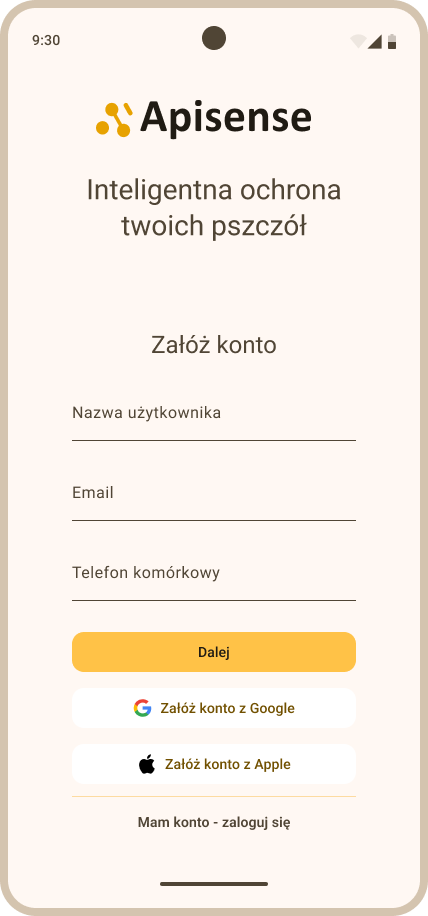
- Download the mobile app and launch it, or go to the following address: Apisense Pro AI. After launching the app, a screen will appear with the option to create an account (Fig. 1).
-
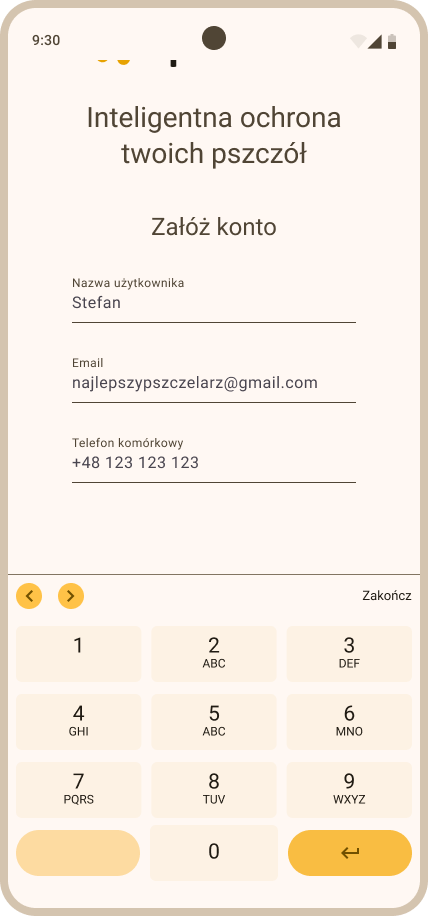
All registration details — the password included — are entered in a single Create account form. There is no separate Create password view. Fill in the designated fields (Fig. 2):
- User name — 3 to 50 characters, no spaces
- Email address
- Mobile phone number
- Password — the one you will then use to log in to the system
- Repeat password — the same password once more
-
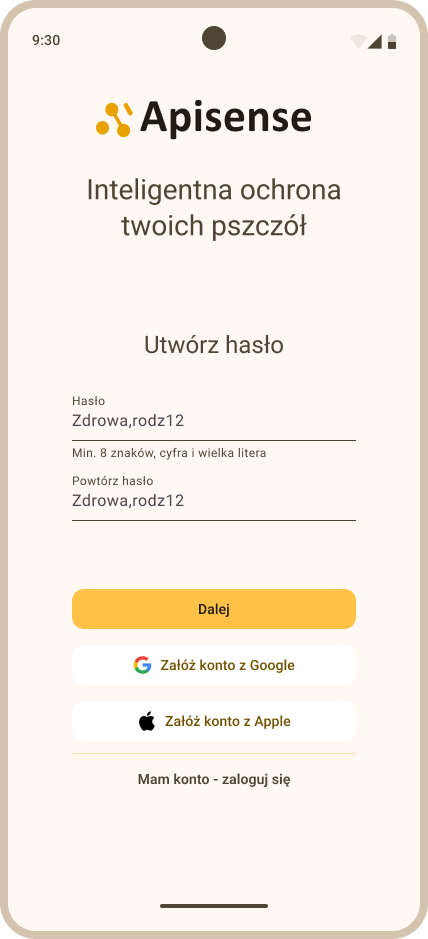
The password must contain:
- At least 8 characters
- At least 1 uppercase letter
- At least 1 digit
- At least 1 special character (e.g. #, $, %, _)
The app repeats the same requirements in the hint below the Password field.
-
The form is longer than the screen — scroll down to reach the password fields, the terms checkbox and the Next button (Fig. 3). Confirm that you have read the terms and conditions and the privacy policy by checking the appropriate box, and then click Next.
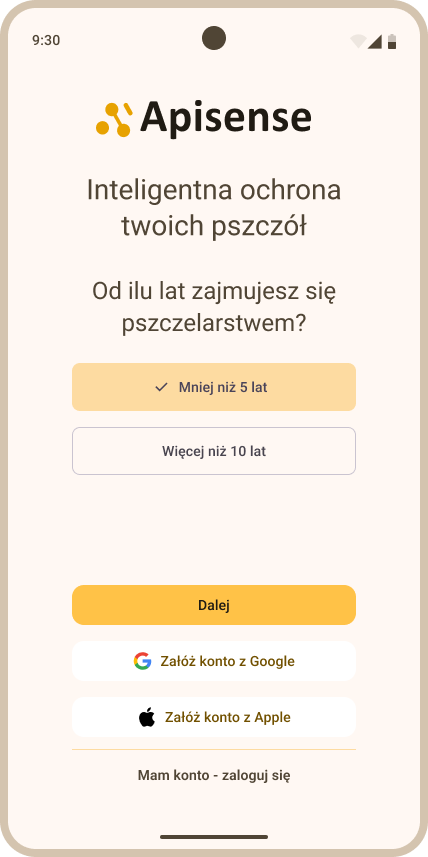
- This is the last stage of registration. In this step, answer the question about how many years you have been beekeeping by selecting one of the two available answers, then click Next (Fig. 4).
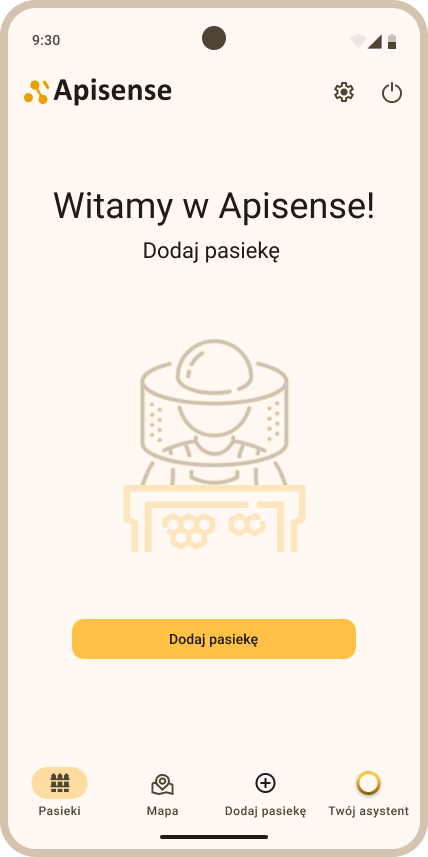
- If everything went smoothly you should see the following start screen - Welcome to Apisense! (Fig. 5):
2. Login
If you already have an account in the Apisense Pro AI System, follow these steps:
-
Launch the Apisense mobile app or go to the following address: Apisense Pro AI.
-
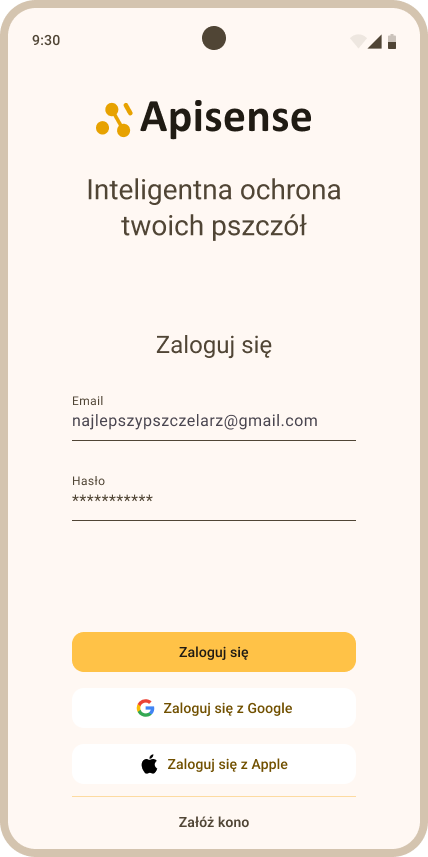
In the Sign in view (Fig. 6), enter the appropriate data into the designated fields, the same data you provided during registration:
- Email or username — you can enter either the username or the email address you provided during registration
- Password
Then click Sign in; you should see the Apisense app start view - the Apiaries tab.
If you have forgotten your password, tap Forgot Password? below the sign-in fields and reset it yourself — see I cannot log in.
Apiary management
1. Apiary
1.1 Adding an apiary
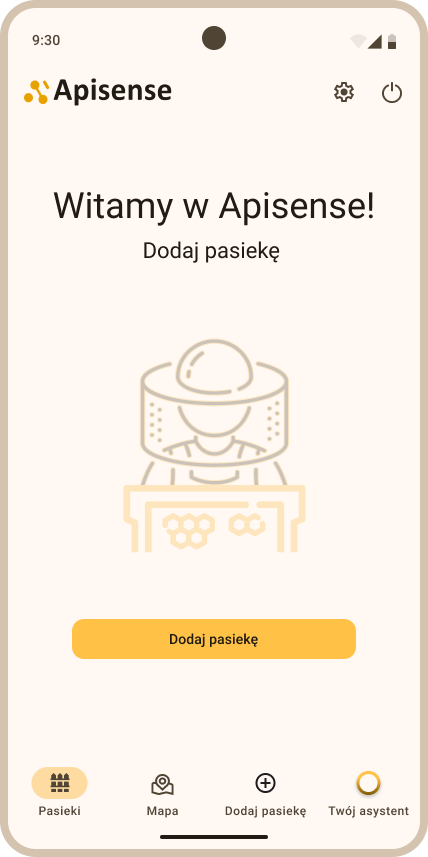
- In the Apiaries tab (the start view after logging in to the Apisense app) click the Add apiary tab in the menu at the bottom of the screen or — if you do not yet have any apiary — the yellow Add apiary button visible in the center of the screen (Fig. 7).
- As a result, the Add apiary view will be displayed (Fig. 8).
Plan limits
How many apiaries and hives you can add depends on your plan. Once you hit the limit, a banner appears above the form — for example You've reached your plan's beehive limit (N). Upgrade to add more. or, during the trial, You've reached the apiary limit for the trial. Adding another item is then blocked until you change plan.
1.1.1 Adding an apiary with devices
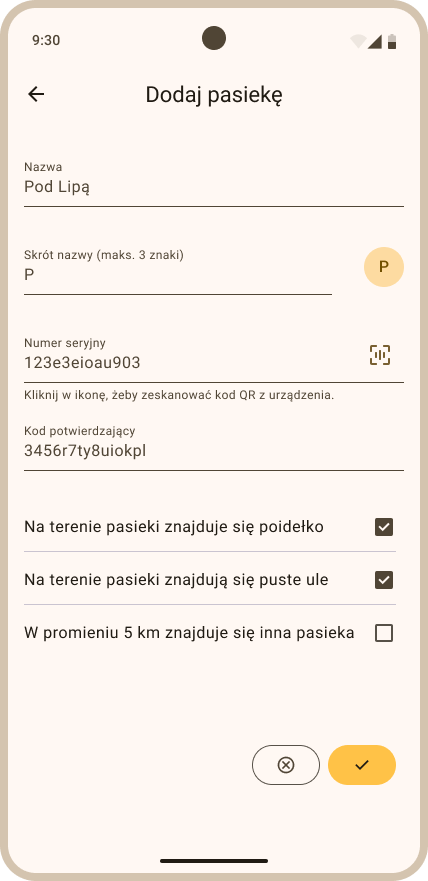
In the Add apiary view (Fig. 8), fill in the following fields:
- Name — the apiary name that will be displayed in the panel,
- With devices — check this option to add an apiary and link it with an Apisense Hub device.
The Name field can be edited by the user at any time.
After filling in the information above, click the yellow button with the arrow in the lower right corner of the screen. You will be taken to the next step of adding the apiary, where you link the Apisense Hub to your apiary. Fill in the following fields:
- Hub — click the QR code icon on the right side of this field and scan the QR code from the sticker on the Apisense Hub device. The next field, Confirmation code, will be filled in automatically.
- Confirmation code — filled in automatically after the QR code is scanned correctly.
This step (Fig. 9) also shows a reference photo of where the QR code sticker sits on the device, and a button that opens the Apisense Hub mounting animation. Both fields (Hub and Confirmation code) are read-only — only a QR scan fills them in.
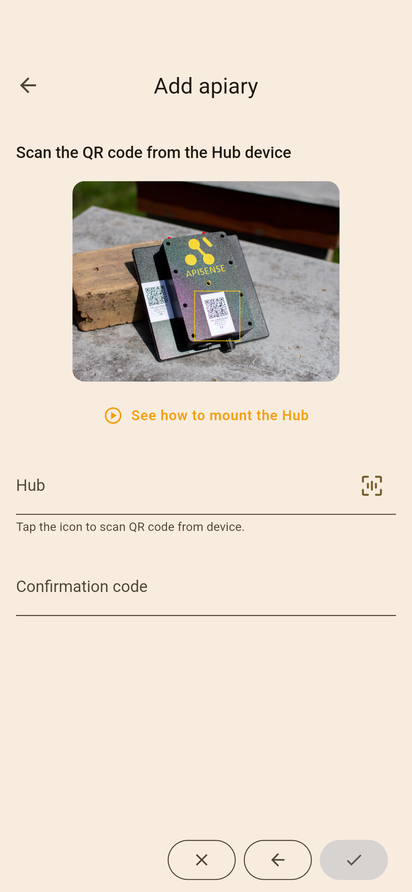
After filling in the required data and scanning the QR code, click the yellow button at the bottom of the screen to confirm creation of the apiary with the linked Apisense Hub device.
If the apiary was created successfully, you will be redirected to its interior (the Hives view), and when you go to the Apiaries tab the apiary you just created will appear on your apiary list.
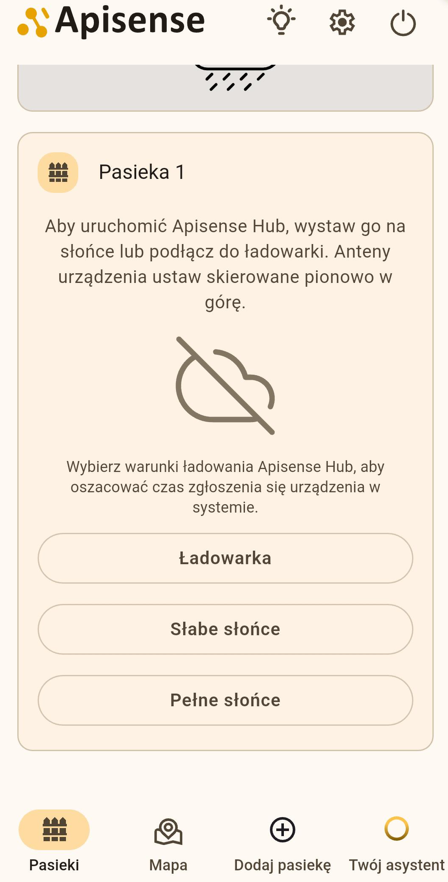
Until the Hub reports to the system for the first time, the apiary tile shows startup instructions and three buttons (Fig. 10) — choose the one that matches your situation:
| Option | Maximum wait time | When to choose |
|---|---|---|
| Charger | about 30 min | The Hub is connected to external power |
| Weak sun | about 24 h | Discharged Hub with weak sunlight |
| Full sun | about 3 h | Hub placed in the sun with favourable sunlight |
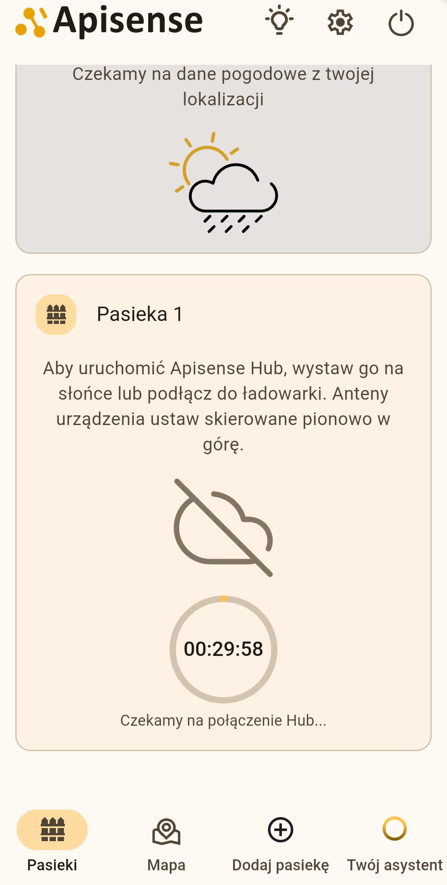
After you select an option, a countdown starts on the tile with the estimated maximum time to wait for the first connection (Fig. 11). This is an estimate, not a guarantee — a discharged Hub without access to light may need more time. If the Hub still does not report when the time elapses, the app will suggest trying again. Details are described in First device startup.
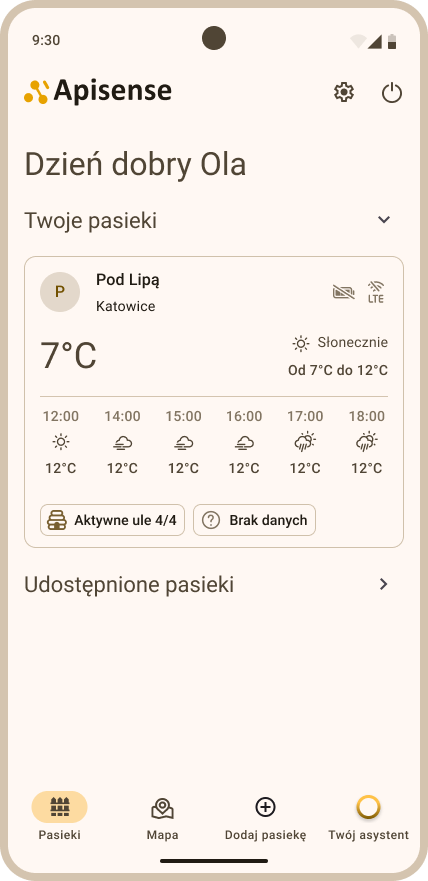
Once the Hub reports for the first time, the apiary tile starts showing the full set of information: the Hub's LTE and battery icons, the time of the last reading and weather data (Fig. 12). To learn more about statuses, go to chapter 7. Interpretation of statuses and icons used in the system.
1.1.2 Adding an apiary without devices
To add an apiary without devices, in the Add apiary view:
- in the Name field, enter the name under which the apiary will be displayed in the app,
- check the Without devices option.
After filling in the information above, click the yellow button at the bottom of the screen to confirm creation of the apiary without devices.
If the apiary was created successfully, you will be redirected to its interior (the Hives view), and when you go to the Apiaries tab the apiary you just created will appear on your apiary list (Fig. 13). The apiary tile will not show Hub battery and LTE icons or weather data — only the apiary name will be displayed.
Note
Apiary without devices: You can create an apiary by providing only the name and selecting Without devices, but an apiary created without a Hub cannot have a Hub assigned later, even when editing apiary settings. Furthermore, if an apiary was created without a Hub, you cannot assign Scale or VitalSensor devices to any hive in that apiary — the Equipment section will not be available when adding hives. You can still add hives without devices and keep records (notes, inspections, tasks).
1.2 Editing an apiary
- In the Apiaries tab (the start view after logging in to the Apisense app), click the tile of the chosen apiary. As a result, the Hives tab will open (Fig. 14).
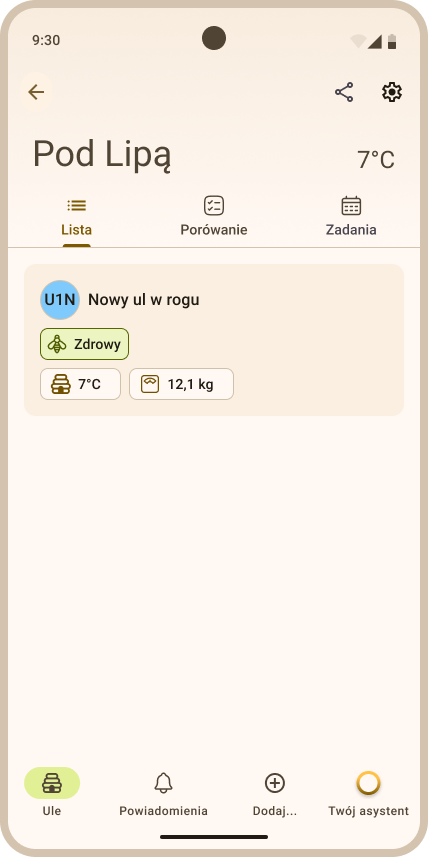
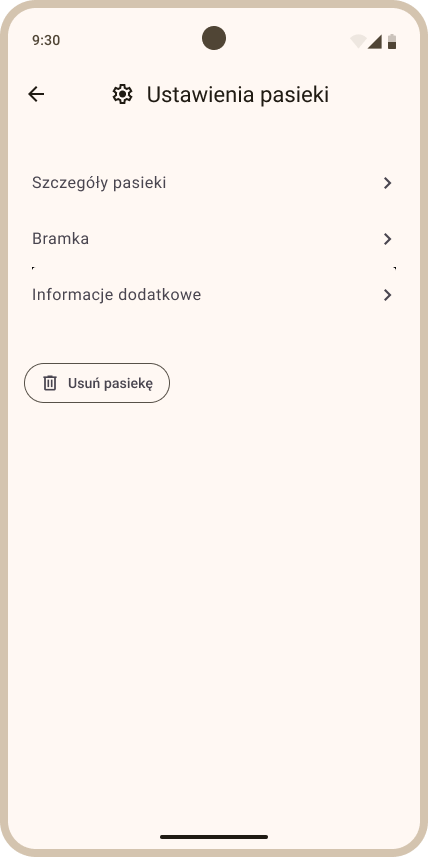
- In the Hives tab click the ⋮ icon in the upper right corner of the screen and choose Settings. As a result, the Apiary settings view will open (Fig. 16).
-
The Apiary settings view is divided into 2 sections. To update the information in a given section, click its header. Available sections:
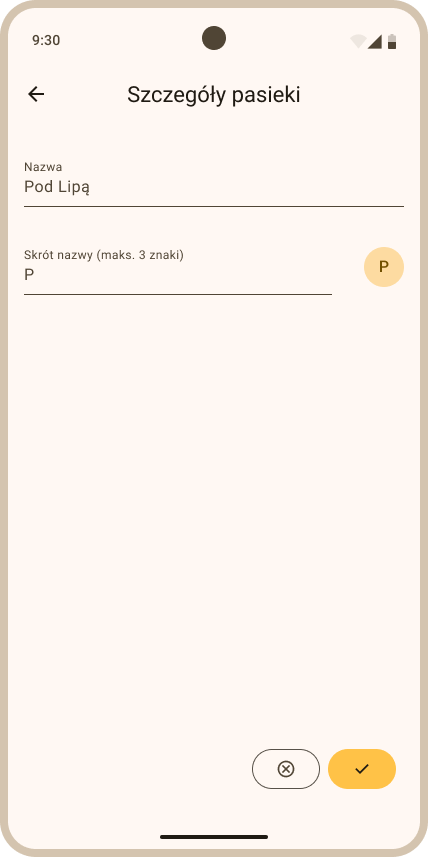
- Apiary details - this section contains a single field: Name. Click it and enter the changes. There is no separate short-name field — the apiary card is marked with a fixed apiary icon, the same for every apiary.
- Hub - this section concerns the Apisense Hub assigned to the apiary. The Hub can be swapped here: tap the QR code icon next to the serial number, scan the code from the new device and save. The remaining information (confirmation code, LTE, battery, last report, hardware and software versions) is read-only.
-
To save your changes, click the ✓ button in the lower right corner of the screen (Fig. 17). The button only becomes active once you change a value; the neighbouring ⊗ button closes the screen without saving.
1.3 Deleting an apiary
- In the Apiaries tab (the start view after logging in to the Apisense app), click the tile of the chosen apiary. As a result, the Hives tab will open (Fig. 18).
- In the Hives tab click the ⋮ icon in the upper right corner of the screen and choose Settings. As a result, the Apiary settings view will open (Fig. 20).
- In the Apiary settings view click the Delete apiary button. As a result, the Delete apiary view will be displayed (Fig. 21), where you must confirm your choice with the Yes, delete button.
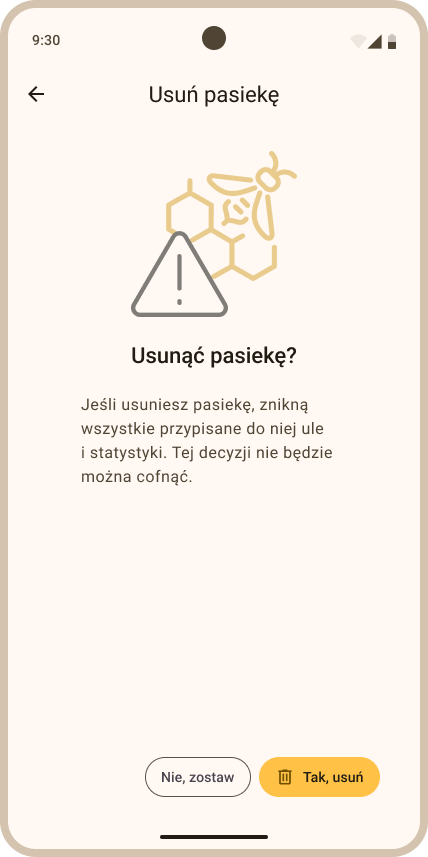
- Together with the deleted apiary, all of its contents (hives, notes, inspections, etc.) are also deleted. Individual devices (Hub, Scale, VitalSensor) are also unlinked and their measurement history is cleared. Therefore, for example, you will be able to use the same Apisense Hub when creating a new apiary.
2. Hive
2.1 Adding a hive
- While in the Apiaries tab (the start view after logging in to the Apisense app (Fig. 22)) click the tile of the apiary to which you want to add a hive. After clicking the tile, the single apiary view will be displayed (Fig. 23).
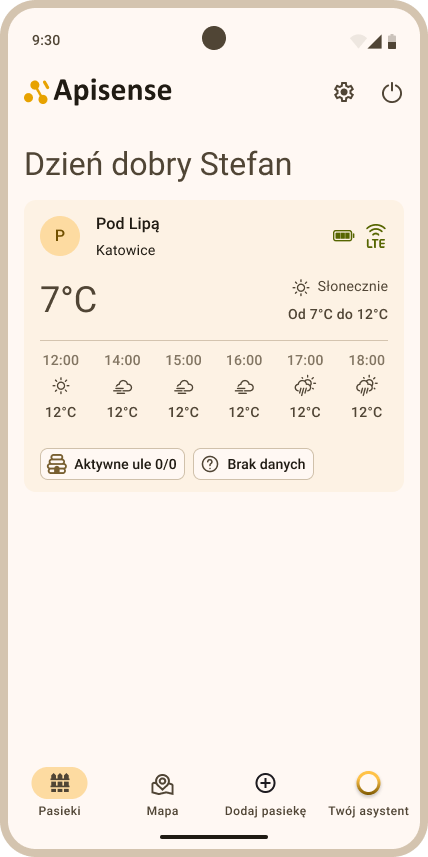
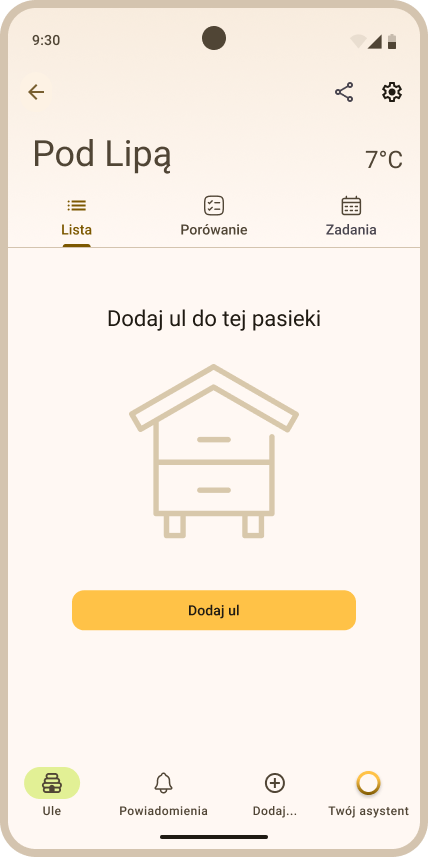
- To add a hive to this apiary click the Add... tab on the bottom menu bar and select the Hive option (Fig. 24); the Add hive view will be displayed (Fig. 24). The menu has three items: Hive, Task and Note; Note stays greyed out until the apiary has at least one hive.
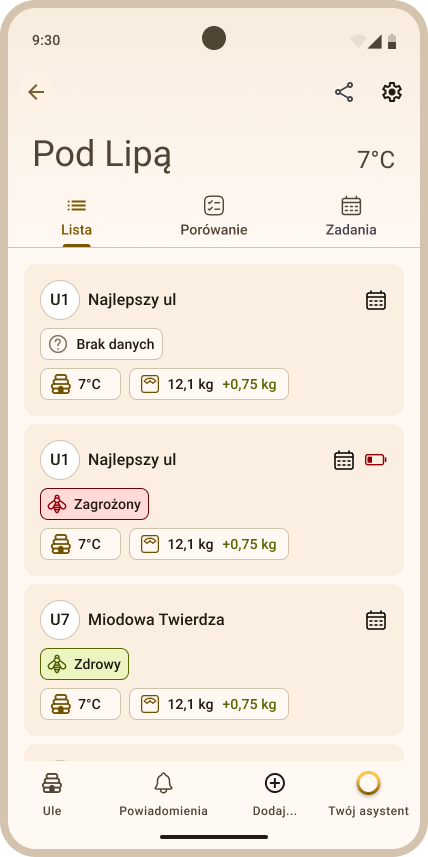
-
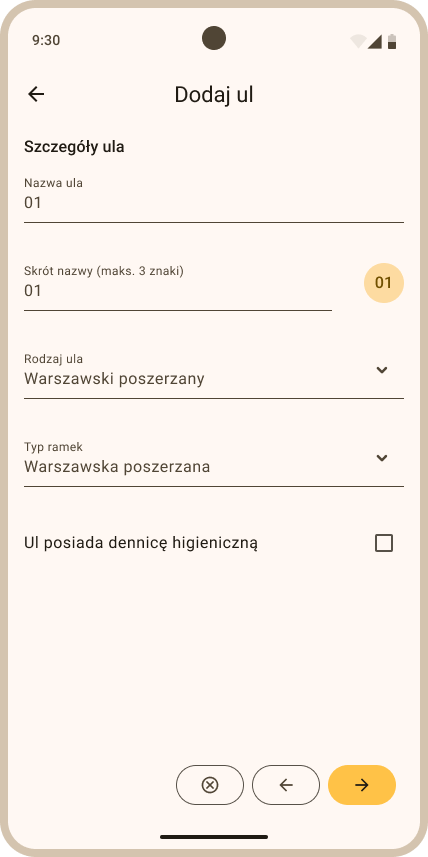
Fill in the individual fields in the Add hive view - the Hive details section (Fig. 25):
- Hive name - enter a name for your hive - the hive will be displayed in the panel under this name.
- Maximum number of frames in the brood box - enter the maximum number of frames that can fit in the hive's brood box.
- Checkbox - check if the hive has a hygienic bottom board.
The information above can be edited by the user at any time.
-
To proceed to the next stage of adding a hive, click the yellow button with the right-pointing arrow at the bottom of the screen.
-
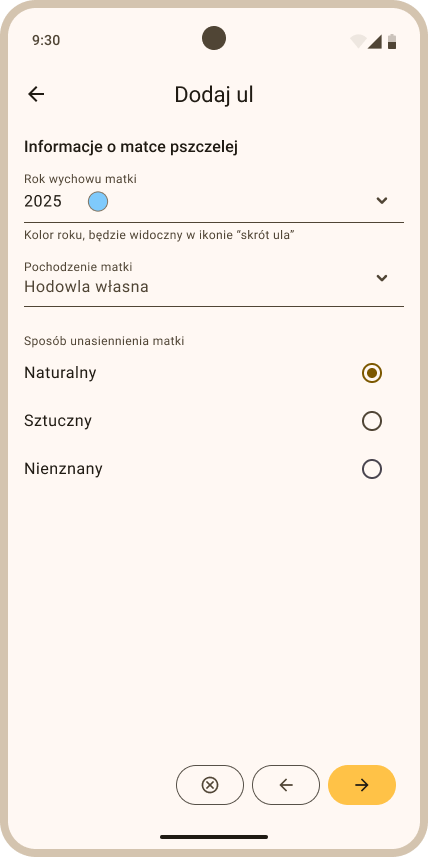
Queen bee information: At this stage of adding a hive, fill in the queen bee information (Fig. 26):
- Year the queen was raised - select the year the queen bee was raised from the drop-down list (click the down arrow visible to the right of this field).
- Queen origin - select one of the options available in the drop-down list (click the down arrow visible to the right of this field).
- Queen insemination method - select one of the available options.
The information above can be edited by the user at any time.
- Then click the yellow button with the right-pointing arrow at the bottom of the screen to proceed to the Equipment stage.
The equipment stage consists of one to three separate screens, always in the same order: ColonyLink → VitalSensor → Scale. The first screen appears every time you add a hive; the other two only when the apiary has an Apisense Hub assigned.
Note
Hub requirement: VitalSensor and Scale can only be linked to a hive in an apiary with an assigned Apisense Hub. ColonyLink does not require a Hub — its screen also appears in an apiary without one.
2.1.1 The ColonyLink step
-
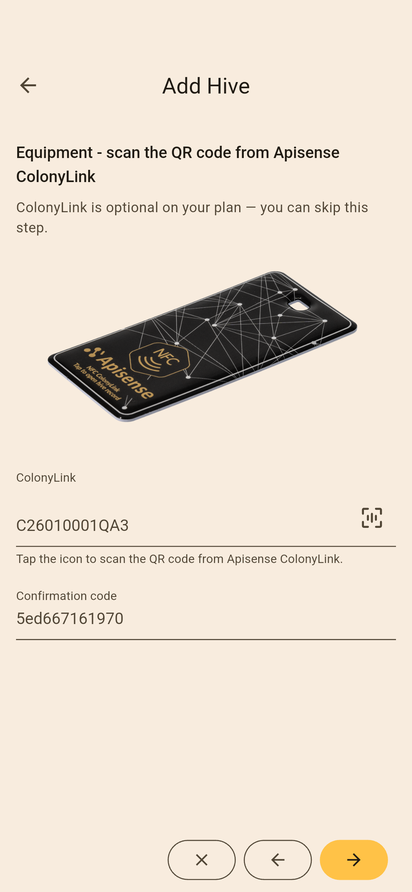
After the queen information, the Equipment - scan the QR code from Apisense ColonyLink screen is displayed (Fig. 27). Fill in the fields:
- ColonyLink — click the QR code icon on the right side of this field and scan the QR code from the Apisense ColonyLink. The next Confirmation code field will be filled in automatically.
- Confirmation code — filled in automatically after a successful QR scan.
-
The forward button stays disabled (greyed out) until both fields are filled in — ColonyLink is required for every hive by default.
Note
On some plans ColonyLink is optional. You will recognise this by the message "ColonyLink is optional on your plan — you can skip this step" shown under the screen heading. In that case you may leave both fields empty and continue. You cannot, however, fill in just one of them — either both or neither.
-
What happens after this step depends on the apiary:
- Apiary with an Apisense Hub — the right-pointing arrow takes you to the remaining equipment screens (VitalSensor, then Scale).
- Apiary without an Apisense Hub — ColonyLink is the final step. The button at the bottom of the screen then carries a save icon, and clicking it creates the hive with just the ColonyLink attached.
2.1.2 Adding a hive with VitalSensor and Scale
These two screens appear only in an apiary with a Hub, after the ColonyLink step. Note: It is essential that the devices configured for the hive are actually installed in the same physical hive.
-
VitalSensor: the Equipment - scan the QR code from the Apisense VitalSensor or Apisense Tag screen (Fig. 28):
- VitalSensor / Tag — click the QR code icon on the right side of this field and scan the QR code from the sticker on the Apisense VitalSensor or from an Apisense Tag. The next Confirmation code field will be filled in automatically.
- Confirmation code — filled in automatically after a successful QR scan.
The See how to mount the VitalSensor link above the fields opens the mounting instructions.
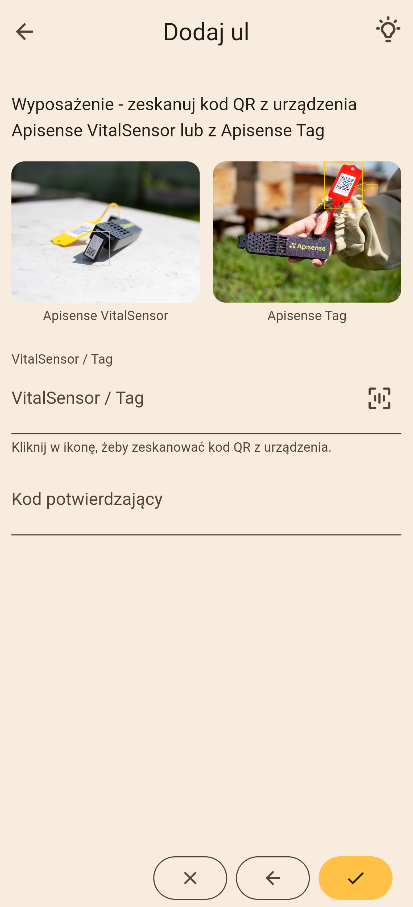
Fig. 28: Adding a hive — Equipment section, linking VitalSensor -
Scale: the final screen of the wizard, Equipment - scan the QR code from the Apisense Scale device (Fig. 29):
- Scale — click the QR code icon on the right side of this field and scan the QR code from the sticker on the Apisense Scale. The next Confirmation code field will be filled in automatically.
- Confirmation code — filled in automatically after a successful QR scan.
The See how to mount the Scale link above the fields opens the mounting instructions.
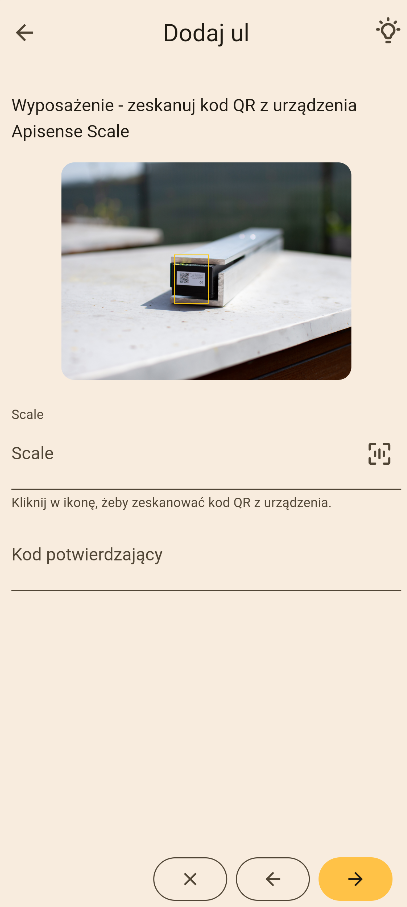
Fig. 29: Adding a hive — Equipment section, linking Scale
Note
Both of these screens are optional. To skip a device, leave its fields empty and continue — this is how you create a hive with, for example, only a VitalSensor or only a Scale. You cannot, however, fill in just the serial number or just the confirmation code; the app will show an error on the missing field.
-
Clicking the save button on the Scale screen completes adding the hive. This is the step that creates the hive together with every device scanned earlier — if one of the serial numbers is rejected, the app returns to that device's screen and shows the error on the relevant field.
-
If the hive was created successfully, you will be redirected to the Hives view, and the hive you just created will appear in your hive list.
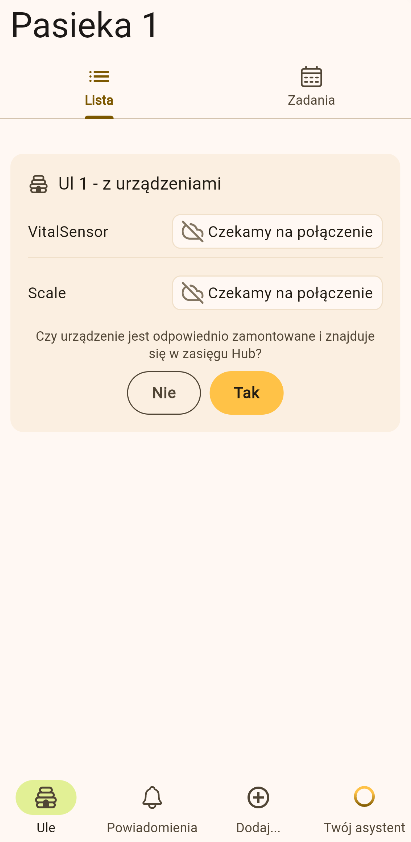
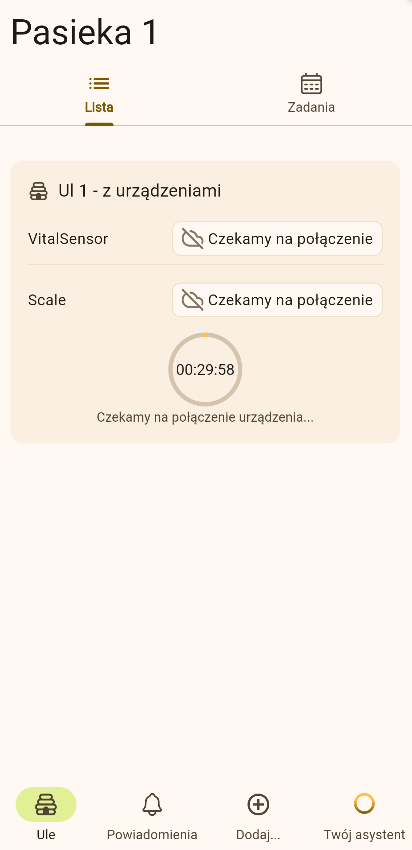
What the tile shows right after the hive is created. A newly added hive does not show measurements yet — the devices are still establishing communication with the Hub. Each linked device is marked Awaiting connection, and below them the app asks whether the device is properly mounted and within Hub range (up to about 35 m) (Fig. 30). After you answer Yes, a timer starts with the estimated maximum time for the measurement device to establish communication with the Hub (Fig. 31). This stage is described in detail in First device startup.
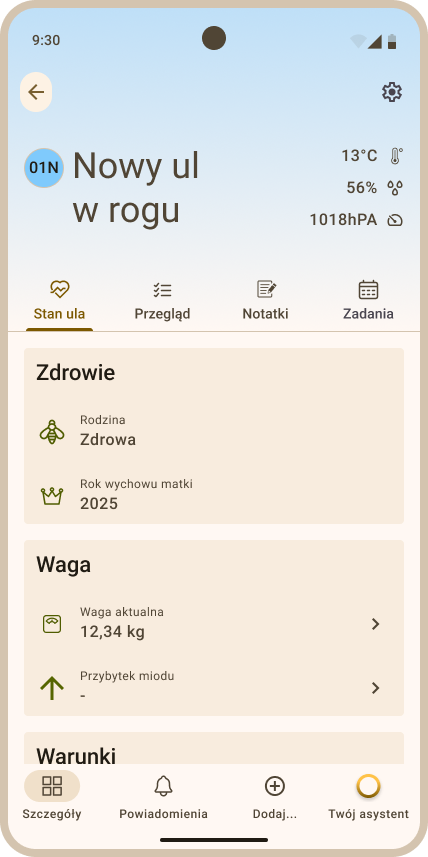
- Only after the devices report in do current measurements and the colony assessment appear on the hive tile and in the Details view (Fig. 32, Fig. 33).
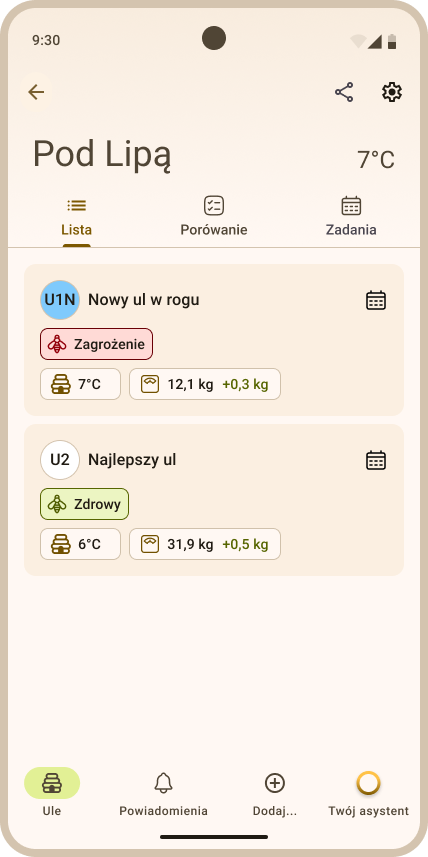
2.1.3 Adding a hive without Scale and VitalSensor
If you want to create a hive for record-keeping only (without monitoring):
- Go through the Hive details, Queen bee information and ColonyLink steps as when adding a hive normally. The ColonyLink step cannot be skipped unless your plan explicitly marks it as optional.
- If the apiary has no Hub, ColonyLink is the last step — click the save button and the hive is created.
- If the apiary has a Hub, go through the VitalSensor and Scale screens leaving their fields empty (do not scan QR codes), and click the save button on the Scale screen.
After creating a hive without measurement devices:
- The hive tile will not show live measurements (temperature, weight) or VitalSensor-based colony health assessment (Fig. 34).
- Features that require VitalSensor (e.g. Register sample) will not be available until you assign a device.
- You can add Scale and VitalSensor later in Hive settings → Equipment, provided the apiary has a linked Hub.
2.2 Editing a hive
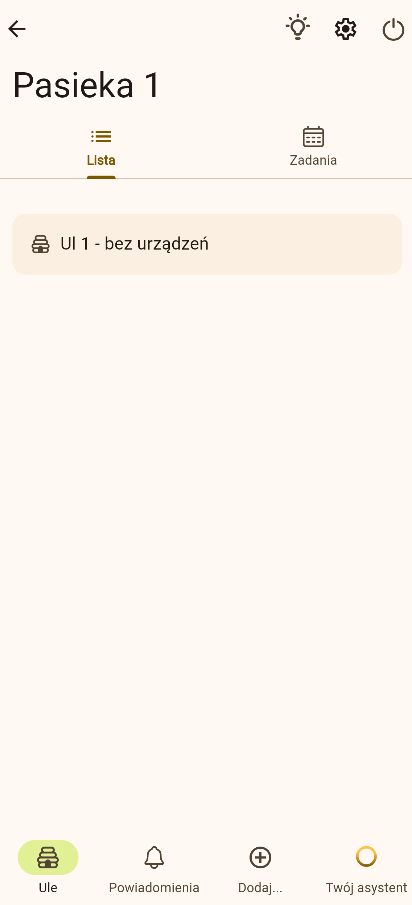
- In the Apiaries tab (the start view after logging in to the Apisense app), click the tile of the chosen apiary. As a result, the Hives tab will open (Fig. 35).
- In the Hives tab click the tile of the chosen hive; this will open the Details tab (Fig. 37).
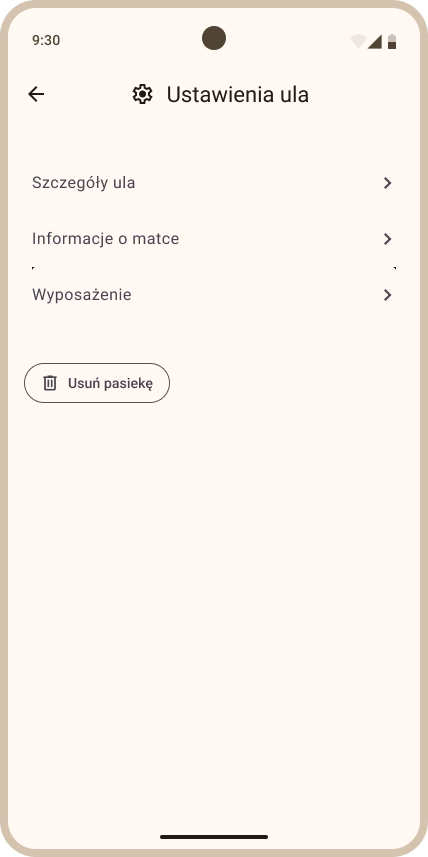
- Then click the ⋮ icon in the upper right corner of the Details tab and choose Settings; the Hive settings view will be displayed (Fig. 38).
-
The Hive settings view is divided into 3 sections. To update the information in a given section, click its header. Available sections:
-
Hive details - this section allows you to edit parameters such as the hive name, the maximum number of frames in the brood box, and the hygienic bottom board. To do so, click the chosen field and enter the changes, or check/uncheck the box next to a given item.
-
Queen information - this section concerns data related to the queen bee: Queen breeding year, Queen origin (Own breeding, Purchase domestic, Purchase foreign, Unknown) and Queen insemination method (Natural, Artificial, Unknown). To update the data in this section, select the appropriate item from the relevant drop-down list.
-
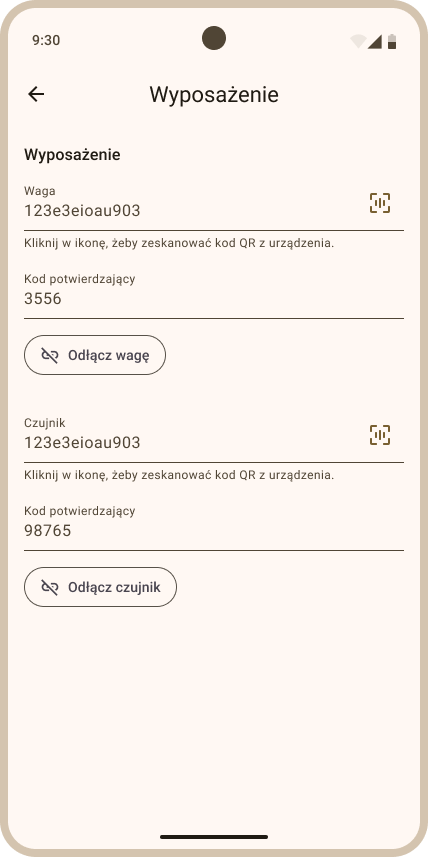
Equipment - this section contains three device blocks, in the order ColonyLink, VitalSensor, Scale. Each block has a Serial number and a Confirmation code field, and tapping the device name opens its details. If one of the devices is missing from the hive (its fields are empty), you can link it from here: click the QR code icon on the right side of the field and scan the code from the device.
- ColonyLink has no disconnect button — it can only be swapped, by scanning the code of a different ColonyLink.
- VitalSensor and Scale have an I replaced the battery button and a Disconnect VitalSensor / Disconnect Scale button.
Clicking Disconnect VitalSensor / Disconnect Scale opens a confirmation screen (Disconnect VitalSensor? / Disconnect Scale?) with Disconnect and Don't disconnect buttons for the VitalSensor, and Disconnect Scale and Don't disconnect Scale for the Scale (Fig. 39). The Keep … history toggle decides whether the measurement data of the disconnected device stays in the system. It is kept by default; switching the toggle off before confirming deletes it permanently.
Note
The preserved history is currently not visible on the charts. After a device is disconnected, the Weight and Conditions rows show No Scale / No VitalSensor and the charts cannot be expanded. The data returns to the charts only once the device is linked to the hive again.
Tap I replaced the battery right after you put the new batteries in. The app then refreshes the Hub configuration and confirms with the Battery replacement confirmed message and the note Configuration refreshed — the device will reconnect on the next sync. Thanks to this the device is back among the correctly reporting ones at the next measurement — you do not have to wait for it to find its own way back.
Note
The Equipment section is not available if the apiary does not have an Apisense Hub assigned.
-
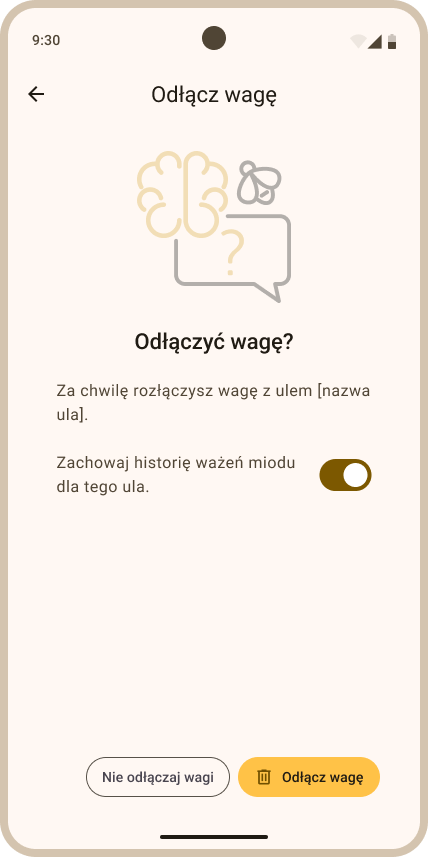
- To save the changes you made in the chosen section, click the yellow button in the lower right corner of the screen.
2.3 Deleting a hive
- In the Apiaries tab (the start view after logging in to the Apisense app), click the tile of the chosen apiary. As a result, the Hives tab will open (Fig. 41).
- In the Hives tab click the tile of the chosen hive; this will open the Details tab (Fig. 43).
- Then click the ⋮ icon in the upper right corner of the Details tab and choose Settings; the Hive settings view will be displayed (Fig. 44).
- In the Hive settings view click the Delete hive button. As a result, the Delete hive view will be displayed (Fig. 45), where you must confirm your choice with the Yes, delete button.
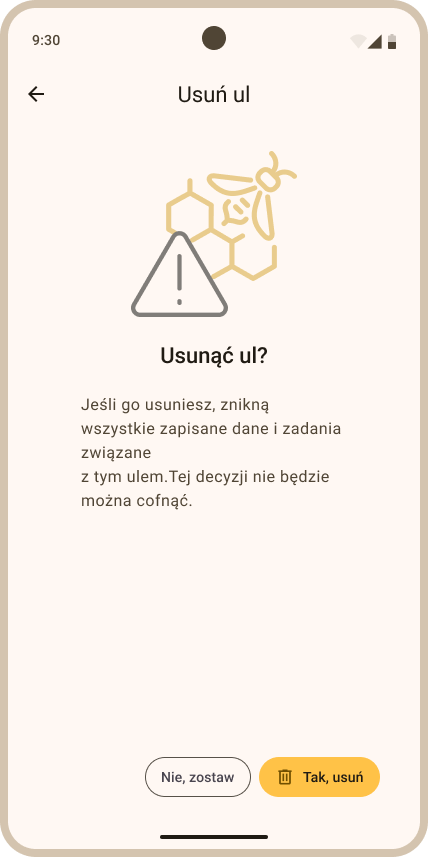
- Together with the deleted hive, all of its contents (notes, inspections, etc.) are also deleted. Individual devices (Scale, VitalSensor) are also unlinked and their measurement history is cleared. Therefore, for example, the same Apisense VitalSensor can be linked to another hive (one that does not have this type of device).
3. Adding inspections
- While in the Apiaries tab (the start view after logging in to the Apisense app) click the apiary tile. After clicking the tile, the Hives view will be displayed (Fig. 46).
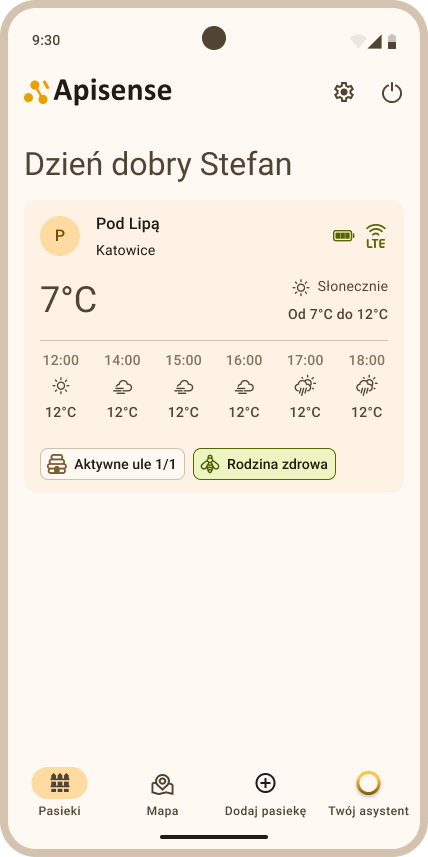
- Then click the tile of the hive for which you want to perform an inspection. As a result, the Hive details view will be displayed (Fig. 48).
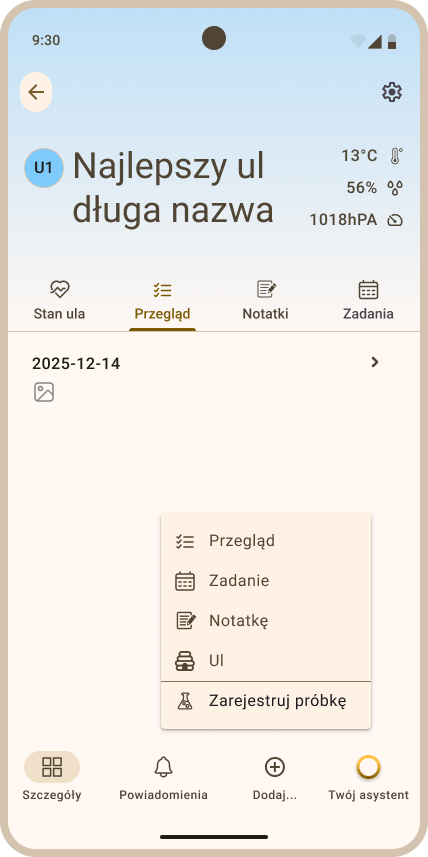
- To add an inspection, choose the Add... option from the bottom menu, then Inspection (Fig. 49); the Add inspection view will be displayed (Fig. 49).
-
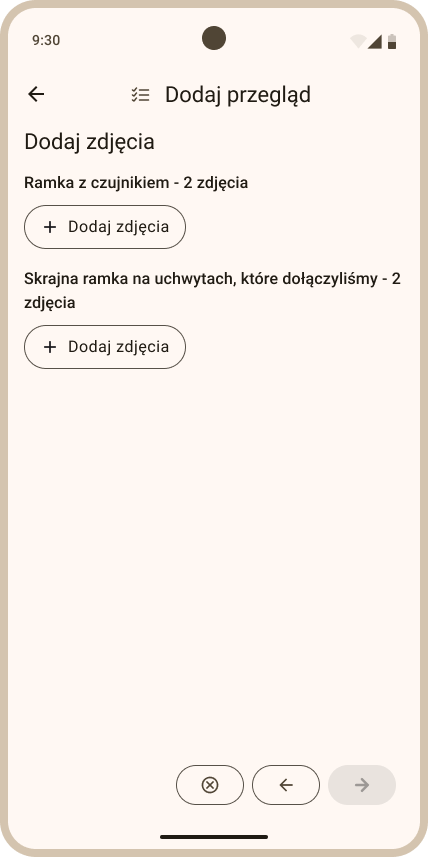
In the Add inspection view (Fig. 50), attach 2 photos each for:
-
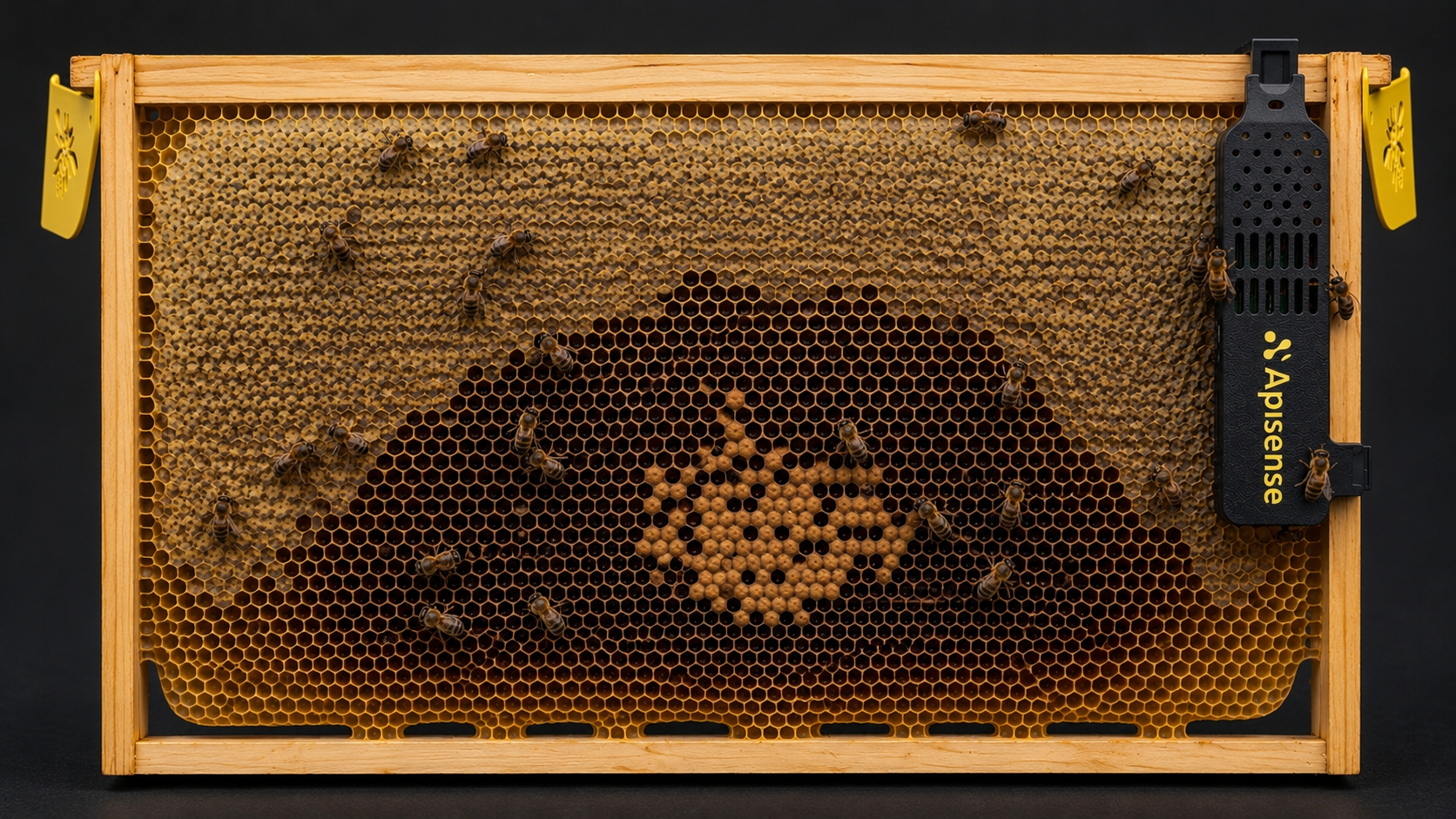
the frame with the VitalSensor — front and back of the frame fitted with the VitalSensor device, with bees visible,
- a single edge frame — the first or last one by the hive wall — also front and back of that same frame.
To add photos, click the Add photo button and then choose the Take photo or Add photo from gallery option. If you are not sure how a given photo should look, click the See example link to see examples of correctly taken bee frame photos (front and back).
Note
RAW/DNG photos aren't supported in the web version for inspections — add a JPG or PNG photo instead. In the mobile version, however, you can add a RAW/DNG photo to an inspection. If the photos can't be uploaded right away (e.g. due to a weak internet connection), the app will automatically retry the upload in the background. Until the process finishes, the message "Uploading photos…" is shown. If after further attempts the upload still fails, the message "Photos not uploaded" appears.
-
Once you have added the photos correctly, click the yellow arrow in the lower right corner to proceed to the next step.
-
Then answer a few questions (Fig. 52). There are three kinds of question:
- choice — select Yes, No or Skip. On a required question, selecting an answer automatically moves you to the next one;
- text — type the answer into the text field;
- number — enter a number; the app enforces the allowed value range.
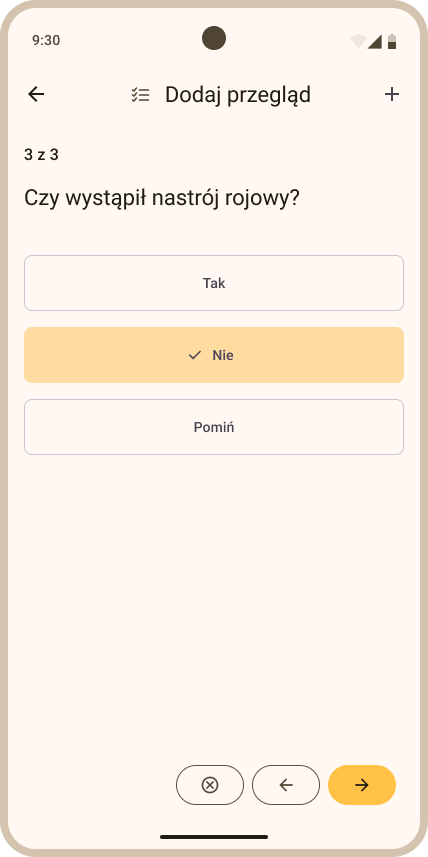
- To proceed to the next inspection question, click the yellow button with the right-pointing arrow at the bottom of the screen.
- After answering all of the inspection questions, the final view will be displayed (Fig. 53), where you must select the inspection date (the current date is set by default).
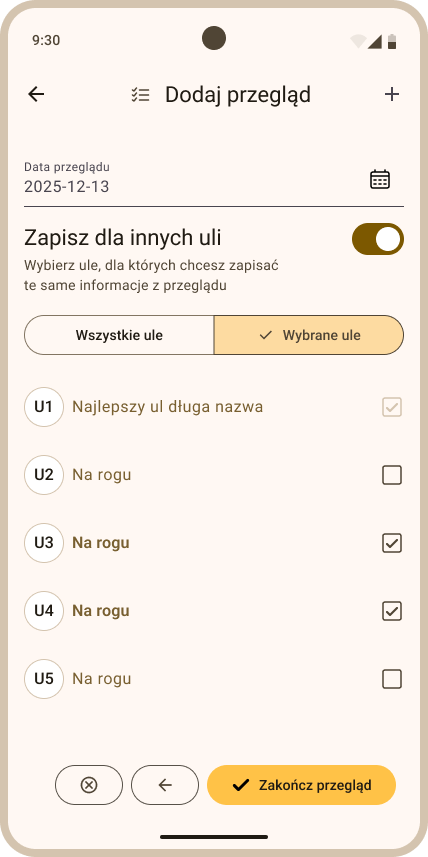
- To save the inspection, click the yellow Finish inspection button in the lower right corner of the screen. The saved inspection will be displayed in the inspection list under Hive details > Inspection (Fig. 54).
Tip
Inspection drafts: If you leave an in-progress inspection with unsaved changes (e.g. by tapping the back button), the app asks whether to Save draft or Discard. A saved draft appears at the top of the inspection list and can be resumed at any time, but it is only kept for 24 hours, after which it is removed automatically. To delete a draft sooner, tap the red bin icon next to the chosen draft in the inspection list. To save a draft permanently, finish filling in the inspection within 24 hours and click Finish inspection. The draft will turn into a regular inspection and appear in the inspection list.
3.1 Editing an inspection
To edit a saved inspection:
- On the inspection list (Hive details > Inspection), tap the pencil icon next to the inspection you want to edit, or on the inspection details screen open the overflow menu (three dots in the upper right corner) and choose Edit. The inspection wizard opens with the saved photos and answers to the individual questions.
- In the first editing step, frame photos are displayed. If you do not want to change anything at the photo stage, tap the yellow right-pointing arrow to proceed to the next step and keep the current photos. If any photo needs replacing, tap the "X" on the thumbnail of the chosen photo to remove it. Then tap the Add photo button shown below all photos, choose Take photo or Add photo from gallery, and add the new photo.
- In the following steps you will see the answers given to the inspection questions. If you do not want to change the answer to a given question, tap the yellow right-pointing arrow. If you want to change an answer, choose a new option (Yes/No/Skip) or correct the text or number you entered. On required choice questions, changing the answer automatically moves you to the next question; on text and number questions, continue with the yellow arrow.
- In the final step, update the inspection date as needed or leave it unchanged. To save all changes, tap the yellow Finish inspection button. If the changes are saved successfully, the message Inspection updated successfully is displayed.
3.2 Deleting an inspection
To delete an inspection:
- On the inspection list (Hive details > Inspection) tap the red bin icon next to the inspection to be deleted, or on the inspection details screen choose Delete from the overflow menu (three dots in the upper right corner).
- A confirmation prompt asking whether to delete the inspection is displayed. Confirm by tapping Delete. Note: This action cannot be undone.
4. Notes
4.1 Adding a note
The steps below refer to adding a note from the hive level.
- In the Apiaries tab (the start view after logging in to the Apisense app) click the apiary tile. After clicking the tile, the Hives view will be displayed (Fig. 55).
- Then click the tile of the hive to which you want to add a note. As a result, the Hive details view will be displayed (Fig. 57).
- To add a note, choose the Add... option from the bottom menu, then Note (Fig. 58); the Add note view will be displayed (Fig. 59).
-
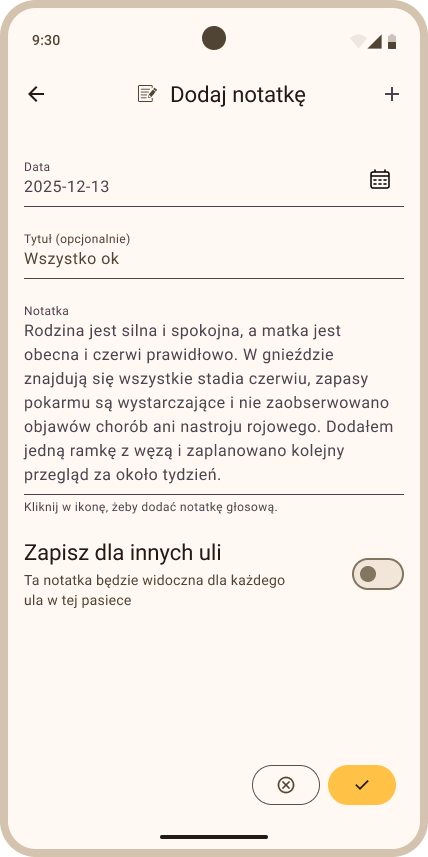
In the Add note view (Fig. 59), fill in the following fields:
- Date - choose the date you want the note saved with (current by default).
- Title - enter the note title (optional field).
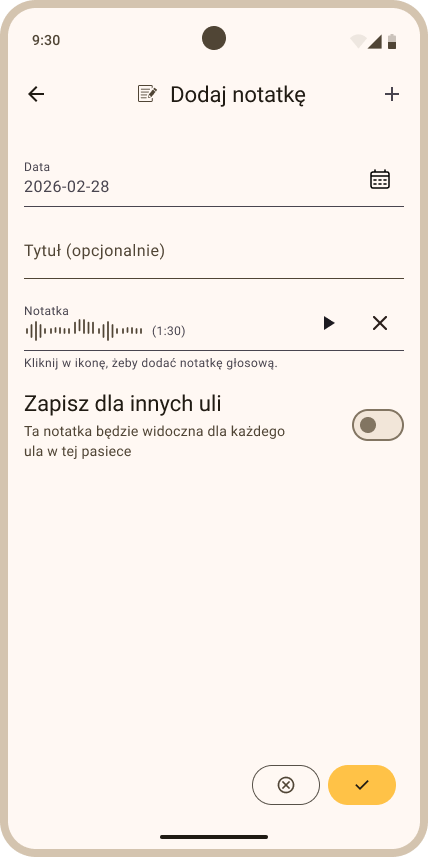
- Note - enter the note content (text), or click the microphone icon on the right side of this field to record a voice note.
Tip
Voice note transcription: After you record a voice note, the app automatically prepares a transcription, so the note is available both as audio and as text. While the transcription is being generated, the note details screen shows Transcription in progress.... Once the transcription is ready, the generated text appears below the recording, under the Transcription heading. If the transcription fails, the same place shows Couldn't generate the transcription.
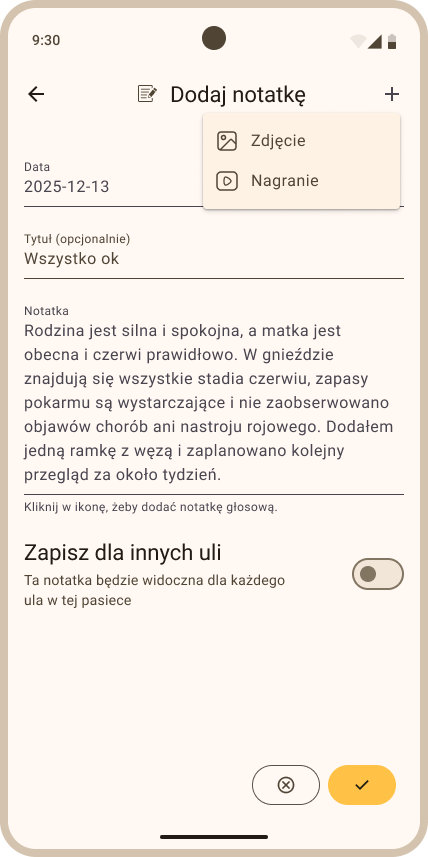
- You can also add a photo, recording or PDF document to the note. To do so, click the Add attachment button (with a plus icon) in the body of the form, below the note field (Fig. 61), and choose the attachment type from the list: Camera, Gallery, Record video, Video from gallery, PDF document. The attachments you add appear below the button.
- To save the note, click the yellow button in the lower right corner of the screen. The saved note will be displayed in the note list under Hive details > More > Notes (Fig. 62).
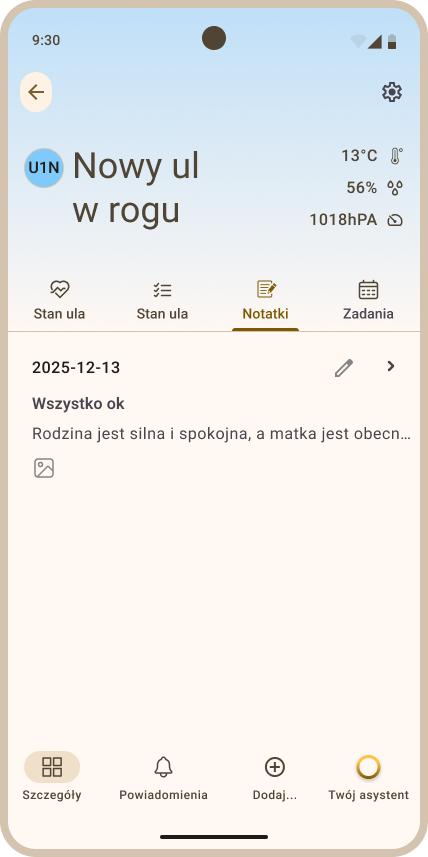
Note — adding a note from the apiary level: A note can also be created from the apiary level. To do so, follow this path: in the Apiaries tab click the chosen apiary, then in the Hives tab choose the Add... option from the bottom menu and the Note option. As a result, the same note will be saved automatically to all hives in the chosen apiary and will be visible in the note list of every hive (Details > More > Notes). Editing such a note applies only to the copy in a specific hive — changes made to one note will not be visible in the other notes added in this way. Likewise, deleting such a note in one of the hives will leave notes in the other hives untouched.
4.2 Editing a note
- In the Apiaries tab (the start view after logging in to the Apisense app) click the apiary tile. After clicking the tile, the Hives view will be displayed (Fig. 63).
- Then click the tile of the hive in which you want to edit a note. As a result, the Hive details view will be displayed (Fig. 65).
- In the top menu tap More, then the Notes tab; the view with the list of notes assigned to the chosen hive will open (Fig. 66).
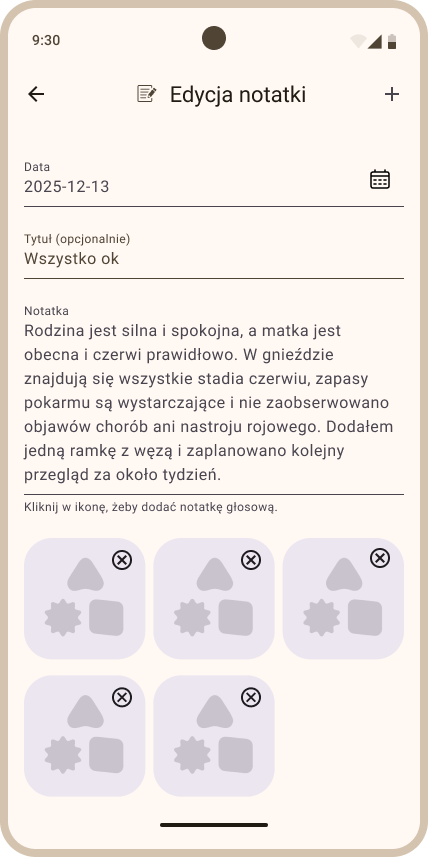
- To update a note, click the pencil icon next to the note that needs editing. After clicking the pencil icon, the Edit note view will be displayed (Fig. 67).
-
In the Edit note view you can update the values for the following fields:
- Date - click the calendar icon and choose the appropriate date.
- Title - enter the new title in the designated place.
- Note - change the note content - modify the text or delete it and record a voice note.
- Add or remove a photo/recording using +/X.
-
After making changes, click the yellow button in the lower right corner to save the modified note.
4.3 Deleting a note
- In the Apiaries tab (the start view after logging in to the Apisense app) click the apiary tile. After clicking the tile, the Hives view will be displayed (Fig. 68).
- Then click the tile of the hive from which you want to delete a note. As a result, the Hive details view will be displayed (Fig. 70).
- In the top menu tap More, then the Notes tab; the view with the list of notes assigned to the chosen hive will open (Fig. 71).
- To delete a note, grab and swipe the row with the chosen note to the left. As a result, a red button with a bin icon will be displayed on the right side of that row. Click the bin icon (Fig. 72) and choose the Delete option in the message that appears to confirm note deletion.
5. Tasks
Tasks (calendar) let you plan apiary work — inspections, feeding, honey harvests, maintenance. Each task has a date, a status (To do / Done) and a scope that defines which apiaries and hives it applies to. Tasks can repeat (series) and be marked as done as you carry them out.
5.1 What is a task
Each task contains the following information:
- Task — short description/name of the task, contextual note (required field).
- Task date — when the task is to be done.
- Status — To do (planned) or Done. Note: Task status can only be changed after the task has been added to the calendar.
- Scope — whether the task applies to the whole apiary, selected hives, or a single hive (see 5.2 Task scope).
- Recurrence — optional; Weekly, Every 2 weeks, Monthly or Quarterly, with a series end date (see 5.5 Repeating tasks).
5.2 Task scope (where it is visible and editable)
The scope defines where the task is visible and from where it can be edited and deleted.
| Scope | Visible in apiary view | Visible in hive views | Editable from hive level |
|---|---|---|---|
| Whole apiary | Yes | Yes — in all hives | No |
| Selected hives | Yes | Yes — only in selected hives | No |
| Single hive | Yes | Yes — only in that one hive | Yes |
Tip
Tasks with scope Whole apiary or Selected hives can be edited and deleted only from the apiary level — from the hive level they are read-only. A task created for a single hive can be edited and deleted from that hive's level, as well as from the apiary level.
5.3 Adding a task from the apiary level
From the apiary level you can create a task for the whole apiary (Scope: Apiary), for selected hives, or several tasks in a series.
- In the Apiaries tab, click the tile of the apiary for which you want to add a task. The Hives view will be displayed.
- From the bottom menu choose Add..., then Task (Fig. 73). The Add task view will be displayed.
-
In the Add task view fill in the following fields:
- Scope — select one of:
- Apiary — the task will appear in all hives in this apiary.
- Selected hives — after choosing this option, select the specific hives from the list.
- Task — enter the task content (e.g. Spring inspection).
- Task date — choose the task date (current date by default).
- Recurrence (optional) — see 5.5 Repeating tasks.
- Scope — select one of:
-
To save the task, click the yellow button in the bottom right corner of the screen. The saved task will appear on the apiary task list (Tasks tab) and in all hives in this apiary (Hive details > More > Tasks).
5.4 Adding a task from the hive level
A task added from the hive level will appear on the task list in that specific hive and in the apiary. Such a task can also be edited or deleted from both levels — apiary and hive.
To add a task from the hive level:
- In the Apiaries tab click the apiary tile, then click the hive tile for which you want to add a task. The Hive details view will be displayed.
- From the bottom menu choose Add..., then Task (Fig. 74). The Add task view will be displayed.
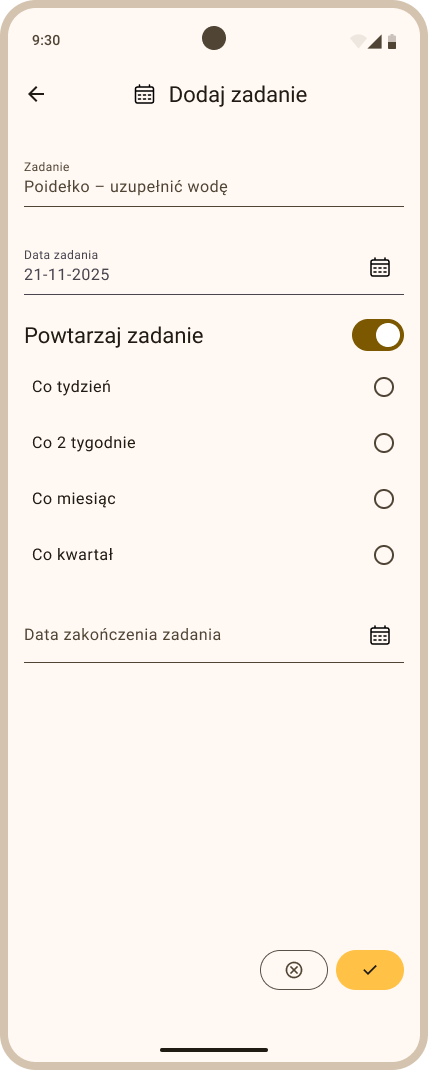
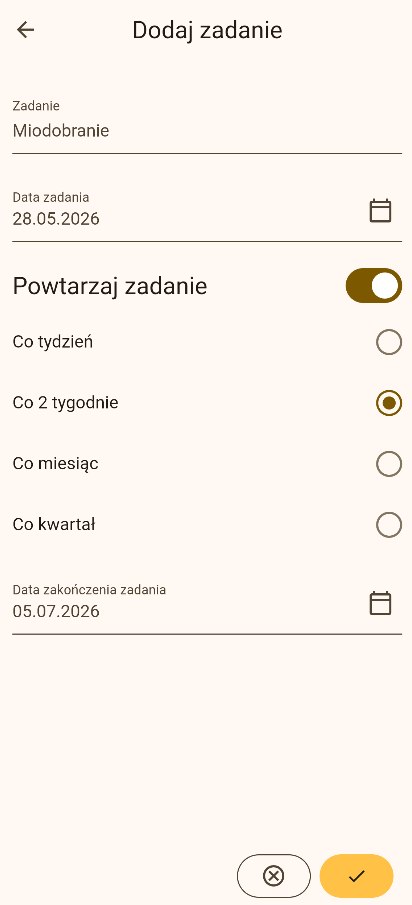
- Fill in Task (required), Task date, and optionally check Repeat task. There is no scope picker — the task automatically applies to this hive.
- Click the yellow save button in the bottom right corner.
5.5 Repeating tasks
A task can be configured to repeat (Fig. 75). In the Repeat task section of the Add task view choose:
- Frequency — Weekly, Every 2 weeks, Monthly or Quarterly.
- Task end date — at most 1 year from the date of the first task.
The app will create separate task occurrences according to the chosen frequency (e.g. every week) within the given date range. Each occurrence is an independent task and can be edited or deleted separately.
5.6 Marking a task as done
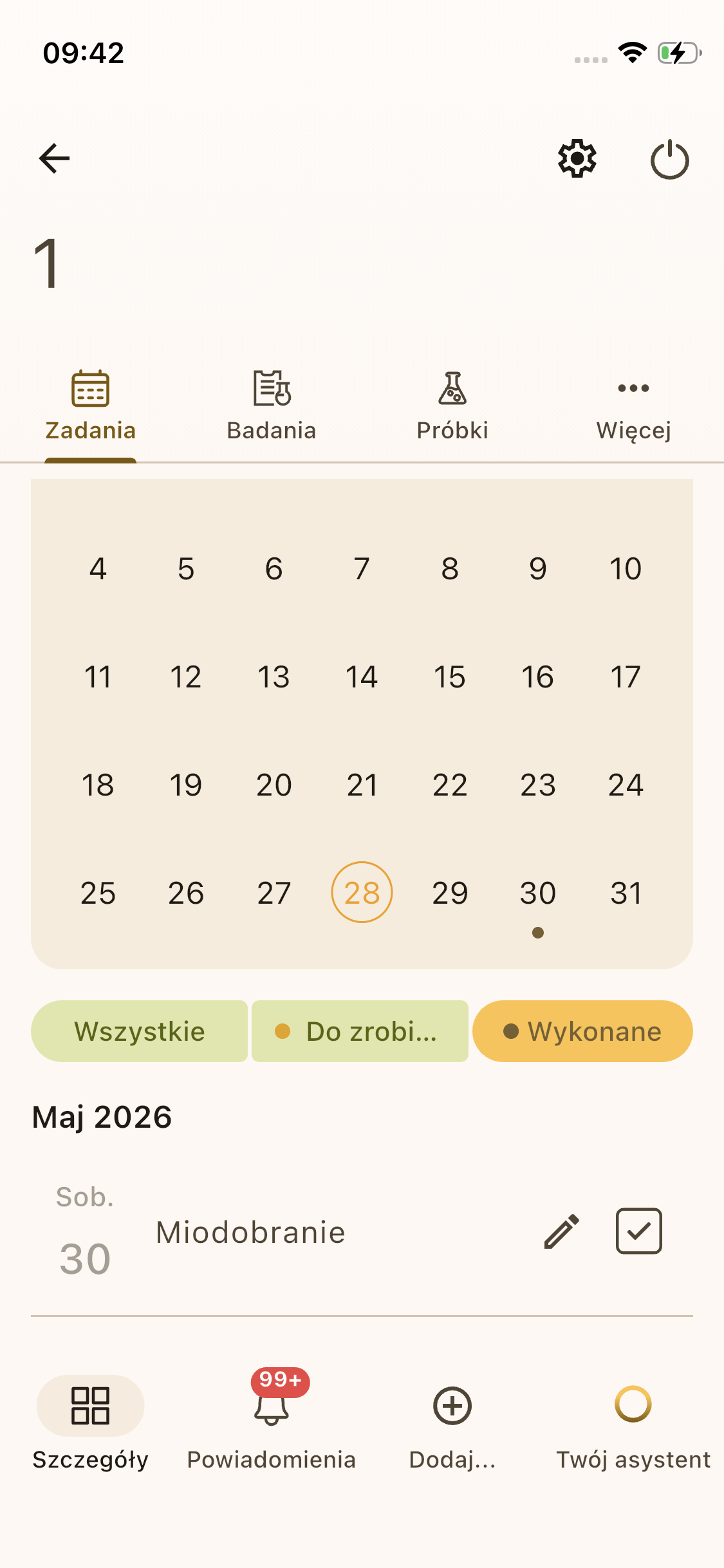
- Open the task list in the Tasks tab (from the apiary or hive level).
- Next to the chosen task, click the check icon / Done button (Fig. 76). The status will change from To do to Done.
Note
From the apiary level you can mark any task as done. From the hive level you can mark as done only a task that was added from that specific hive.
5.7 Editing a task
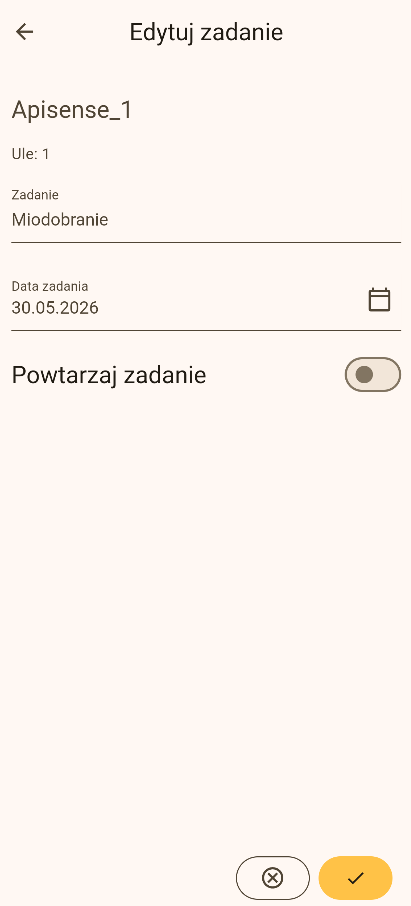
- On the task list, click the pencil icon next to the chosen task to open the Edit task view (Fig. 77).
- Update fields: Task, Task date, Repeat task.
- For a recurring task, choose the frequency (e.g. Every month) and fill in the Task end date (see 5.5 Repeating tasks).
- Save the changes with the yellow button in the bottom right corner.
Note
Tasks with scope Apiary or Selected hives can be edited and deleted only from the apiary level. From the hive level you will see such a task only as a read-only preview — with a grayed-out pencil icon.
5.8 Deleting a task
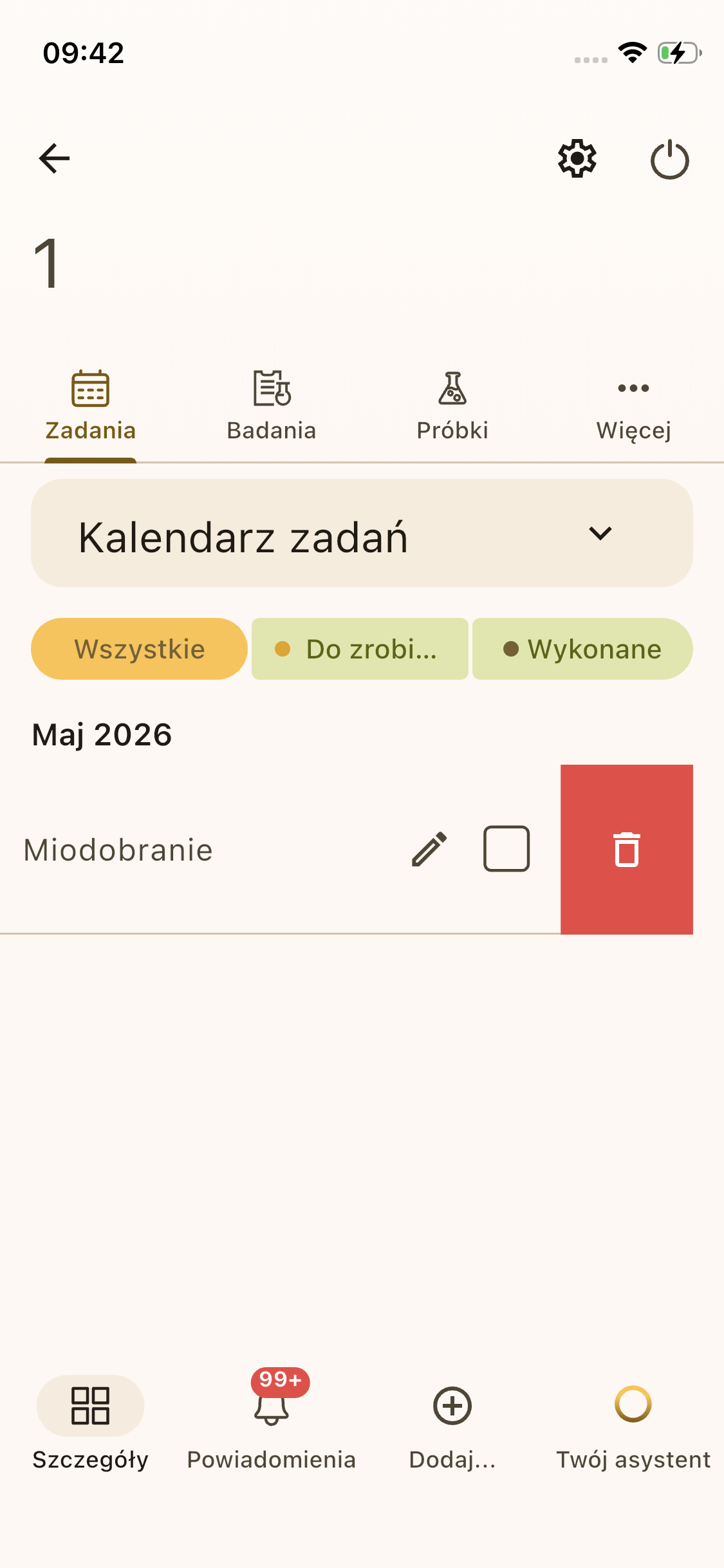
- On the task list swipe the row with the chosen task to the left (Fig. 78).
- To delete the chosen task, click the bin icon on the red background.
Note
Tasks with scope Apiary or Selected hives can be edited and deleted only from the apiary level. Deleting such a task from the apiary level will automatically remove the related tasks from the view in all hives.
5.9 Task list and filtering
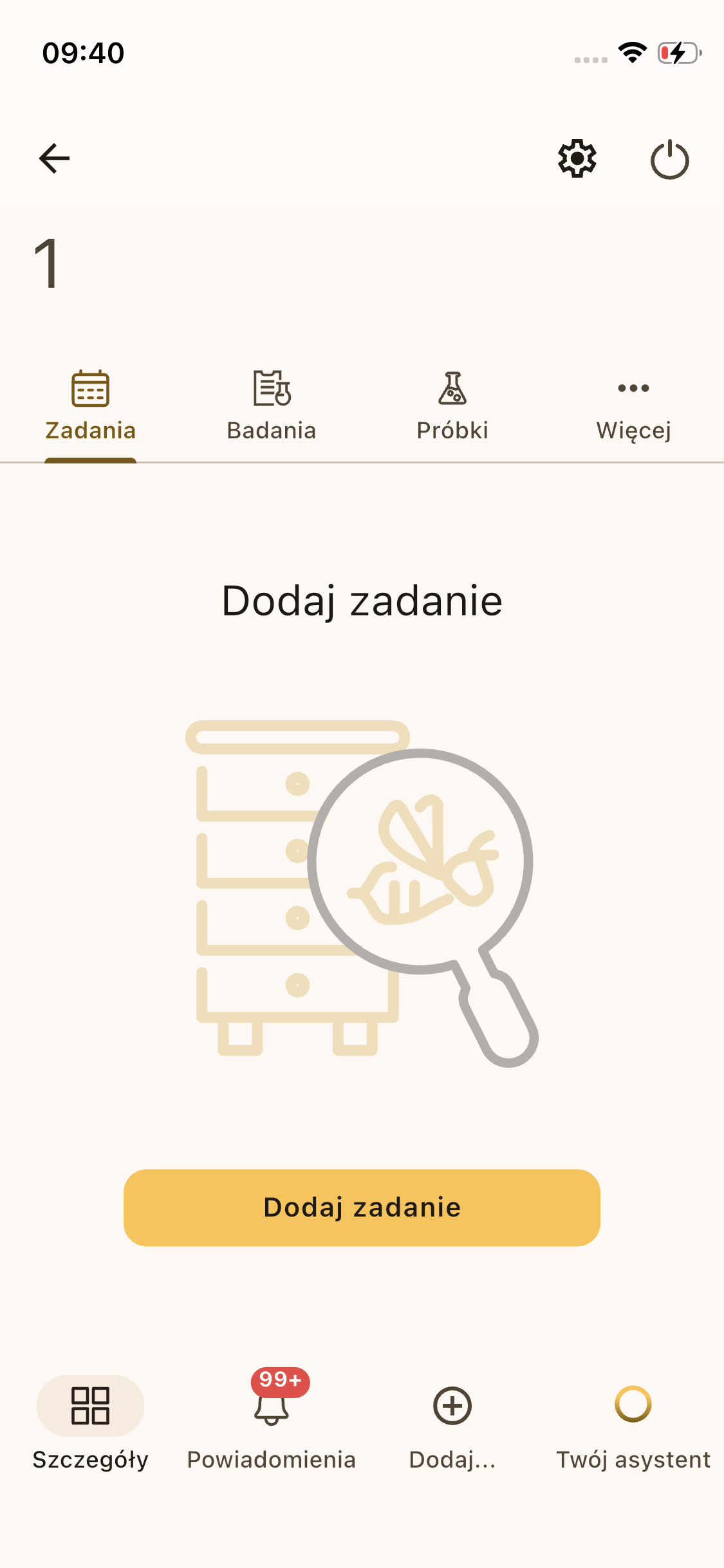
You will find the task list in the Tasks tab:
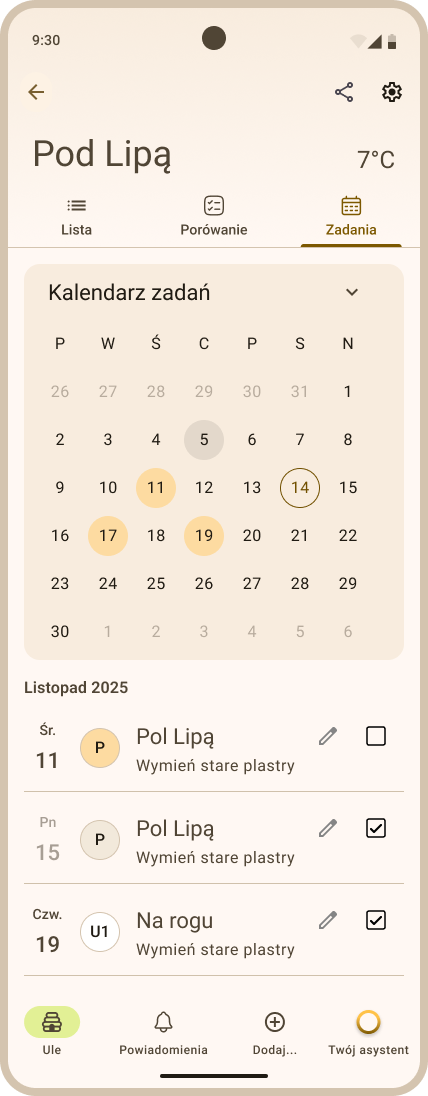
- From the apiary level — displays all apiary tasks: scope Apiary, Selected hives, and single-hive tasks belonging to that apiary (Fig. 79).
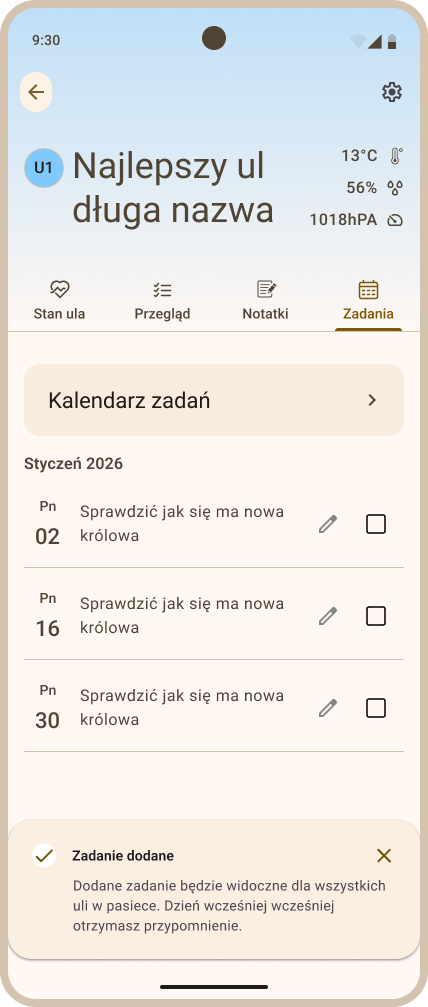
- From the hive level — displays the tasks visible in this hive: Apiary tasks, Selected hives tasks covering this hive, and Single hive tasks for this hive (Fig. 80).
You can filter the task list by status. There are two filters: To do and Completed. Tapping the active filter clears it and brings back the full list.
6. Asian hornet observation
The Asian hornet icon on the apiary tile, next to the colony health status indicator, lets you report and review Asian hornet observations. It helps you monitor their activity in your apiaries and respond more quickly to a potential threat to bee colonies. Note: The icon is tappable for the apiary owner and for collaborators with Full access to a shared apiary; everyone else sees it read-only, and only once a report already exists (see 7.2 Access levels).
6.1 Reporting an observation
- Tap the Asian hornet icon on the apiary tile; the Asian hornet panel opens.
- In the Asian hornet panel, tap the yellow Report observation button, then answer the question Do you see an Asian hornet now?.
- Answering No files the report immediately — you will see the Report saved message.
-
Answering Yes opens an additional report form:
- species card — at the top of the form, with the name Asian hornet and the scientific name Vespa velutina, and an ⓘ button that opens How to recognise the Asian hornet? — a short primer comparing it against the native, harmless European hornet (size, colouring, the Asian hornet's yellow leg tips) so you don't report the wrong species by mistake;
- Date observed — today's date by default; tap the field to pick another date from the calendar (up to a year in the past, never in the future);
- Comment (optional) — free text, e.g. the number of individuals, where exactly you saw them, or their behaviour;
- Photos (optional) — you can attach up to 10 photos. The form warns: Warning: the Asian hornet can sting — take care when photographing it.
-
Send the report with the Send report button. Once saved, you will see the Report saved message, or Report saved, uploading photos in the background if you attached photos.
6.2 Observation status and freshness
The Asian hornet icon shown on the apiary tile changes depending on the current report status:
- No observation — no report has ever been filed. A dimmed Asian hornet icon on a transparent background, without a date or additional badge.
- Asian hornet - Active sighting — Asian hornets were confirmed present and the report is still considered fresh. Asian hornet icon on a red background with a red "!" badge.
- Asian hornet - Last seen — Asian hornets were confirmed present, but the report is no longer fresh — check again and re-report the current state. Asian hornet icon with a "!" badge on a dark background.
- Checked, clear; current observation — a fresh report confirming no Asian hornets in the apiary. Asian hornet icon on a green background with a green badge carrying an absence confirmation symbol.
- Checked, clear; expired observation — no Asian hornets were confirmed in the apiary, and the report is no longer fresh. Asian hornet icon with an absence confirmation badge on a dark background.
Note
Whether a report still counts as "fresh" is decided by the observation rules set individually for each apiary. There is no single fixed number of days that applies across the app, and the rules themselves can change as the observation programme evolves.
6.3 Undoing a report
If you filed a report by mistake (an accidental tap), tap the Asian hornet icon on the apiary tile again, then tap Undo report. Confirm with the red Undo report button shown on the prompt that appears. This removes the report from the history entirely.
Note
Only use Undo report for a mistaken report. If the hornets are simply gone, don't undo the sighting — instead file a new report and answer No, so the observation history is preserved.
6.4 Observation reminders
The app reminds you to re-check for Asian hornets in the apiaries where it is time to do so — the ones whose report has stopped being "fresh". When one or more of your apiaries are due, you'll see an Observation reminder prompt (at most once a day) asking you to record the current state to keep the data reliable, grouped into apiaries that had a report before but it's gone stale, and apiaries that have never been checked. You can act on it right away or close the prompt with the X or Close button — it doesn't ask again until the throttle window passes.
7. Apiary sharing
You can share an apiary with another person — a partner, an employee or a researcher — and give them a chosen level of access to its data. You stay the owner: you can change the access level at any time, and withdraw the share entirely.
Who you can invite. Only someone who already has an Apisense account — the invitation goes to the e-mail address that account was created with. If there is no account, you'll see This person doesn't have an Apisense account. — ask them to register first.
7.1 Where to find sharing
There are three ways to open the Share apiary view:
- from the main panel — tap the sharing icon in the top bar of the Apiaries tab. A red dot on the icon means an invitation is waiting for you;
- from inside an apiary — in the Hives tab, tap the sharing icon in the top bar. The icon is visible to the apiary owner only, and it opens the invitation form for that apiary straight away;
- from the Shared apiaries heading — the heading appears in the apiary list once somebody shares an apiary with you, and separates other people's apiaries from your own.
The Share apiary view has two tabs:
- Shared — the people you shared your apiaries with;
- Shared with me — the apiaries other beekeepers shared with you.
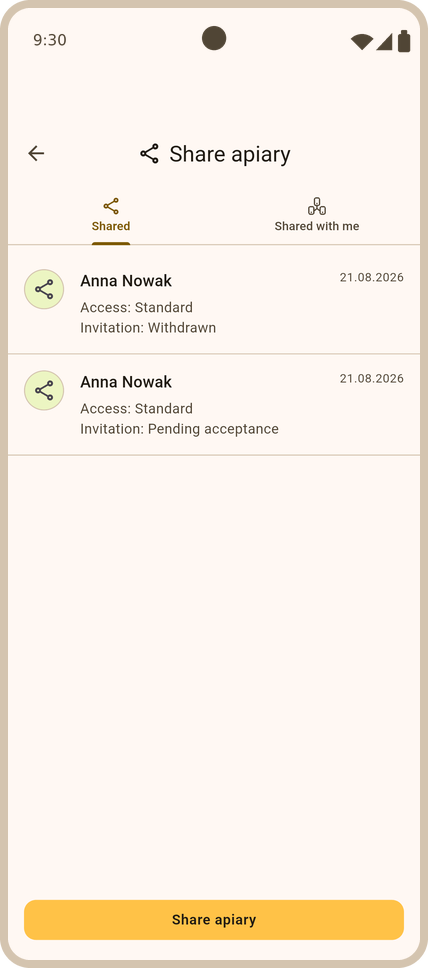
Opened from the main panel, the view starts on the Shared with me tab, and its Shared tab aggregates the shares of all your apiaries (Fig. 81). The icon inside an apiary behaves differently — it goes straight to the invitation form for that apiary, skipping the tabbed view.
7.2 Access levels
Every invitation carries one of three levels, picked in the Access type section. The line runs between what the system measured itself and what the beekeeper entered by hand.
| Level | What the invited person sees | What they can change |
|---|---|---|
| Restricted — Only general apiary information | Data measured and derived by the system: charts, weather, colony health and diseases, device status, notifications, plus the structure of the apiary — hive names and queen details | Nothing — read-only access |
| Standard — All apiary and hive information | Everything above, plus hand-entered content: inspections, notes, tasks, examinations, samples, frame photos and the calendar | Nothing — read-only access |
| Full — Ability to manage the apiary | The same as Standard | Adding and editing: inspections, notes, tasks, examinations and samples, hive details, adding and deleting hives, apiary edits, Asian hornet reports and scale taring |
Three things stay with the owner only, whatever the level: Hub and device management (a shared member sees them, but cannot swap or save anything), sharing the apiary itself, and deleting the apiary.
Note
On a shared apiary the scope of premium data follows the owner's plan, not yours. You see the apiary the way its owner sees it — your own plan neither unlocks data the owner never paid for, nor limits data the owner does have.
7.3 How to share an apiary
- Open the Share apiary view (see 7.1).
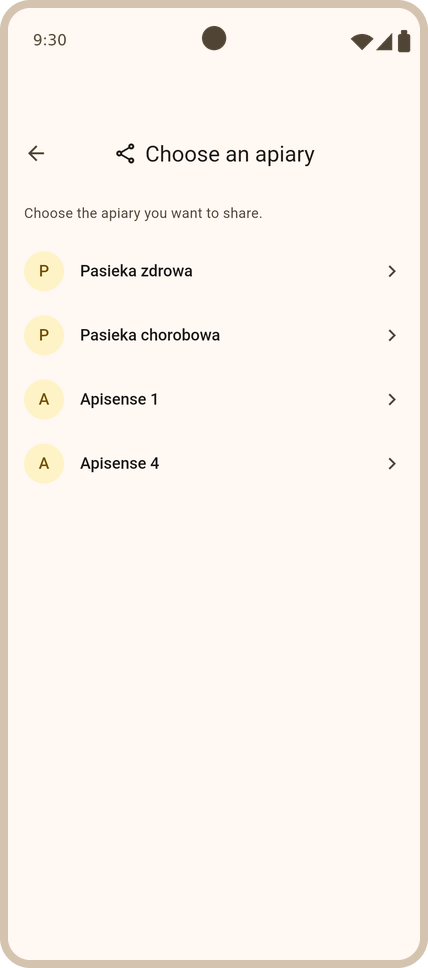
- Tap the Share apiary button at the bottom of the Shared tab. If you came from the main panel, a Choose an apiary screen comes first — pick the apiary you want to share (Fig. 82). Coming from a specific apiary skips this step.
-
Fill in the form:
- E-mail — the Apisense account address of the person you're inviting. The app sends the invitation with access to the apiary there;
- Name — the label this person appears under in your sharing list;
- Access type — one of the levels described in 7.2. The selected level is marked with a check on the right.
-
Tap Share. The invitation lands on the list with the Pending acceptance status and waits for the invited person's decision (Fig. 83).
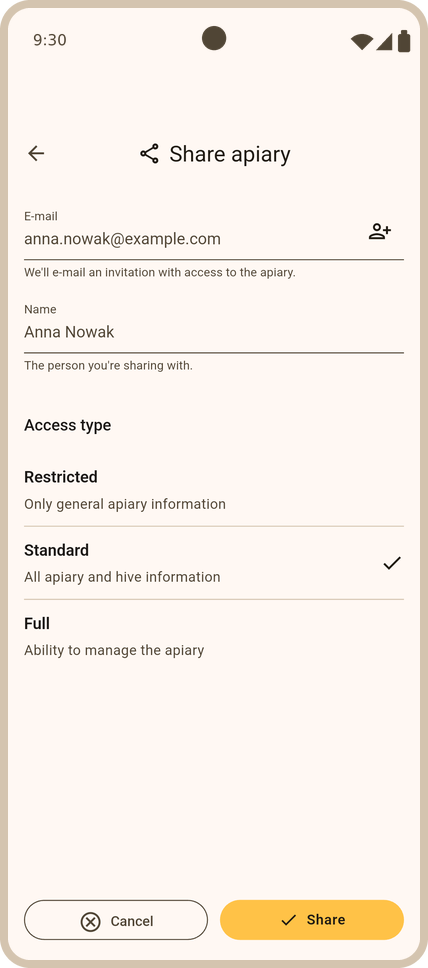
The app refuses an invitation in three cases: the address has no Apisense account, the apiary is already shared with that person (This apiary is already shared with this person.), and you entered your own address (You can't share an apiary with yourself.).
7.4 Invitation statuses
On the Shared tab each row shows the person, the granted level under Access:, the status under Invitation: and the date the invitation was sent. The possible statuses are:
- Pending acceptance — the invitation was sent, the person hasn't decided yet. There is no access yet.
- Accepted — the invitation was taken up and the apiary is visible to that person.
- Rejected — the invited person declined.
- Withdrawn — you withdrew the access.
- Left — a person who had accepted the invitation gave up the access themselves.
Rejected, Withdrawn and Left rows stay on the list as history. To try again, simply send a new invitation — a new entry is created and the old one is kept.
7.5 Changing the access level and withdrawing a share
Tap a row on the Shared tab to open Sharing details (Fig. 84):
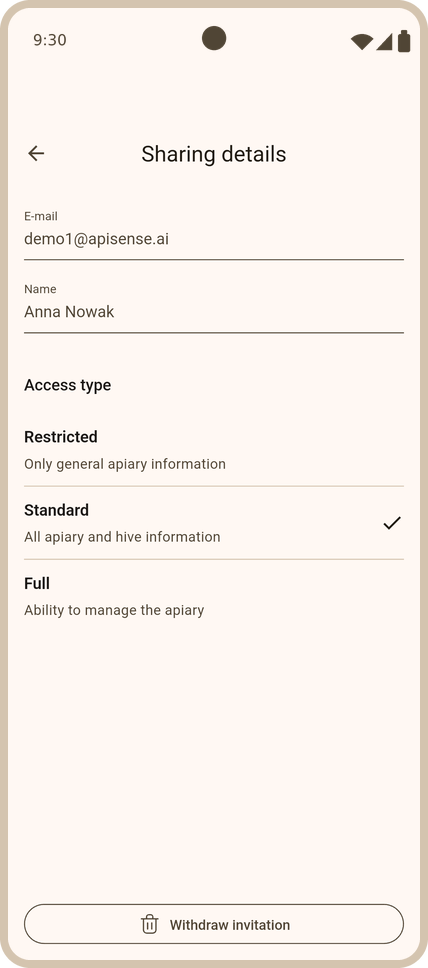
- Name and Access type can be changed. Once you change something, the Cancel and Save buttons appear at the bottom of the screen.
- E-mail is immutable — the field is greyed out. If the address is wrong, withdraw the invitation and send a new one to the correct address.
- Withdraw invitation — the button shows as long as you haven't changed anything in the form. The app asks for confirmation with Withdraw invitation? and the warning that This person will immediately lose access to the apiary.
7.6 When an apiary is shared with you
- The invitation. When somebody shares an apiary with you, an APIARY INVITATION card appears in the Apiaries tab with the apiary name, the owner's name and the Accept and Reject buttons. You can close the card with the cross — the invitation isn't lost, it waits on the Shared with me tab.
- The decision. You can accept or reject either from the card in the Apiaries tab, or from the Shared with me tab, or after tapping the row — on the Invitation screen, which shows the owner, the apiary and the granted access level with its description.
- After accepting, the apiary appears in the Apiaries tab, on your apiary list under the Shared apiaries heading. What you see and what you may change follows the level the owner granted (7.2).
- Leaving the apiary. On the Invitation screen of an accepted share there is a Leave apiary button, confirmed with Leave apiary?. Once you confirm, the apiary disappears from your list of shared apiaries and you lose access to it.
When your access level isn't enough for an action, the app doesn't hide it silently:
- an attempt to edit shows Read-only access with the hint To edit this section, ask the owner for full access.;
- a section unavailable at the Restricted level shows a Feature unavailable screen with This part of the apiary requires a higher access level. Ask the owner to extend your share.
Note
The owner can withdraw access at any time — the note on the invitation screen says so: After accepting you'll have access to the apiary's data. The owner can withdraw access at any time.
7.7 Sharing notifications
Sharing events are announced by push notifications: an invitation to an apiary, its acceptance, a withdrawal of access and an invited person leaving the apiary. Each one goes to the other side — the invitation and the withdrawal to the invited person, the acceptance and the leaving to the owner. Tapping such a notification opens the matching sharing view.
Colony health
This chapter gathers everything about the condition of the bee colony: automatic disease alerts together with the feedback questionnaire, recommendations prepared by the system, the examinations and samples you carry out yourself, and frame photo analysis in FrameSense.
1. Disease alerts
When the Apisense Pro AI system reports a threat (e.g. Nosema), alerts will appear in the Notifications tab in the app, along with a description and recommendations. By filling in the disease questionnaire (Answer a few questions), you provide feedback to the system and help tailor messages to the actual conditions in your apiary.
1.1 What do disease alerts mean?
Alerts in Notifications → Problems, as well as in the hive view (Details → Hive state tab → Health section → Colony row), refer to diseases detected automatically by the Apisense Pro AI machine learning model based on sensor data and system analysis. This is not a veterinary diagnosis — the system signals a probable threat (e.g. varroa, nosema, foulbrood), together with severity level and recommended actions, which you will see after clicking the row with the disease in the Problems tab — a separate view with the episode details then opens.
On apiary and hive tiles, disease alerts appear as Threatened status or the name of the detected disease (sometimes with a “+N” badge when more than one threat was found in the hive).
The model is highly accurate, but — like any predictive analysis — it can sometimes be wrong. Therefore it is worth checking every alert in the field and completing the disease questionnaire (Problems → disease details → Answer a few questions). Filling in the form is very important because your answers help improve the model and increase disease detection accuracy. Thanks to this feedback, the system can better recognize real cases and reduce false alarms.
It is also worth remembering that the model can detect signs of disease at a very early stage, when symptoms may not yet be visible or may be hard to notice during a standard inspection. Therefore, even if you do not see clear symptoms at first glance, it is worth checking the hive indicated in the alert and providing feedback through the form.
1.2 What to do when the disease is not present in the hive
If after visiting the apiary you conclude that the disease is not actually present in that hive:
- Open the alert details (Notifications → Problems → the disease row).
- Click Answer a few questions.
- For questions about symptoms, answer No (you can attach photos from the inspection to each question).
- Submit the form by clicking Save.
Your answers help the system better tailor future messages to conditions in your apiary. You can fill in the questionnaire again for the same disease episode after 48 hours — until then the app shows the message You can submit the questionnaire for this episode again in 48 hours.
The Skip option lets you move on without answering a given question — it is still worth completing at least part of the form, especially when you are unsure about the alert.
1.3 Filling in the disease questionnaire from the apiary level
- In the Apiaries tab (the start view after logging in to the Apisense app) click the tile of the apiary in which a threat was detected (red bee icon and Threatened label on the apiary tile). After clicking the tile, the Hives view will be displayed (Fig. 85).
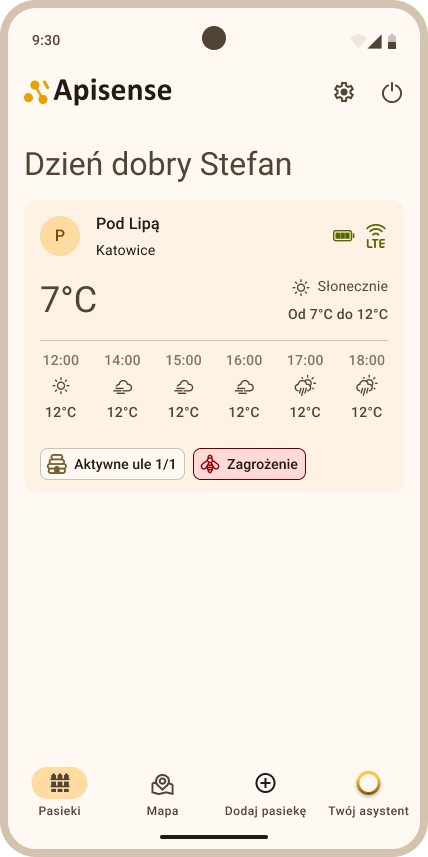
- Then choose the Notifications tab from the bottom menu. As a result, the Problems tab will be displayed, and in it a list of problems detected in this apiary (diseases from all hives, Fig. 87). Switch the list with the Active / Completed filter above it.
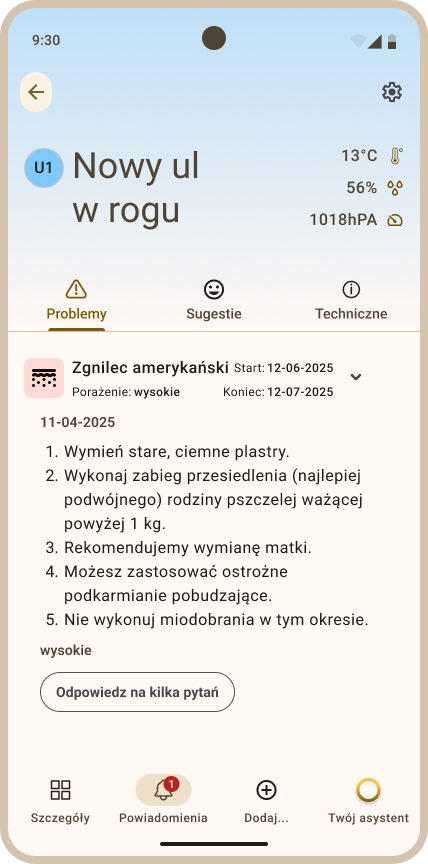
- Go to the details of the detected disease by clicking the row with the disease, e.g. American foulbrood (Fig. 88). The details open as a separate view, on the recommendations list by default: you see the hive number, severity level, episode duration, a Recommendations section listing the suggested actions, and the Answer a few questions button. Questionnaires you have already submitted are in the Answers tab.
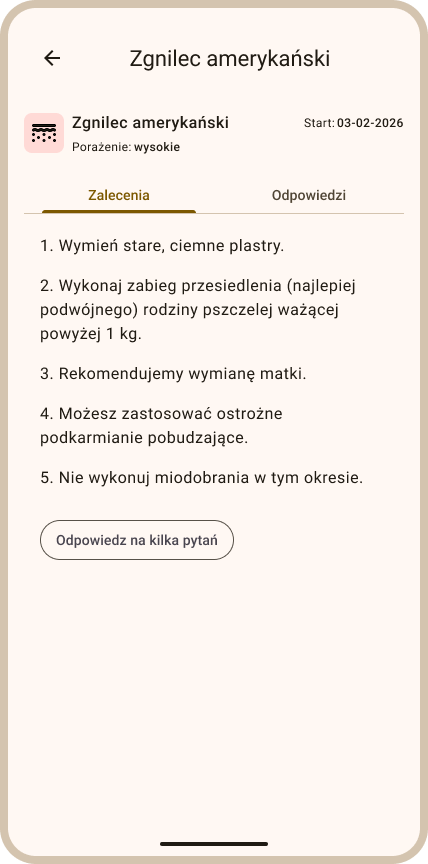
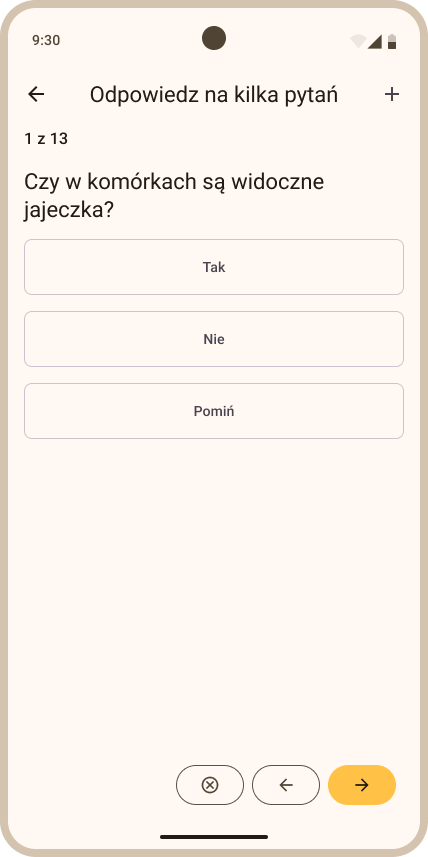
- To fill in the disease questionnaire for an alert detected by the system, click the Answer a few questions button. After clicking the button, the Answer a few questions view will be displayed (Fig. 89). Then answer all the questions, choosing one of the available options: Yes, No or Skip — depending on what you observed in the hive.
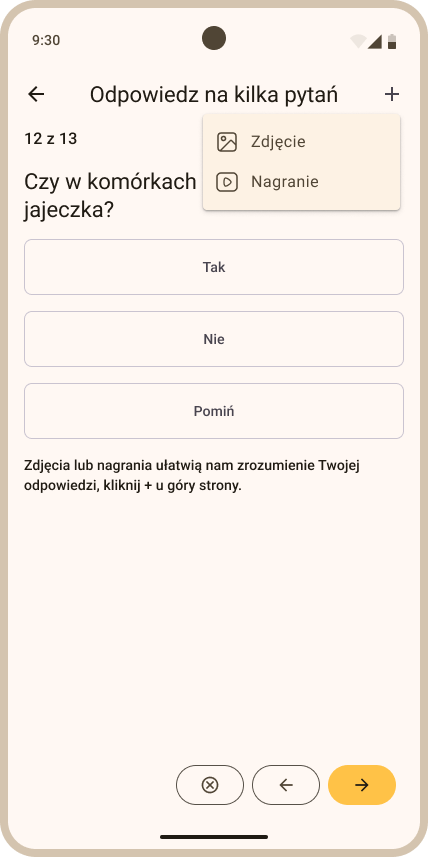
- You can also attach photos or recordings to your answers to individual questions. To do so, click the Add photo/recording button (with a plus icon) below the Yes / No / Skip options (Fig. 90). A note below the button reads Adding a photo or recording is optional.
-
To proceed to the next question, click the yellow right-pointing arrow icon in the lower right corner of the screen.
-
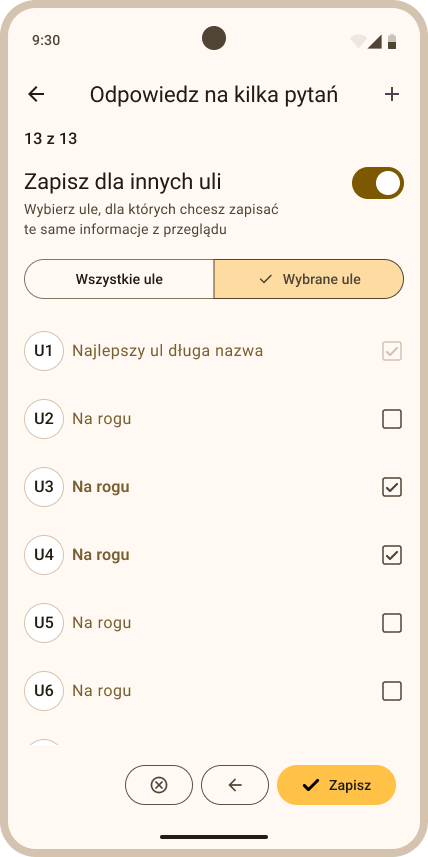
To save your answers and submit the form, click the yellow Save button in the lower right corner of the last screen of the Answer a few questions view (Fig. 91).
1.4 Filling in the disease questionnaire from the hive level
- In the Apiaries tab (the start view after logging in to the Apisense app) click the tile of the apiary in which a threat was detected (red bee icon and Threatened label on the apiary tile). After clicking the tile, the Hives view will be displayed (Fig. 92).
- Click the tile of the hive in which a threat was detected. After clicking the tile, the Details tab of the hive will open (Fig. 94).
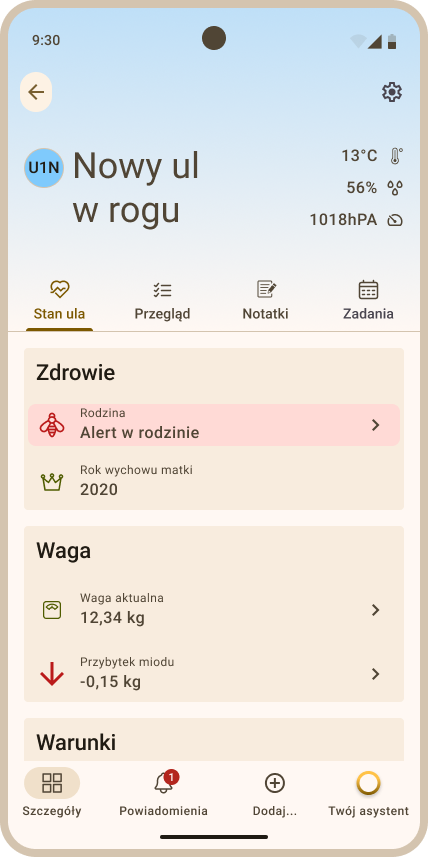
- Then choose the Notifications tab from the bottom menu. As a result, the Problems tab will be displayed, and in it a list of problems detected in this hive only (Fig. 95). Switch the list with the Active / Completed filter above it.
- Go to the details of the detected disease by clicking the row with the disease, e.g. American foulbrood (Fig. 96). The details open as a separate view, on the recommendations list by default: you see the hive number, severity level, episode duration, a Recommendations section listing the suggested actions, and the Answer a few questions button. Questionnaires you have already submitted are in the Answers tab.
- To fill in the disease questionnaire for an alert detected by the system, click the Answer a few questions button. After clicking the button, the Answer a few questions view will be displayed (Fig. 97). Then answer all the questions, choosing one of the available options: Yes, No or Skip — depending on what you observed in the hive.
- You can also attach photos or recordings to your answers to individual questions. To do so, click the Add photo/recording button (with a plus icon) below the Yes / No / Skip options (Fig. 98).
-
To proceed to the next question, click the yellow right-pointing arrow icon in the lower right corner of the screen.
-
To save your answers and submit the form, click the yellow Save button in the lower right corner of the last screen of the Answer a few questions view (Fig. 99).
1.5 Editing or deleting a submitted answer
A submitted disease questionnaire answer can be corrected for a limited time after saving:
- On the Answers tab in the disease details view, find the chosen answer. Tap the pencil icon to edit the submitted answers, or the bin icon to delete the completed form. The same options are also available from the form view — open the overflow menu (three dots) and choose Edit or Delete.
- After choosing Delete, confirm the Delete answers? prompt. The form together with its answers is removed permanently.
- Note: Answers can be edited for 30 days after submission. After that time, editing or deleting the form is no longer possible, and the app shows the message: The correction window for this answer has expired; submit a new answer instead. If the disease episode is still active, you can submit a new set of answers using Answer a few questions.
2. Recommendations
Recommendations are concrete actions the system suggests based on sensor data, your own observations and AI analysis. They are not a separate tab in the menu — they appear wherever the system has detected something that needs a response.
2.1 Recommendations for a detected disease
- Open the disease details: Notifications tab (bottom menu) > Problems > the row with the disease. The details open as a separate view.
- The view opens on the recommendations list by default. At the top you see the hive number, disease name, infection level and episode duration, and below them a Recommendations section with a numbered list of suggested actions.
- Below the list there is an Answer a few questions button — the entry point to the health questionnaire (see 1. Disease alerts).
- The second tab, Answers, holds the questionnaires you have already submitted for this episode.
Note
In an apiary shared with you in read-only mode the tabs are not shown — you see the recommendations only, without the option to fill in the questionnaire.
2.2 Recommendations after frame analysis (FrameSense)
Once a frame photo analysis is complete, a Recommendations section below the results holds practical guidance based on what the model recognised on the comb. Details in 5. FrameSense.
Warning
Recommendations are a suggestion, not veterinary advice. Decide on treatment after inspecting the hive, and report what you saw through the health questionnaire — that improves the accuracy of later alerts.
3. Samples
Pilot feature
The Samples and Examinations tabs are available only to users included in the pilot programme. If your account is not part of it, the Register sample and Examination options do not appear in the Add... menu, and the related lists stay hidden.
3.1 Registering a sample
- In the Apiaries tab (the start view after logging in to the Apisense app) click the apiary tile. After clicking the tile, the Hives view will be displayed (Fig. 100).
- Then click the tile of the hive for which you want to register a sample. As a result, the Hive details view will be displayed (Fig. 102).
- To register a sample, choose the Add... option from the bottom menu, then Register sample (Fig. 103); the Register sample view will be displayed (Fig. 104). Note: the Register sample option is only available for hives with a linked Apisense VitalSensor device.
-
In the Register sample view, fill in the following fields:
-
Sample collection date - enter the date when you collected the sample (current by default).
-
Examination type - select the appropriate item from the drop-down list, e.g. Dead bees.
-
After filling in the above fields, the yellow Generate code button will be displayed. Click that button and a special code will be generated in the Examination code field, which should be written on the sample (Fig. 104). The sample prepared this way with the code should then be sent to the address shown in the app below the code: Maciej Bryś, University of Life Sciences in Lublin, ul. Doświadczalna 54, 20-280 Lublin.
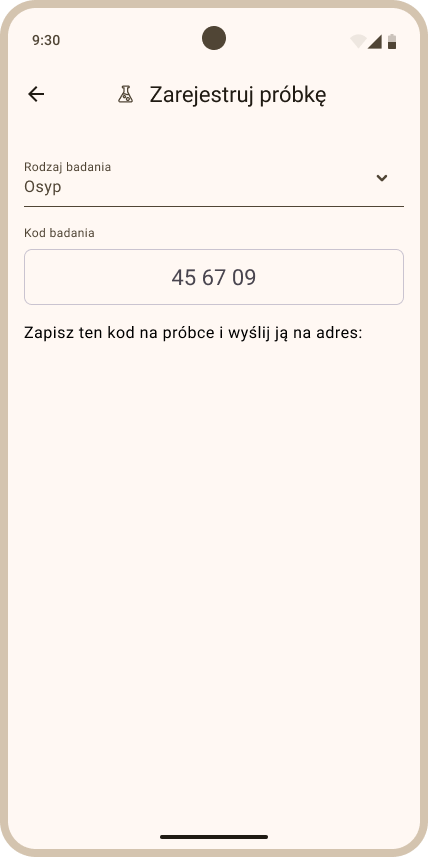
Freezer storage — Nosema examinations only
Freezing bees is accepted only for Nosema examinations.
- Each frozen sample must be clearly and easily identified with the hive it comes from (e.g. the examination code from the app written on the envelope).
- Storage temperature: at least −8 °C.
- Bee samples can be stored in the freezer for approximately 3–5 months before the examination or shipping to the lab.
- Samples must not be thawed and frozen again.
How to perform the examination yourself?
Detailed instructions for sample collection and performing examinations (Nosema microscopy, Varroa flotation) are available in the Lab procedures section.
Shipping live bees
Ship live bee samples alive, in ventilated transport cages that allow air access, with sugar candy (~10 bees per cage, 4 cages per hive), labelled with the test code from the app. Ship Monday to Thursday — via Poczta Polska or courier. Shipments via Poczta Polska may only be sent by apiary owners located in Poland. Details: Protocol 2 — live bees.
3.2 Sample status
Each registered sample shows a status label describing where it is in the examination process:
- Pending — the sample was registered in the app but has not yet been sent or received by the lab.
- Sent — the sample was shipped to the lab.
- Received — the lab confirmed receipt of the sample.
- Analysed — the sample examination in the laboratory has been completed.
- Cancelled — the sample was cancelled.
3.3 Deleting a sample
Only a sample with the Pending status can be deleted — one that has not been sent yet. For samples with the Sent, Received, Analysed and Cancelled statuses the delete option does not appear at all: neither the bin icon in the list nor the Delete item in the sample details.
To delete a pending sample:
- Go to the sample list (Hive details > More > Samples).
- Tap the red bin icon next to the sample, or swipe its row to the left and tap the bin that appears. You can do the same from the sample details — the ⋮ menu in the upper right corner, the Delete option.
- Confirm the operation by tapping Delete. After you tap this button, the sample is permanently deleted and the operation cannot be undone.
4. Examinations
Pilot feature
As with Samples, the Examinations tab is available only to users included in the pilot programme.
4.1 Adding an examination
- In the Apiaries tab (the start view after logging in to the Apisense app) click the apiary tile. After clicking the tile, the Hives view will be displayed (Fig. 105).
- Then click the tile of the hive for which you want to add an examination. As a result, the Hive details view will be displayed (Fig. 107).
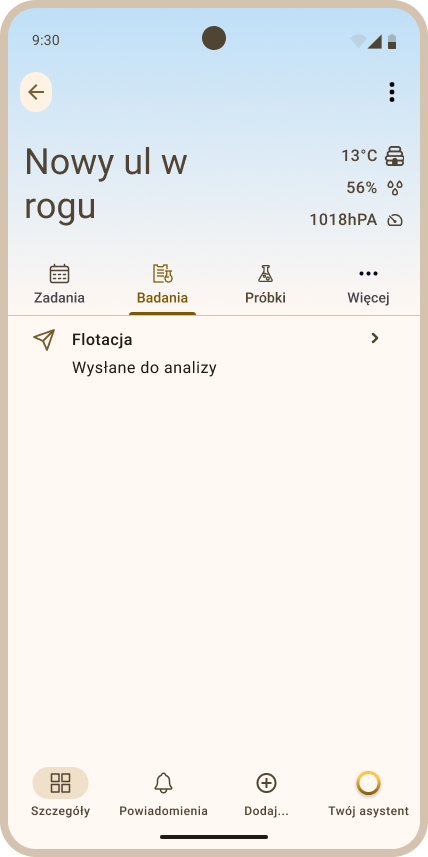
- To add an examination, choose the Add... option from the bottom menu, then Examination (Fig. 108); the Add examination view will be displayed (Fig. 109).
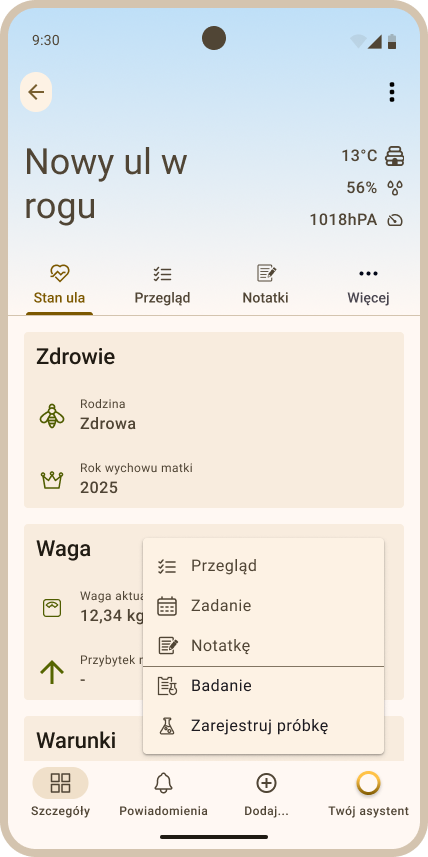
-
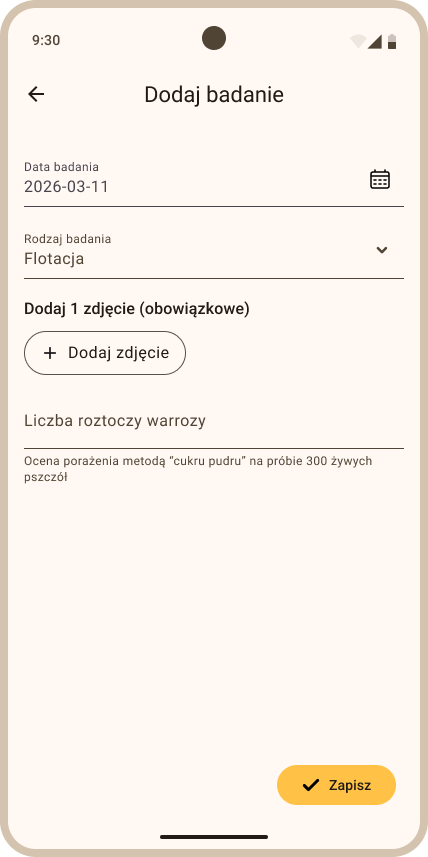
In the Add examination view (Fig. 109), fill in the following fields:
- Examination date — choose the date the examination was performed.
- Examination type — choose one of the available options from the drop-down list, e.g. Natural drop. The available types are listed in the table below.
- Photos and supplementary information — after choosing the examination type, take or upload the required number of photos and fill in the numeric fields (e.g. Varroa mite count) according to the on-screen prompts.
Examination types available in the drop-down list:
| Examination type | What it covers | What you enter and attach |
|---|---|---|
| Sugar roll | Varroa — infestation assessment with the "powdered sugar roll" method on a sample of 300 live bees | Varroa mite count, 1 photo |
| Natural drop | Varroa — number of females found during inspection on the bottom board insert | Varroa mite count, 1 photo |
| Microscopy | Nosemosis — microscopic examination of a bee sample | Nosema spore count, up to 5 photos |
The list depends on the apiary location
The app gets the list of examination types from the server for each apiary separately, so it can differ between apiaries. Natural drop is available only for apiaries located in Poland (the position of the Hub decides the location). For all other apiaries the list shows Sugar roll and Microscopy.
Instructions on how to perform the examinations are available in the Lab procedures section.
- Save the examination using the yellow save button in the lower right corner of the screen. The saved examination will be displayed in the examination list under Hive details > More (top menu) > Examinations (Fig. 110).
4.2 Editing an examination
To edit an examination:
- On the examination list (Hive details > More > Examinations) tap the pencil icon, or on the examination details screen open the overflow menu (three dots in the upper right corner) and choose Edit. The Edit examination view opens pre-filled with the previously saved data.
- In the Edit examination view you can update all fields except the examination type.
- To update a photo, first remove it by tapping the "X" on the photo thumbnail, then add a new photo using the Add photo button.
- To save your changes, tap the yellow confirmation button in the lower right corner.
4.3 Deleting an examination
To delete an examination from the examination list:
- Go to the examination list (Hive details > More > Examinations).
- Tap the red bin icon next to the examination to be removed from the list, or in the details of the chosen examination choose Delete from the overflow menu (three dots in the upper right corner).
- Confirm the operation by tapping Delete. After you tap this button, the examination is permanently deleted and the operation cannot be undone.
5. FrameSense
FrameSense uses artificial intelligence to automatically estimate the comb contents from a single photo, including brood, food stores, and empty or obscured area.
5.1 Adding a frame analysis
- Click the chosen apiary tile, then the chosen hive tile. As a result, the Hive details view will be displayed.
- Choose the Add... option from the bottom menu, then FrameSense; the FrameSense view will be displayed.
- Tap the Add frame photo for analysis button in the center of the FrameSense view. Choose Camera and take a photo of the bee frame, or upload one photo of the frame from Gallery. While taking a photo, the camera view shows a guide with the message Position the frame inside the outline. Place the entire bee frame within the outlined area. After you take the photo, the app automatically crops it to the area defined by the guide, so only the portion covering the frame is used for analysis. For the most accurate AI analysis result, position the frame so that it fills as much of the outline as possible without going beyond its borders. Also make sure it is clearly visible and against a uniform background.
- After choosing the photo, tap the yellow Send for analysis button at the bottom of the screen. The photo is uploaded for AI processing.
Note
Bee frame analysis requires an internet connection to upload the photo. Processing a photo sent for analysis typically takes a few minutes. We recommend attaching photos in JPG or PNG format. RAW/DNG files are supported only in the mobile version.
5.2 FrameSense results
Results of submitted bee frame analyses are available in the FrameSense tab (Hive details > FrameSense). To view the result for a chosen frame, tap the corresponding list entry with the status Analysis completed.
Possible statuses:
- Analysing — the photo has been sent for analysis and is being processed by AI (about 5 minutes).
- Analysis completed — the frame analysis finished successfully. You can now see the color-annotated photo with the percentage share of each comb category: Brood (eggs, larvae, worker and drone brood), Stores (nectar, pollen, capped honey) and Empty/obscured area, as well as the number of queen cells/cups found and a bee count. The analysis result consists of several views of the same submitted photo. Each view marks different analyzed elements with corresponding descriptions. Swipe through the photos to see successive analysis results. Tapping a photo opens it in fullscreen mode. Below the analysis results is a Recommendations section with practical tips and suggested actions based on the AI analysis. They help identify potential problems and make informed decisions about next steps.
- Analysis failed — the analysis could not be completed. Try adding a bee frame photo again and sending it for analysis.
When a bee frame analysis is completed, a push notification is sent that opens its result directly when tapped.
Main system panel
1. Apiary list overview (Apiaries tab)
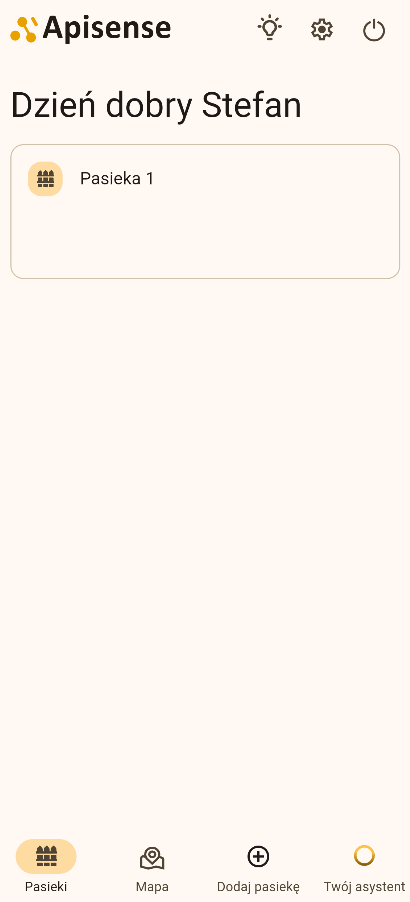
The Apiaries tab is the basic tab in the Apisense app, which you will see right after logging in to the system (Fig. 111).
Most important information:
-
The Apiaries tab contains all of your apiaries.
-
Each apiary is presented in the form of a single, clear tile containing key, appropriately aggregated information.
-
Apiary tiles are presented in a clear form.
-
Next to the greeting at the top of the screen, a chip shows your current Apisense plan and how much time is left on it; tap it to see plan details (see 8. Your plan).
-
The following information is displayed on each apiary tile:
-
apiary name with a fixed apiary icon (the same for every apiary),
-
apiary location (town) below the name,
-
Apisense Hub battery level,
-
Apisense Hub LTE signal level,
-
current weather,
-
number of active hives - the number of hives that have at least one device (Scale, VitalSensor) communicating correctly with the Apisense Hub,
-
bee colony status - indicating whether the colony in the apiary is fully healthy or whether a threat has been detected in any hive,
-
the Asian hornet icon with the status of the last observation (see 6. Asian hornet observation),
-
a No connection badge if this apiary's Hub is offline,
More information on interpreting the individual statuses can be found in chapter 7. Interpretation of statuses, measurements, icons, colors at individual stages
-
-
Clicking the apiary tile opens the apiary interior - the hive list (Hives tab).
2. Apiary map overview (Map tab)
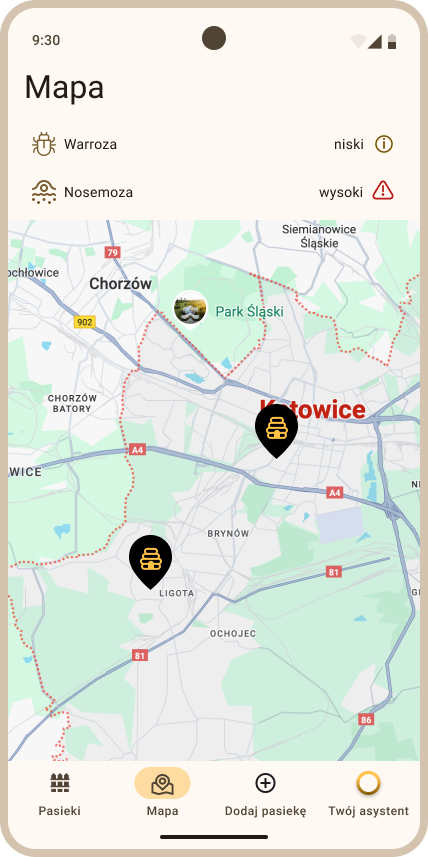
The Map tab presents the locations of all apiaries the user has access to on a map (Fig. 112). The map makes logistics easier, helps plan visits and quickly locate apiaries that require intervention.
Most important information:
- To go to this tab, click the Map option visible on the bottom menu right after logging in to the Apisense app.
- Markers showing the user's apiary locations are displayed on the map.
- The map view can be filtered by problems detected in the apiaries. To do so, click an option such as Varroa above the map; the map view will be limited to only those apiaries where this disease threat is present.
3. Hive list overview (Hives tab)
In the hive list you will find all the hives that have been assigned to the chosen apiary. You can go to the Hives tab directly from the Apiaries tab by clicking the tile of the chosen apiary.
3.1 Hive list
In the List tab you will find a list of all hives assigned to the chosen apiary (Fig. 113). This layout lets you quickly compare hives and locate those that require attention.
Most important information:
-
Just like apiaries, each hive is presented as a separate tile.
-
Each hive tile consists of the following elements:
-
hive name with a fixed hive icon (the same for every hive),
-
Colony state - indicating whether the colony in the given hive is healthy or whether a threat has been detected,
-
Temperature in hive - the current temperature inside the hive,
-
Weight + gain - the current hive weight together with honey gain,
-
Colony strength - this row is always shown; until there is data, the value reads "-",
-
an indicator for a task scheduled within the next 10 days,
-
additional icons related to specific events in the hive, e.g. a red battery icon indicating low battery level.
More information on interpreting the individual statuses can be found in chapter 7. Interpretation of statuses, measurements, icons, colors at individual stages
-
-
Clicking the hive tile opens the hive interior - detailed measurement data taken by the devices assigned to the chosen hive (Details tab).
4. Hive contents overview (Details tab)
The hive Details view enables you to monitor measurement data coming from the measurement devices (Scale, VitalSensor) and to manage records relating to work on a specific hive (including inspections and notes). You can go to the details tab directly from the Hives tab by clicking the tile of the chosen hive.
The Details view is divided into several smaller tabs:
- Hive state
- Inspection
- FrameSense
- More:
- Notes
- Tasks
- Examinations
- Samples
Note
The split into two groups appears only when there are more than five content tabs. With five or fewer (for example when the hive has no VitalSensor, or your plan does not cover examinations or FrameSense), they all fit into a single bar and the More tab does not appear at all. Tapping More switches the bar between the two groups.
4.1 Hive state
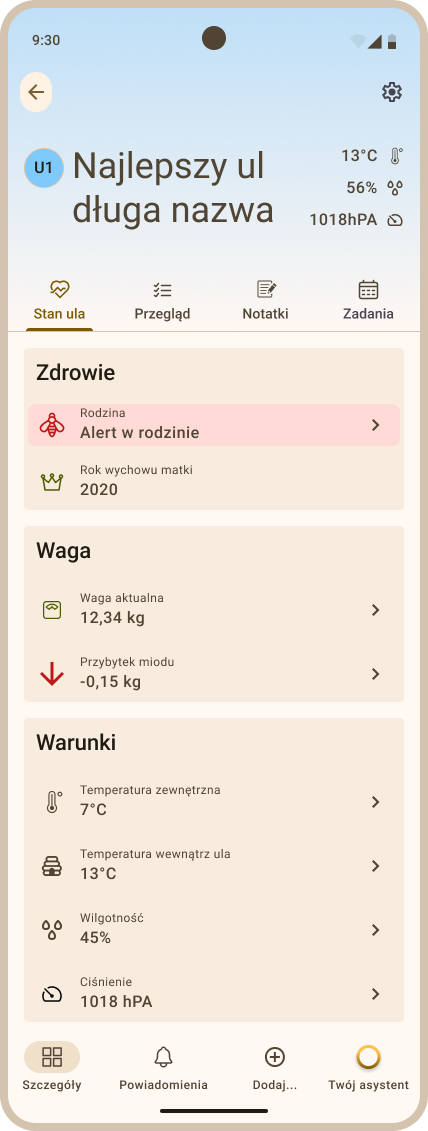
The Hive state tab presents the most important, current information about the condition of the bee colony and conditions inside the hive (Fig. 114), determined on the basis of measurement data from the monitoring devices.
Most important information:
- Health section – presents the current status of the bee colony, indicating whether the colony is healthy or whether a potential threat in the form of a disease has been detected. This section also displays the year the queen bee was raised and the Colony strength indicator (Weak / Medium / Strong / Very strong), which reflects the AI-computed vitality of the colony based on inspection data. Tap the colony strength label to open the Colony strength screen, where you can view the full change history and manually override the AI's assessment if needed. Tap the info (i) icon next to the label to open a legend explaining what each level means and the range of occupied brood-box frames it corresponds to, with the hive's current level highlighted.
- Weight section – contains information about the current hive weight and honey gain, allowing you to assess production rate and bee colony activity.
- Conditions section – presents environmental data from inside the hive and its surroundings, such as outside temperature, inside temperature, humidity and pressure inside the hive.
- Detailed data and charts – after expanding individual elements in a given section, the user can see more detailed information and charts of parameter changes over time, which makes it easier to analyze the hive status and the conditions inside it.
More information about data analysis and presentation in chart form can be found in chapters Parameter monitoring and Data analysis and reports
4.2 Inspection
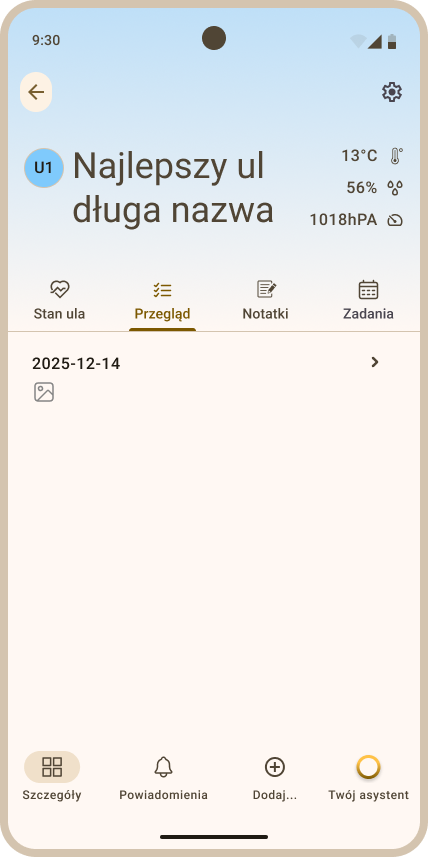
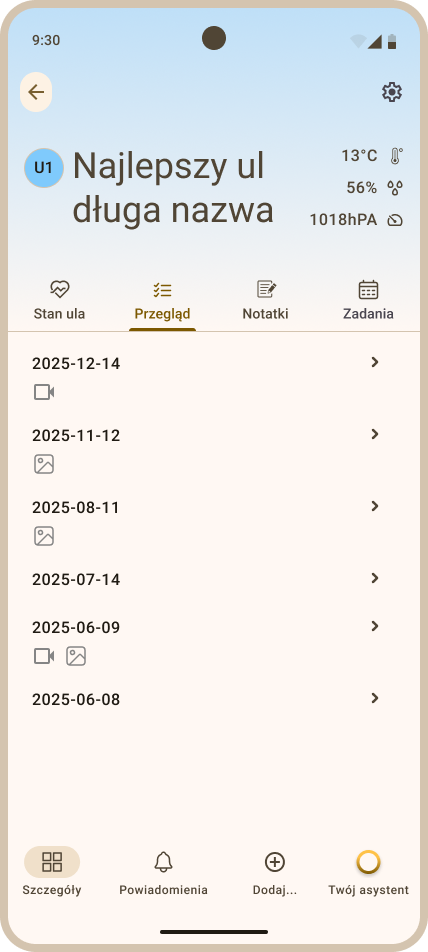
The Inspection tab enables you to review the history of inspections of a given hive. Inspections are presented as a list (Fig. 115).
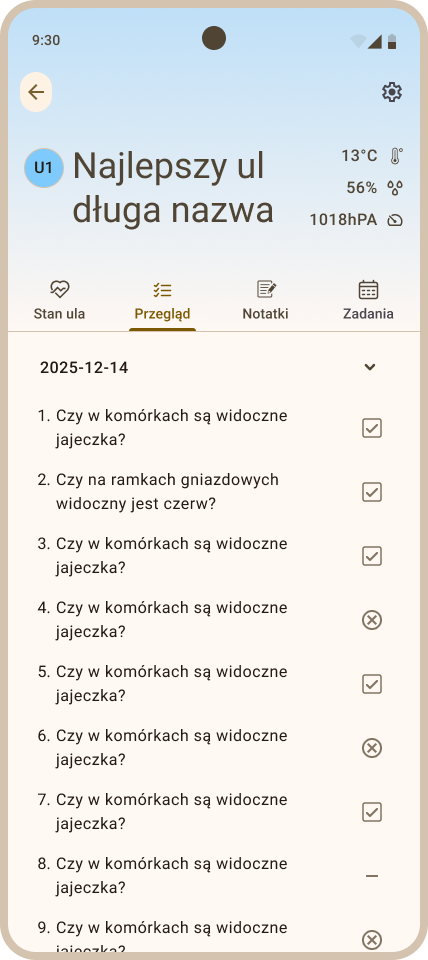
Most important information:
- Inspection list – presents a summary of all inspections performed for the chosen hive together with the inspection date.
- Multimedia materials – next to a given inspection, a photo or recording icon may be visible if visual materials were added during the inspection.
- Inspection details – after clicking the chosen row, detailed information about the inspection is displayed, including answers given during its performance.
4.3 Notes
The Notes tab lets you save and review information about observations or events related to a given hive. Notes, like inspections, are presented as a list (Fig. 117).
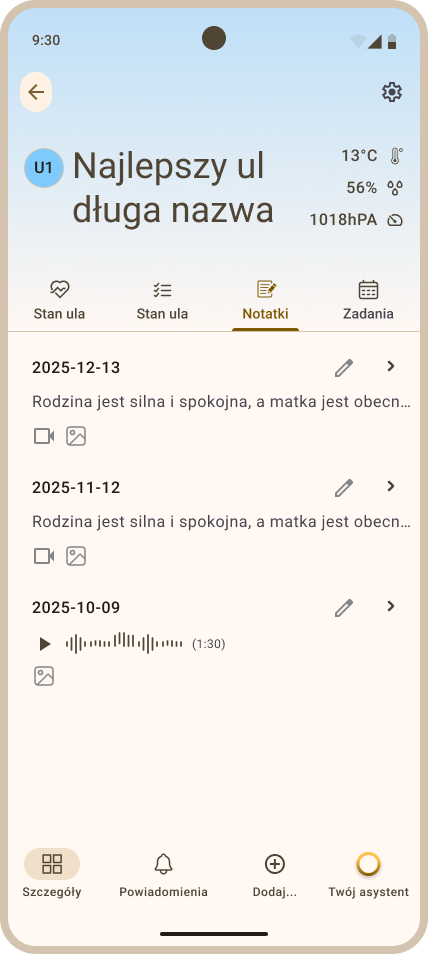
Most important information:
- Note list – presents all notes saved for the chosen hive, containing the title/date and a shortened content fragment (if the note contains text).
- Additional materials – note items may also display photo, video recording or audio recording icons if such materials were attached to them.
- AI-generated labels – both text and voice notes may show one or more small gold labels with a sparkle icon, generated automatically by AI to summarize their topic (e.g. Queenless, Feeding). This lets you quickly see what a note is about already from the notes list, without opening it and reading the full content.
- Note details – after clicking - expanding - the chosen note, the full note content is displayed together with the attached materials, as well as the AI labels summarizing the note content.
4.4 Examinations
The Examinations tab presents in a clear way a list of all performed and saved examinations (Fig. 118) carried out for the chosen hive. Thanks to this, the user can quickly check the analysis history and return to earlier results.
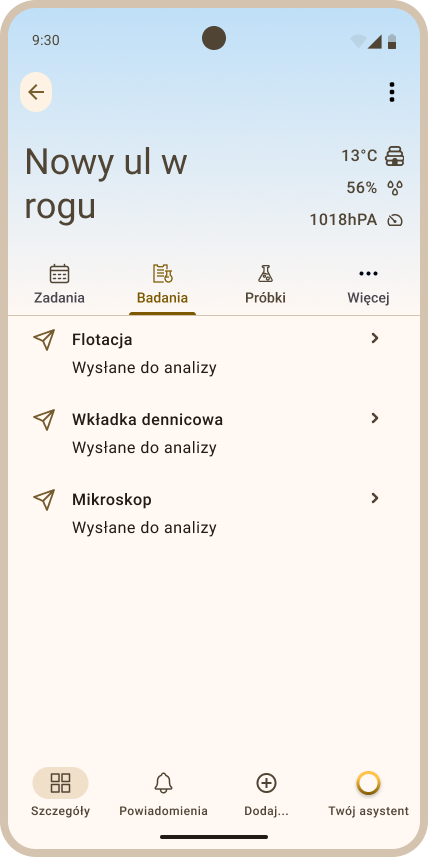
Most important information:
- Examination list – presents all examinations saved for the chosen hive, sorted in descending order by examination date.
- Examination details – after clicking a single examination, its details are displayed, including: examination date, examination type and saved attachments.
4.5 Samples
In the Samples tab you will find a list of all registered samples for a specific hive (Fig. 119).
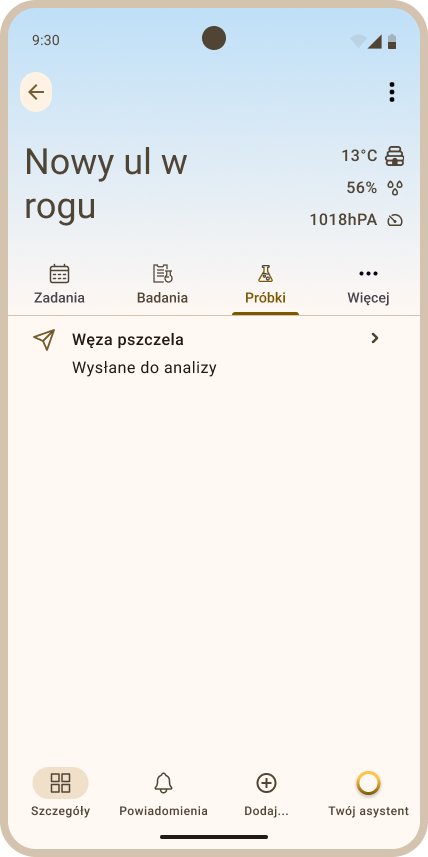
Most important information:
- Sample list – presents all samples saved for the chosen hive, sorted in descending order by sample collection date.
- Sample details – after clicking a single sample, its details are displayed, including: sample collection date, examination type and the examination code generated by the system.
4.6 FrameSense
The FrameSense tab presents the history of AI analyses of bee frames performed for the chosen hive, ordered from newest.
Most important information:
- Analysis list – shows every frame analysis with its status: Analysing, Analysis completed or Analysis failed.
- Analysis details – after opening a completed analysis, the submitted photo with marked elements and a comb contents summary are displayed, including brood, food stores, empty and obscured area, as well as a bee count and queen cells. Below there is also a recommendations section that helps you address potential problems detected during the frame analysis and take informed corrective actions. See 9. FrameSense for details.
5. Apiary settings overview
The Apiary settings view enables you to manage basic apiary data and to track information about the status of its equipment. You can access the view while in the Hives tab (the apiary interior) by clicking the ⋮ icon in the upper right corner of the screen and choosing Settings. The Apiary settings view consists of the following sections:
- Apiary details
- Hub
To see the contents of a given section, click its header; the full view with detailed information will be displayed.
5.1 Apiary details
The Apiary details section presents basic information identifying the apiary.
Most important information:
- Name – the only field in this section; the full apiary name, identifying it in the system, is displayed. There is no separate short-name field, and the apiary tile is marked with a fixed icon.
5.2 Hub
The Hub section presents technical data of the Apisense Hub device, which is responsible for collecting measurement data from the hives in the apiary.
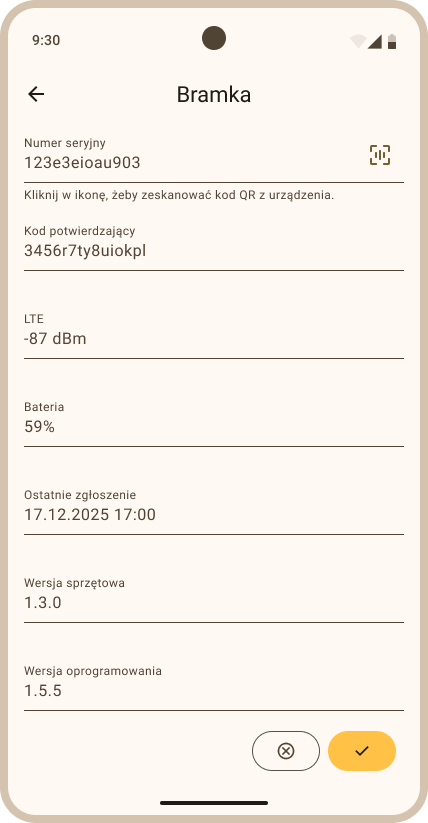
Most important information:
- Serial number and confirmation code – the device's unique serial number and the verification code confirming its assignment to the user are displayed.
- LTE and battery – information about the current LTE connection status and battery level of the Apisense Hub device is displayed.
- Last report – the date and time of the last communication of the Apisense Hub device with the system is displayed.
- Hardware and software versions – allows you to check the current hardware and software version of the Apisense Hub device.
6. Hive settings overview
The Hive settings view allows you to manage basic information about the hive, queen bee data and assigned measurement devices. You can access the view from the hive Details tab (the hive interior) by clicking the ⋮ icon visible in the upper right corner of the screen and choosing Settings. The Hive settings view is divided into the following sections:
- Hive details
- Queen information
- Equipment
To see the contents of a given section, click its header; the full view with detailed information will be displayed.
6.1 Hive details
The Hive details section presents basic information identifying the hive and its construction.
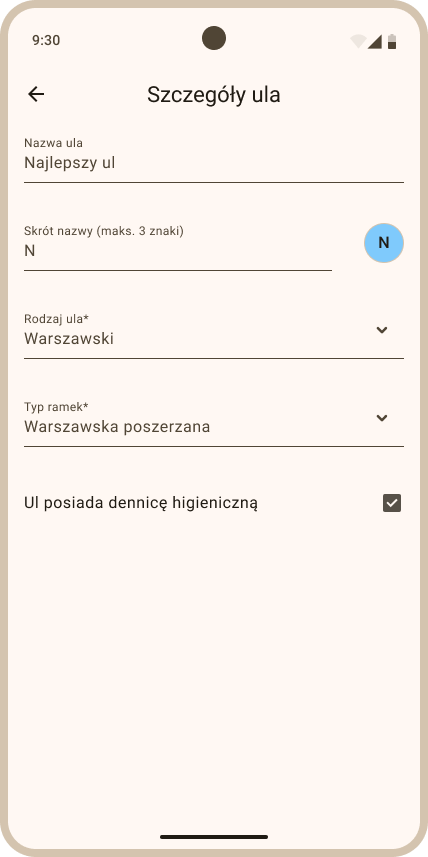
Most important information:
- Hive name – the full hive name making it easy to identify in the system.
- Maximum number of frames in the brood box – information about the maximum number of frames that can fit in the hive's brood box.
- Hygienic bottom board – information about whether the hive has a hygienic bottom board.
6.2 Queen information
The Queen information section enables you to review detailed data about the queen bee in the hive. Click the chosen header to display the details.
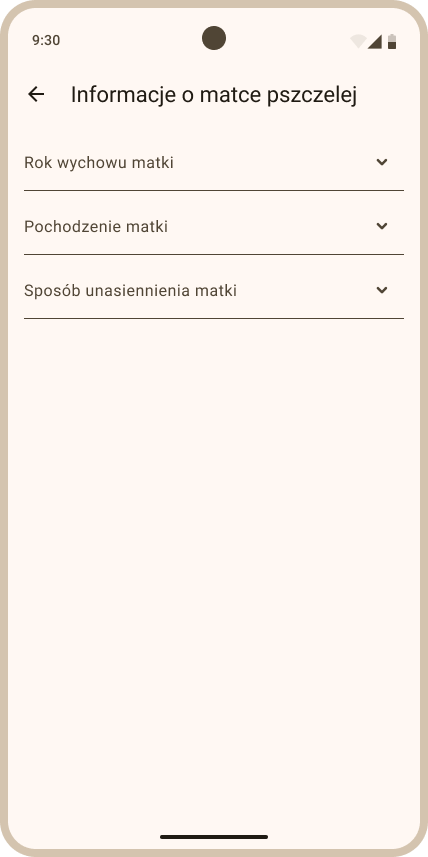
Most important information:
- Queen breeding year – presents the year the queen bee was raised.
- Queen origin – one of: Own breeding, Purchase domestic, Purchase foreign, Unknown.
- Queen insemination method – one of: Natural, Artificial, Unknown.
6.3 Equipment
The Equipment section presents the measurement devices assigned to a given hive and their current status.
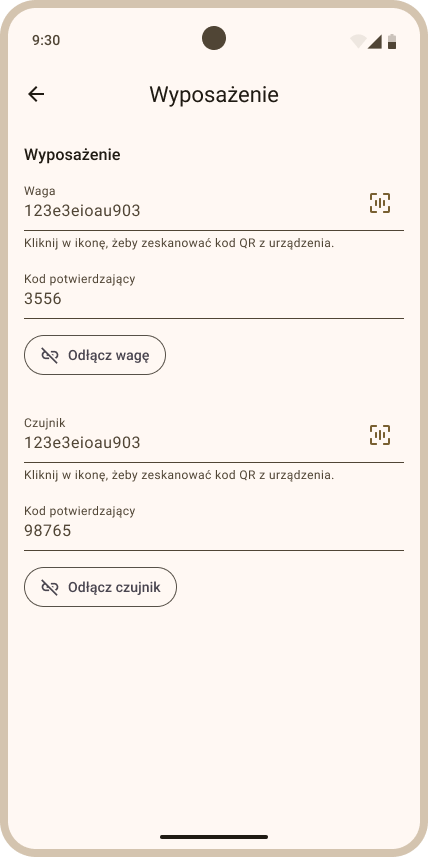
Most important information:
-
Three device blocks – the section covers ColonyLink, VitalSensor and Scale, in that order. Each block has a Serial number and a Confirmation code field.
-
Action buttons – the VitalSensor and Scale blocks have an I replaced the battery button and a Disconnect VitalSensor / Disconnect Scale button. ColonyLink has no disconnect button — it can only be swapped, by scanning the code of another device.
-
Expand details – clicking the device name opens the full view with information about the equipment status in the hive (Fig. 127).
-
Device details – after clicking a given device, the following are displayed:
- BLE and battery – information about the current BLE signal strength and the device's charge level.
- Last report – the date and time of the device's last communication with the Apisense Hub.
- Last measurement – the date and time of the latest measurement taken by the device.
- Hardware and software versions – allows you to check the current hardware and software version of the Apisense Scale/Apisense VitalSensor device.
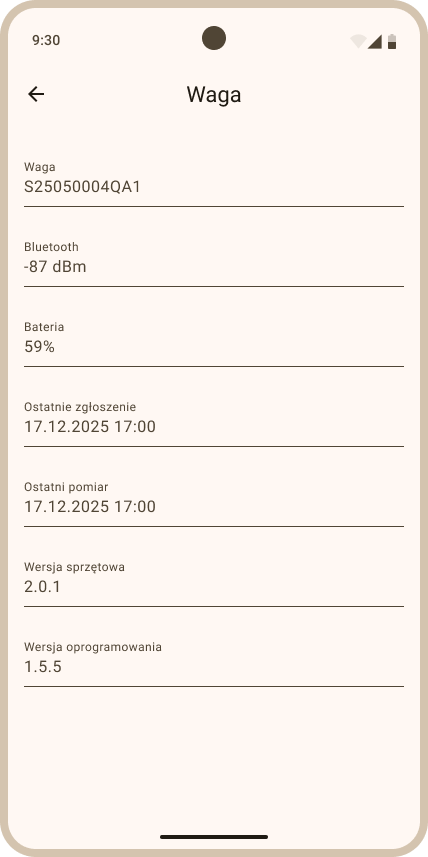
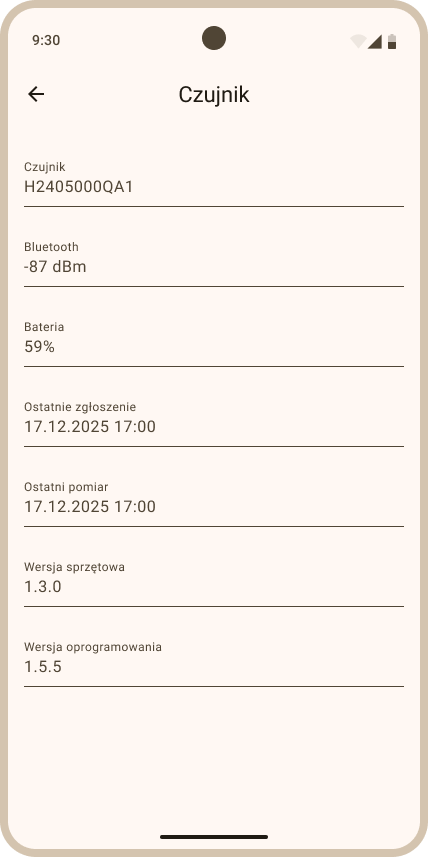
7. Interpretation of statuses and icons used in the system
The system uses various statuses and icons that make it easier to quickly recognize the state of the apiary, hives, measurement devices and planned activities. These elements serve as visual markers that allow the user to easily identify the most important information without having to analyze the data in detail.
This chapter presents the meaning of the individual icons, symbols and color coding used in the system interface, which will allow them to be interpreted correctly during daily work with the app.
7.1 First device startup
After creating an apiary with a Hub and assigning Scale/VitalSensor to a hive, before the devices connect to the system the tiles will show the following information:
- Hub — apiary tile — on the apiary tile you will see a message with instructions to start the device and three buttons (Fig. 129) — choose the one that matches your situation:
| Option | Maximum wait time | When to choose |
|---|---|---|
| Charger | about 30 min | The Hub is connected to external power |
| Weak sun | about 24 h | Discharged Hub with weak sunlight |
| Full sun | about 3 h | Hub placed in the sun with favourable sunlight |
After you select an option, a countdown (timer) starts with the estimated maximum time to wait for the first connection (Fig. 130). This is an estimate, not a guarantee — a discharged Hub without access to light may need more time. If the Hub still does not report when the time elapses, the app will suggest trying again.
- Scale and VitalSensor — hive tile — on the hive tile you will be asked (Fig. 131) whether the device is mounted correctly and whether it is within Hub range (up to about 35 m). After you confirm, a timer starts with the estimated maximum time for the measurement device to establish communication with the Hub (Fig. 132).
Additional messages on the apiary tile
After the devices report for the first time and the first data appear, the apiary or hive tile may still not show full information. Some data will only become visible after a few days:
| Message | Meaning |
|---|---|
| Waiting for weather data from your location | The Hub is online, but the weather forecast is not yet available. The forecast should appear on the next day after stable Hub communication. |
| Collecting health data for X of Y hives | See Colony health. |
7.2 Colony health status
Colony health icons inform about the condition of bee colonies in individual hives and across the apiary. Health assessment is based on VitalSensor data and the AI model.
| Icon | Where it appears | Meaning |
|---|---|---|
 |
apiary tile (Apiaries tab) | Healthy colony |
 |
apiary tile (Apiaries tab) | Threatened — the bee colony in this apiary is threatened. A disease threat was detected in at least one hive in this apiary that is outside the Collecting data period. |
 |
apiary tile (Apiaries tab), hive tile (Hives tab) | Collecting data on the apiary tile — means that all VitalSensor devices in the apiary are in the colony health data collection period (first ~3 days after assignment); the first AI analysis is in progress — the system is collecting data, but the model does not yet have enough history to reliably assess colony health. Collecting data on the hive tile — appears on a hive with an assigned VitalSensor that is in the colony health data collection period (analogous to the apiary case). |
 |
apiary tile (Apiaries tab) | Collecting health data for X of Y hives… — means that at least one hive in the apiary has a VitalSensor that is still in the colony health data collection period. Example: there are 5 hives in the apiary; 4 of them have had a VitalSensor for a longer time and each indicates a healthy colony. A VitalSensor was assigned to the 5th hive today. On the apiary tile you will see a smaller Healthy colony chip and the message Collecting health data for 1 of 5 hives. |
| No health status chip | apiary tile (Apiaries tab), hive tile (Hives tab) | Apiary without a Hub, or apiary with a Hub but no VitalSensor devices in any hive in this apiary. The system has no basis to assess colony health. |
 |
hive tile — Colony state row, Hive state tab in Details | Healthy — VitalSensor outside the data collection period; the model detected no disease. The colony in this hive is considered healthy. |
 |
hive tile (Hives tab) | Disease name on a yellow background — disease detected at low/moderate infestation level. Disease name on a red background — disease detected at high infestation level. +N next to the disease name — means that more than one disease was detected in the hive. |
 |
the Colony row in the Hive state tab | No data — means that the system cannot assess the health of the bee colony. For example, it may occur when a VitalSensor was in the data collection period but suddenly stopped communicating with the Hub and the data were not collected and analysed by the AI model in time. On the apiary and hive tiles, no health chip is shown at all in this situation — see the "No health status chip" row above. |
 |
e.g. Details, Map | Disease icon — Varroa. Disease detected (Varroa) at low infestation level. |
 |
e.g. Details, Map | Disease icon — Nosema. Disease detected (Nosema) at high infestation level. Check recommendations in the Problems tab. |
7.3 Information icons
Information icons present information about apiaries and hives as well as data collected from measurement devices.
| Icon | Where it appears | Meaning |
|---|---|---|
 |
apiary tile (Apiaries tab) | Number of currently active hives out of the total number of hives in the apiary. A hive is active when it has at least one correctly communicating device. Example: There are 2 hives in the apiary. In hive 1, all devices have stopped reporting. In hive 2 only the Scale is reporting, but the VitalSensor is not. The icon will display: Active hives 1/2. |
 |
hive tile (Hives tab) | Current temperature inside the hive. |
 |
hive tile (Hives tab) | Current hive weight and daily honey gain. |
 |
hive tile (Hives tab) | Current hive weight and daily honey loss. |
 |
hive interior (Details tab) | Current temperature inside the hive. |
 |
hive interior (Details tab) | Current humidity inside the hive. |
 |
hive interior (Details tab) | Current atmospheric pressure inside the hive. |
7.4 Apisense device status
Apisense device status icons indicate the current operating status: connection quality and battery level of devices monitoring apiaries and hives.
| Icon | Where it appears | Meaning |
|---|---|---|
 |
apiary tile (Apiaries tab) | Very good LTE signal level of the Apisense Hub device. No action is required. |
 |
apiary tile (Apiaries tab) | Medium LTE signal level of the Apisense Hub device. No action is required. |
 |
apiary tile (Apiaries tab) | Very weak LTE signal level of the Apisense Hub device. The device may stop reporting. Reposition the device (Hub) if possible. |
 |
apiary tile (Apiaries tab) | The Apisense Hub device is not reporting (offline mode). Verify the cause of the offline state and take appropriate steps. |
 |
apiary tile (Apiaries tab) | Very high battery level of the Apisense Hub device. No action is required. |
 |
apiary tile (Apiaries tab) | Medium battery level of the Apisense Hub device. |
 |
apiary and hive tile (Apiaries, Hives tabs) | Very low battery level of the device (on the apiary tile this concerns the Hub; on the hive tile — Scale or VitalSensor). Charge (Hub) or replace the batteries (Scale, VitalSensor). |
 |
apiary tile (Apiaries tab), hive tile (Hives tab) | Unknown device battery level. Wait for the next device report. If the state persists for a long time, e.g. several hours (grey crossed-out battery icon, but current data such as temperature are displayed), report a problem in the app. |
| apiary tile (Apiaries tab), hive tile (Hives tab) | A full/high greyed battery icon means that the Hub or Scale/VitalSensor is not reporting, but the last known battery level was high. Check power and range; the device may have lost connectivity for reasons other than battery drain. | |
| apiary tile (Apiaries tab), hive tile (Hives tab) | Greyed battery icon with two bars — the last known battery level was medium. Lack of communication most likely results from BLE range issues (hives) or LTE (Hub). | |
| apiary tile (Apiaries tab), hive tile (Hives tab) | Greyed battery icon with one bar — the last known battery level was low. Device communication problems most likely result from a critically low battery level. Replace the batteries (Scale, VitalSensor) or charge the Hub. | |
 |
hive tile (Hives tab) | Awaiting connection — waiting for the device to contact the Hub. |
 |
hive tile (Hives tab) | No connection — the device stopped communicating with the Hub. |
| hive tile (Hives tab) | Battery depleted — last known battery state: dead. Replace the device battery. | |
| hive tile (Hives tab) | Device connected — waiting for the first measurement — the device has reported to the Hub but has not sent any measurement yet. You will see this state right after linking a Scale or VitalSensor to a hive. |
7.5 Color coding
Color coding makes it easier to quickly recognize statuses, categories and important information in the system.
| Icon | Where it appears | Meaning |
|---|---|---|
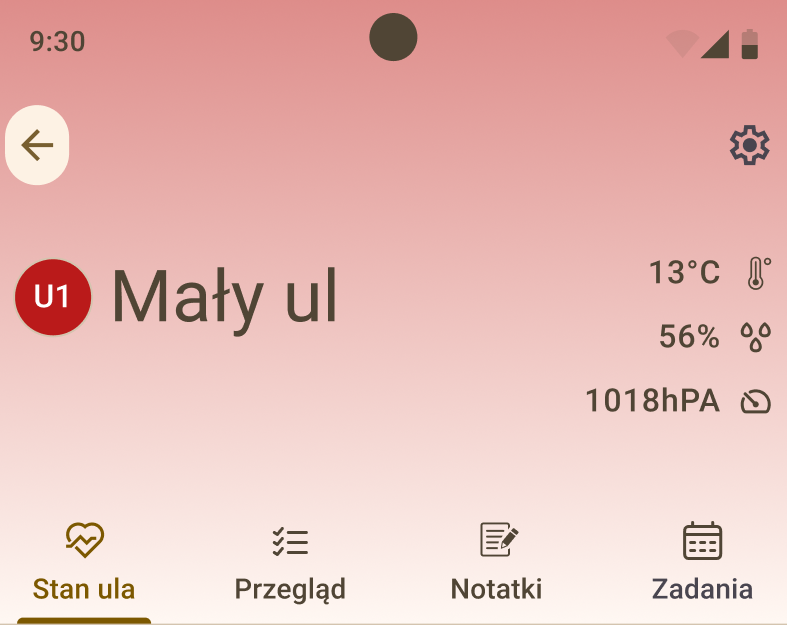 |
hive interior (Details tab) | The hive background color together with the icon (a colored circle) corresponds to the color assigned to the year the queen was raised. |
 |
various views including Notes, Inspections | The yellow color in the app means choice confirmation, the option to perform an action - often visible on buttons. |
 |
various views including Hive state | The red color in the app indicates the occurrence of a negative phenomenon, exceeding the expected parameter values, notifications and warnings (does not apply to the hive background in the Details tab). |
 |
various views including the hive tile | The green color in the app informs that everything is fine, indicates neutrality or a positive effect. |
7.6 Actions
Action icons enable you to perform available operations such as adding, editing or deleting data.
| Icon | Where it appears | Meaning |
|---|---|---|
 |
various views including charts | Toggle - choice inactive. |
 |
various views including charts | Toggle - choice active. |
 |
various views including adding notes etc. | Confirm or save the choice. |
 |
various views including adding notes etc. | Reject the entered data / Do not save. |
 |
including editing notes | Button enabling changes to be made for the chosen item. |
 |
including deleting notes | Button enabling deletion of the chosen item. |
7.7 Navigation
Navigation icons are used to move between views and app functions.
| Icon | Where it appears | Meaning |
|---|---|---|
 |
the ⋮ menu in the upper right corner of the screen | The Sign Out item in the ⋮ menu, used to log out of the system. It is not a separate icon in the bar — the menu also holds Send feedback and Settings. |
 |
various views - upper left corner of the screen | Button used to go to the previous view (Back button), e.g. from the Hives tab to Apiaries. |
 |
various views including disease questionnaire, Add inspection | Button used to go to the next view (Next button), e.g. moving on to the next inspection or disease questionnaire question. |
8. Your plan
Next to your greeting at the top of the Apiaries tab, a small chip shows the status of your Apisense plan: a countdown while your AI trial is running, Plan expired in red once it has lapsed, or your plan's name together with the time left (or the renewal date, once it's more than a year away).
Tap the chip to open the Plans sheet:
- Your current plan is shown first, highlighted, with its included features listed.
- Below it, under Also available in other plans:, you'll find the other tier with its own feature list, so you can compare what upgrading would add.
- Apisense AI — "Manage your apiary and use AI — no devices required": the apiary journal (inspections, notes, calendar), FrameSense frame-photo analysis with recommendations, colony strength and inspection history, the AI assistant, apiary sharing, weather and reminders.
- Apisense PRO AI — "Monitor your hives 24/7 with scales and sensors": everything in the AI plan, plus disease detection and recommendations, continuous weight/temperature/humidity monitoring from your Scale and VitalSensor, charts and trends, and weight/temperature/connection alerts.
- A footer note reminds you that the plan is linked to your Apisense account.
Note
The Plans sheet is informational — it shows what each plan includes but does not currently offer in-app purchase, upgrade or renewal; manage your subscription through the channel you originally purchased it from.
When a plan expires, the app switches to view-only mode (see the note in 2. Filling in notes and inspections and throughout this manual). If you have Scale or VitalSensor devices, you'll also see a warning that they will keep sending data for 7 more days after expiry, after which they stop — your existing data and hive history stay available, but data missed during that gap cannot be recovered later, so it's worth renewing before the 7 days run out.
Parameter monitoring
The system enables continuous monitoring of the most important environmental and production parameters in the hive based on data collected by measurement devices. The analysis of this information allows you to assess the bee colony's condition, the conditions inside the hive and the dynamics of honey production on an ongoing basis. Regular observation of changes in individual parameters also makes it easier to detect irregularities early and to take appropriate action at the right time.
The data presented in the system can be displayed in the form of current values, charts of changes over time and summaries, which makes it easy to track trends and analyze bee colony behavior over a longer period.
Availability depends on your plan
The Weight and Conditions sections in the Hive state tab are shown only when your plan covers device data. Without that entitlement, Hive state keeps only the Health section, and this whole chapter — along with Data analysis and reports — does not apply to such an account.
If a Pro AI plan has expired, the measurement history freezes at the expiry date: current readings show Locked instead of a value, the end of the chart is greyed out, the Min/Max legend disappears and the message Unlock current data with Pro AI appears above it. This is not a device fault — data keeps being collected and shows up once the plan is renewed.
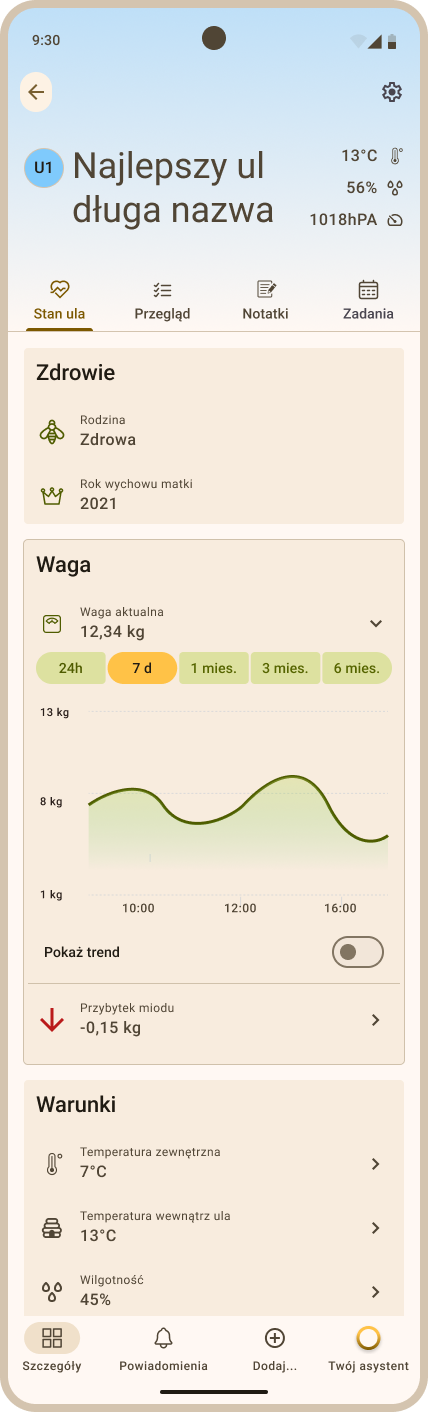
1. Temperature
Temperature is one of the key parameters affecting the development and functioning of the bee colony. The system presents both the temperature inside the hive and the outside temperature, which allows you to compare the conditions in the hive with the ambient temperature.
Most important information:
- Sources: the VitalSensor measures temperature inside the hive; the Scale - the outside temperature next to the hive.
- Outside temperature allows you to analyze the influence of weather conditions on bee activity.
- Inside temperature reflects the conditions in the bee nest. A stable temperature indicates proper bee colony activity and adequate brood care. Typically 32–36°C in the cluster during the season.
- Sudden changes in inside temperature may indicate a weakening of the colony, the absence of a queen or other irregularities requiring hive inspection.
- Temperature charts allow you to observe changes over time and identify long-term trends.
2. Humidity
Humidity in the hive has a significant influence on brood development, honey ripening and the overall condition of the bee colony. Humidity that is too high or too low can negatively affect bee health and the quality of bee products.
Most important information:
- Inside humidity of the hive, measured by the VitalSensor, reflects microclimatic conditions in the nest.
- Humidity that is too high can promote disease development and worsen food storage conditions.
- Humidity that is too low can lead to drying of the brood and negatively affect bee colony functioning.
- Humidity chart analysis allows you to assess the stability of conditions in the hive and the effectiveness of ventilation.
3. Pressure
Pressure measurement in the hive lets you observe changes in inside conditions and their dependence on external factors such as weather changes.
Most important information:
- Pressure inside the hive, also measured by the VitalSensor, can change under the influence of weather conditions and bee colony activity.
- Pressure drops or rises can be a signal of upcoming weather changes, which often affect bees' flying activity.
- Pressure trend analysis combined with other parameters can help in interpreting bee colony behavior.
- Absolute, not sea-level pressure — the value is measured directly where the hive stands and is not adjusted to sea level, so it reads lower than the pressure in a weather forecast; the difference grows the higher the apiary is located. Tap the ⓘ icon next to the pressure reading for this explanation in the app.
4. Weight
Hive weight measurement allows you to continuously monitor changes in hive mass, which result, among other things, from bee activity, nectar harvests, stores consumption or weather conditions.
Most important information:
- Current weight of the hive, measured by the Scale, represents the total mass of the hive together with the bee colony, stores and equipment.
- Weight changes over time allow you to observe the intensity of nectar flows and the activity of forager bees.
- Weight drops can indicate the use of stores, swarming or periods of weaker nectar flow.
- Weight chart analysis enables you to assess the dynamics of bee colony development, seasonal honey production and is key to planning honey harvesting.
-
Scale tare — you can zero the scale to track net weight gain or loss from a chosen moment. In the Weight section of Hive state, on the weight chart tap the Tare button and choose:
- Tare now — zero using the latest reading.
- Tare at point — zero from any moment; after choosing this option, tap the corresponding point directly on the weight chart.
After a successful tare the display switches to Current weight (tare) and a Tare marker (vertical dashed line) appears on the chart. To return to gross weight, tap Reset next to the Tare button.
5. Honey gain
The honey gain parameter shows the estimated amount of honey accumulated by the bee colony in a given period, based on changes in hive weight.
Most important information:
- Honey gain shows the rate of nectar accumulation and its processing by the bees.
- Positive values indicate a period of intensive nectar flow and active bee work.
- A decrease or lack of gain may mean the end of the nectar flow, unfavorable weather conditions or reduced colony activity.
- Gain trend analysis allows you to assess colony productivity and the optimal moment for planning honey harvesting.
6. Parameter interpretation: hive weight and honey gain
- Hive weight chart — shows the actual mass of the entire hive. It includes all mass changes — both sudden ones resulting from beekeeper actions (e.g. adding a honey super, removing honey supers, or honey harvesting) and gradual changes related to natural bee activity and environmental conditions.
- Honey gain chart — shows the estimated change in the amount of accumulated honey. Unlike the weight chart, it eliminates the influence of actions performed by the beekeeper, so it reflects changes resulting from bee colony activity.
In practice, this means both charts may show different values. For example, if a honey super is added to the hive, the total hive mass will increase, but if bee activity decreases at the same time, honey gain may remain at the same level or even show a negative value.
Note: On the honey gain chart for ranges covering 7 days or more, larger fluctuations may occur due to data aggregation. Environmental factors such as rainfall or increased wood moisture may also affect the displayed values.
Zooming in: you can open the honey gain chart full-screen and zoom in (pinch) or pan across it to inspect the raw gain in greater detail, just like the charts for the other parameters. This makes it easier to analyze honey gain changes and compare them with weather conditions.
Data analysis and reports
The data analysis module enables you to review and interpret the information collected by the system. Thanks to the visualization of data in the form of charts, the user can more easily observe changes in bee colonies in different time periods. Analytical functions allow you to spot important relationships more quickly, assess the effects of activities in the apiary, and make more informed decisions about its management.
1. Data visualization on charts
Charts allow for a clear presentation of changes in individual parameters over time. Thanks to them, the user can quickly identify characteristic patterns, sudden changes or periods of increased activity in the hive.
1.1 How to display a chart
To display the charts of individual parameters for the chosen hive (Fig. 134), follow this path in the app:
- From the Apiaries tab (the start view shown right after logging in to the Apisense app) go to the Hives tab. To do so, click the tile of the chosen apiary.
- From the Hives tab go to the Details tab. To do so, click the tile of the chosen hive.
- Make sure you are in the Details tab (highlighted in the bottom menu), Hive state sub-tab (underlined in the top menu). The charts are located in the Weight and Conditions sections.
- The chart will be displayed (Fig. 134) after you tap a parameter row in one of those sections (e.g. Current weight in the Weight section). The sections themselves do not collapse — their headers are always visible, and the expand chevron sits on the parameter row.
1.2 Available charts
In the Apisense app, charts are available for the following parameters:
- hive weight
- honey gain
- outside temperature
- inside temperature
- humidity
- atmospheric pressure
1.3 Zooming and fullscreen mode
- Tap the Fullscreen icon above the chart (below the 6 months button) to open it in fullscreen mode — this option allows detailed analysis and panning (available for both the weight and conditions charts).
- To take a closer look at a chart, pinch to zoom in/out or drag to pan. You can also use the on-screen zoom/pan buttons next to the chart. Once zoomed in, a Reset zoom button appears; tapping it restores the default range. Zooming is available only in fullscreen chart mode. After zooming into a chart covering 7 days or more, the data is ungrouped so you can see values from each individual measurement.
1.4 Time frames presented on the charts
The data on the charts is presented in several time intervals. The last:
- 24 hours
- 7 days
- 1 month
- 3 months
- 6 months
To display a chart for the chosen range, click the corresponding time interval shown above the chart. Intervals with no data yet are disabled and cannot be selected.
1.5 Chart interpretation
Charts allow you to observe changes in parameters over time and to analyze their interrelationships. Thanks to the visual form of data presentation, it is easier to notice repeating patterns, periods of stability or sudden deviations from typical values.
Chart analysis enables, among other things:
- assessing the dynamics of changes in the hive in different periods,
- identifying moments of increased bee colony activity,
- detecting unusual events or anomalies,
- observing long-term changes in the apiary.
Regular use of charts allows you to better understand the functioning of individual bee colonies and to react more quickly to emerging changes.
2. Trends
Trends enable analysis of the general direction of changes of a given parameter over time. This function helps to distinguish short-term fluctuations from long-term tendencies.
2.1 How to display a trend
Trends are available in the same section as the charts of individual parameters (Fig. 136). To display them, follow these steps:
- From the Apiaries tab (the start view shown right after logging in to the Apisense app) go to the Hives tab. To do so, click the tile of the chosen apiary.
- From the Hives tab go to the Details tab. To do so, click the tile of the chosen hive.
- Make sure you are in the Details tab (highlighted in the bottom menu), Hive state sub-tab (underlined in the top menu). Trends are located in the Weight and Conditions sections.
- Click the header with any parameter chosen from the sections listed above (e.g. Current weight from the Weight section).
- Below the chart there is a Show trend toggle, which is disabled by default. To display the trend on the chosen chart, click this toggle. After it is activated, an additional line will appear on the chart, showing the general direction of changes of the analyzed parameter.
2.2 Trend interpretation
The trend line shows the averaged direction of changes in a given period, which makes it easier to notice whether a given parameter's values:
- are rising,
- are falling,
- remain stable.
Trend analysis allows you to focus on long-term changes, ignoring short-term fluctuations resulting from the natural activity of the bee colony or temporary changes in conditions.
2.3 Benefits of trend analysis
Using trends in data analysis enables:
- a faster assessment of the general situation in the hive,
- early detection of irregularities,
- easier identification of long-term changes,
- better planning of activities in the apiary,
- more informed decision-making regarding the management of bee colonies.
Notifications
The notification system in the app informs the user about important events in the apiary, the status of monitoring devices and recommended activities related to running the hives. The information is provided in the form of notifications and recommendations generated based on data from sensors, observations and system analysis. Thanks to this, the user can react more quickly to emerging problems and also make decisions about the further running of the apiary.
Notifications generated by the system are available in the app — in the notifications section you can review messages and read their details. On top of that, the app can send push notifications to your phone, including when you are not using it. You choose which categories do that in Account settings > Notifications — see 1.1 Editing data.
Note
The Problems tab is only available on plans that include disease alerts. If your plan does not (the AI trial, for example), the whole top tab bar disappears and the Notifications view shows technical notifications only.
1. Where to find notifications in the app
You can find notifications in the app by following these steps:
- From the Apiaries tab (the start view shown right after logging in to the Apisense app) go to the Hives tab. To do so, click the tile of the chosen apiary.
- From the Hives tab go to the Notifications tab. To do so, click the bell icon in the bottom menu, similar to the Hives tab.
- As a result, the Notifications view will open, with the Problems tab selected by default (Fig. 136).
- In addition to the Problems tab, you can also go to the Technical tab by choosing the appropriate option from the top menu.
2. Notification categories
Notifications in the app are available in the Notifications tab. Notifications are divided into the following categories that correspond to individual tabs (Fig. 136):
- Problems – notifications related to the health status of bee colonies, regarding detected diseases such as Varroa, along with recommended steps to combat the specific disease.
- Technical – notifications regarding the operation of monitoring devices, e.g. low battery level or no signal coverage.
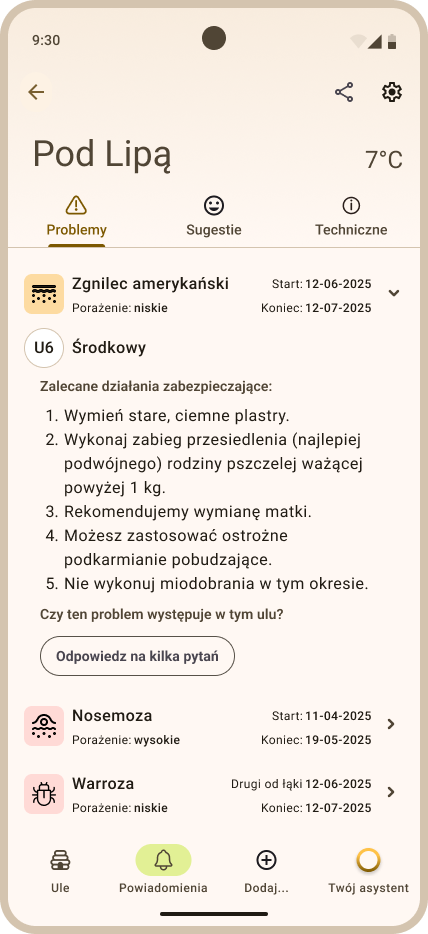
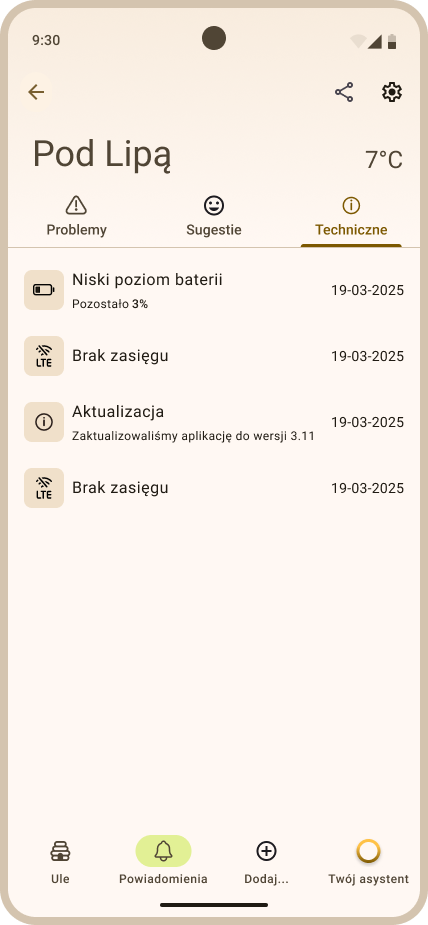
New notifications appear automatically on the appropriate list depending on their type. Unread messages are displayed in bold and return to regular weight once opened — that is how you tell they have been read.
You open the details by clicking the row, but the two tabs behave differently. In the Problems tab a separate disease episode view opens. In the Technical tab the row expands in place and the full message appears below its title.
Tip
To mark every notification in the Technical tab as read in one click, use the Mark all as read button. The scope of the button depends on where it is used: - from a single hive — only technical notifications for that hive are marked as read, - from the apiary level — all technical notifications for that apiary and the hives in it are marked as read.
AI Assistant
The AI Assistant is a feature that supports the user in analyzing the situation in the apiary and in interpreting the observed phenomena. Based on the information provided, the system generates answers and tips that can help in making decisions about running the apiary.
You can use the AI Assistant by asking questions in the app (Fig. 138).
After submitting a question, the assistant analyzes the available information and generates an answer containing possible explanations of the situation or suggestions for further action.
You can use the AI Assistant by selecting the Your assistant tab from the bottom menu, available in the basic app views (Apiaries, Hives, Details). Thanks to this, the user has quick access to assistant help at any time when using the system.
Note
The Your assistant item appears in the bottom menu only when your plan includes the assistant. Without that entitlement the bottom menu does not carry this tab.
Session history
Tap the menu icon in the assistant's top bar to open Session history — a side panel listing your past conversations, with a search field and the list grouped into Today, Yesterday, Last 7 days and Older. Scroll down to load older sessions. Tap New conversation at any time to start a fresh chat.
Opening a past session from the list shows it as a conversation preview — a read-only view of the earlier exchange, with a banner offering to start a new conversation. To ask a follow-up question, start a new conversation; you cannot continue typing inside an old one.
Note
If your plan has expired, you can still open Session history and browse past conversations — only sending new messages is locked, and the chat shows a notice asking you to renew your plan.
Account management
The user can review and modify their data, change account settings, and manage preferences regarding how the app works.
1. Editing user data
The user data editing feature enables you to update basic information assigned to the account, such as the displayed user name, contact details or password. Thanks to this, the user can manage their data on an ongoing basis and adjust account settings to their own needs.
1.1 Editing data
To edit user data:
- In the Apiaries tab (the Apisense app start view), click the ⋮ icon in the upper right part of the screen and choose Settings. As a result, the Account settings view will open (Fig. 140).
-
The Account settings view is a list of rows, each showing its current value, in this order:
- Display name
- Mobile Phone
- Experience
- Password
- Notifications
- Language
- Temperature unit
- Weight unit
Below the list you will find the Delete Account button, the EU funding notice and the app version number.
-
To change a value, tap the row — a separate edit screen opens. For example, when changing the password you will be asked to enter a new password and to repeat it (Fig. 140).
- Saving works differently per screen. Language, Temperature unit and Weight unit save immediately on selection — there is no save button there. On the other screens the buttons appear only once you change a value, and they are icon buttons: ✓ saves, ⊗ closes the screen without saving.
-
The Notifications row opens a separate screen with three push-notification toggles:
- Alerts — "Notify about diseases when not using the app",
- Device Status — "Notify when there are problems with scale or sensor",
- Reminders — "Send reminders about scheduled tasks a day before".
1.2 Deleting the account
In the lower part of the Account settings view (Fig. 140) there is also a Delete account button, which enables permanent deletion of the user account.
2. Checking the app version
To see which version of the Apisense app is currently installed on your device:
- Go to the Account settings view. To do so, click the ⋮ icon in the upper right corner of the Apiaries tab and choose Settings.
- Scroll to the very bottom of the screen.
- At the bottom, in the central part of the screen, you will see an entry in the form Version X.Y.Z (e.g. Version 1.2.3) — that is the installed app version number.
It is worth comparing this number with the version available in Google Play or the App Store before reporting a technical issue.
Note
App update screens: On startup, the mobile app checks whether a newer version is available.
- If your installed version is no longer supported, a full-screen Update required message is shown. You must tap Update and install the new version from the store before you can continue using the app.
- If a newer version exists but yours still works and is supported, a dismissible New version available dialog offers Update or Later. Choosing Later will not ask again until an even newer version is released.
After you update, the app shows a What's new dialog on first launch, with a short swipeable summary of what changed in the new version(s) — click Next to review what's new in the app, or Skip/Done to close the summary.
3. Unit preferences
In Account settings the measurement units are set in two independent rows — there is no combined Units section. Each row opens its own selection screen:
- Temperature unit — Celsius (°C) or Fahrenheit (°F).
- Weight unit — Kilograms (kg) or Pounds (lbs).
The choice is saved immediately on tap, with no separate save button, and changes take effect right away across all charts and readings in the app.
Reporting problems and suggestions
If while using the app you notice a bug, incorrect behavior of a feature, or have an idea for improving the system, you can report it directly from within the app. We also encourage you to submit proposals for new features that could make everyday work with the system easier.
Each report is reviewed by the team responsible for app development. User feedback helps identify problems faster, improve existing solutions, and develop features that best meet beekeepers' needs.
1. Reporting problems and suggestions in the app
To report a problem or suggestion in the app, follow these steps:
- Click the ⋮ (more options) icon available from any view in the app, in the upper right corner of the screen, and choose Send feedback from the menu (alongside Settings and Sign Out). As a result, the Send feedback view will open (Fig. 142).
-
In the Send feedback view, fill in the following required fields:
- Category — select one of three list items: Problem in the app, App improvement or Other. Until you pick one, the field shows the Select a category placeholder.
- Description — enter a description of the problem or what you would like to change in the app. The field holds up to 2000 characters.
-
Optionally, you can also attach photos to your report (up to 10), which is especially useful when reporting a problem found in the app. Note: you can attach photos only — recordings are not accepted.
- After filling in the information above, click the yellow Send feedback button in the lower right corner of the view to submit the report.
System usage best practices
1. Daily panel use
- Regularly review the most important app views, in particular the apiary and hive list, to keep track of statuses and measurements on an ongoing basis. React to in-app alerts and notifications in a timely manner.
2. Filling in notes and inspections
- After every visit to the apiary, add notes and inspections in the app (preferably with photo attachments). Thanks to this, it will be possible to analyze the history of activities and the system will be able to assess the situation more accurately.
Note
Adding data requires an active plan and write access. Once a plan expires the app switches to view-only mode — an attempt to save ends with the message Your plan has expired. Renew your subscription to add and edit. In an apiary shared at the Restricted level, the Inspection, Notes, Tasks, Examinations and Samples tabs are not rendered at all (see 7.2 Access levels).
3. Regularly checking alerts
- Check the Notifications tab in the app so as not to miss critical events such as disease detection.
4. Battery level check before the season
- Before the season, check in the app the battery level of all devices monitoring the status of your apiaries. Replace the batteries (2×AA in the Scale and VitalSensor) when the level is low; charge the Hub via the photovoltaic panel or mains. Avoid transmission interruptions at the peak of the season. After replacing the batteries in a Scale or VitalSensor you do not need to re-pair the device or change app settings — simply place the device within the Hub's range and wait for data synchronisation (details: FAQ — after battery replacement).
5. Updates
- Update the mobile app to the latest version (Google Play / App Store) to have access to improvements and new features. If your version is no longer supported, the app will require an update before you can continue (see Checking the app version).
- Operating system updates of the device also affect the stability of the app's operation.
Troubleshooting
1. Frequently asked questions and suggested solutions
1.1 No data in the app
Solution: make sure the devices (Hub, Scale, VitalSensor) are turned on, within BLE range (up to about 35 m from the Hub), and that up to about 2 hours have passed since the first start. Check the batteries and the Hub's power supply (PV panel or mains). A detailed list of problems and solutions related to device communication can be found in the Device configuration manual (Troubleshooting chapter).
1.2 I cannot log in
Solution: check that your details were entered correctly — the first field accepts either the username or the email address you provided during registration.
If you have forgotten your password, reset it yourself: on the sign-in screen tap Forgot Password?, enter your email address and tap Reset password. The app confirms the send with the message Check your mailbox now. You will find a link to set a new password. If you still cannot sign in, contact Apisense support: bee@apisense.ai.
1.3 The app shows "Update required" and won't let me in
Solution: this means your installed version is no longer supported. Tap Update to install the latest version from Google Play / the App Store, then reopen the app.
1.4 Is it possible for hive weight to show a positive value while honey gain is negative, even though honey gain is calculated based on weight measurements?
Solution: yes, this is entirely possible. For example, a beekeeper may add a honey super, which will cause the total hive mass to increase. At the same time, if the bee colony is weakened, honey production may decrease. In such a situation, the hive weight chart will show a clear increase resulting from adding the honey super. However, on the honey gain chart, the mass of the added honey super will not be taken into account, so the chart will reflect only the actual change in the amount of honey. As a result, the honey gain chart will show a decrease related to limited bee activity, rather than an artificial increase resulting from beekeeper intervention.
1.5 After replacing the batteries in a Scale or VitalSensor — what next?
Solution: after replacing the batteries:
- place the Scale or VitalSensor back in its target location,
- make sure it is within range of the Hub (maximum approximately 35 m),
- wait for the next measurement cycle.
Updated data will appear in the app automatically - this may take up to several hours, provided that the Hub is communicating properly with the system (it is not offline - discharged battery/no connectivity).
After completing the battery replacement, no additional steps are required in the app or on the Hub, Scale or VitalSensor device. Do not re-pair devices, add them to the hive again, or press the RESET button.
1.6 Do I need to re-pair the device, re-add it to the hive, or remove the hive from the app after replacing the batteries?
Solution: no. Replacing the batteries in a Scale or VitalSensor does not require re-pairing the device, removing and re-adding it to the hive, or removing the hive from the app. Simply place the device back within the Hub's communication range and wait for the next data synchronisation. The Hub must be communicating properly with the system (it must not be offline — discharged or no connectivity).
1.7 Do I need to press the RESET button on the Hub after the Hub has discharged or after replacing the batteries in a Scale/VitalSensor?
Solution: no. Do not reset the Hub after replacing the batteries in Scale or VitalSensor devices. After the Hub has discharged and you reconnect it to charging or expose it to the sun, the Hub will automatically resume operation, connect to the system and the devices — without pressing the RESET button.
1.8 Other problems
Solution: contact Apisense technical support: bee@apisense.ai.
Manual at a glance
Below you will find a summary of the most important activities in the Apisense Pro AI app. Each point contains a brief description and links to the detailed chapters of the manual; for selected activities a link to a short video material is also included.
1. Registration and login
- Registration: Download the Apisense mobile app or go to the system's website. Choose Create account, fill in the data (user name, email, phone), create a password meeting the requirements, and click Sign up.
- Login: Launch the app or website, in the Sign in view enter your username or email and your password, then click Sign in. Forgotten your password? Tap Forgot Password? and reset it yourself.
2. Apiary management
- Adding an apiary: In the Apiaries tab choose Add apiary from the bottom menu. In the Add apiary view enter the name and choose With devices (scan the Hub QR code) or Without devices, then save.
Video, Adding an apiary with devices, Adding an apiary without devices
- Editing an apiary: Click the chosen apiary tile. Click the ⋮ icon while in the Hives tab and choose Settings. In the Apiary settings view click the header of the section whose data you want to edit. Change the field values and click save (yellow button).
- Deleting an apiary: Click the chosen apiary tile. Click the ⋮ icon while in the Hives tab and choose Settings. In the Apiary settings view click the Delete apiary button.
- Adding a hive: Click the chosen apiary tile. Choose Add… → Hive from the bottom menu. Fill in the data in the Hive details and Queen bee information sections, then go through the equipment screens in the order ColonyLink → VitalSensor → Scale. ColonyLink is mandatory; in an apiary without a Hub it is also the last step. VitalSensor and Scale can be skipped by leaving their fields empty. Save with the button on the last screen.
- Editing a hive: Click the chosen apiary tile. Click the chosen hive tile. Click the ⋮ icon while in the Details tab and choose Settings. In the Hive settings view click the header of the section whose data you want to edit. Change the field values and click save (yellow button).
- Deleting a hive: Click the chosen apiary tile. Click the chosen hive tile. Click the ⋮ icon while in the Details tab and choose Settings. In the Hive settings view click the Delete hive button.
- Adding inspections: Click the chosen apiary tile. Click the chosen hive tile. Choose Add... -> Inspection from the bottom menu. Attach a total of 4 required frame photos (tap See example if unsure how they should look). Answer the questions. The yellow right-pointing arrow lets you proceed to the next question. Click Finish inspection (yellow button on the last inspection screen) to save. An in-progress inspection can be saved as a draft (kept 24 hours); a finished inspection can later be edited or deleted from its overflow menu or by tapping the pencil/bin icon in the inspection list.
- Adding notes: Click the chosen apiary tile. Click the chosen hive tile. Choose Add... -> Note from the bottom menu. Enter the note content (text or record a voice note; the Add attachment button below the note field adds photos, recordings or a PDF). Save the note (yellow button).
- Sharing an apiary: The sharing icon in the top bar of the Apiaries tab opens the tabbed view — go to the Shared tab, tap Share apiary and pick the apiary. The icon in the Hives tab inside an apiary goes straight to the form for that apiary, skipping both of those steps. From there it is the same: enter the Apisense account e-mail of the person you're inviting, their name and pick the Access type (Restricted, Standard or Full), then tap Share. To change the level or withdraw the share, tap the row on the list.
- Reporting an Asian hornet observation: Tap the Asian hornet icon on the apiary tile, then the Report observation button, and answer Do you see an Asian hornet now? Answering No files the report immediately; after Yes you still fill in the observation date and an optional comment (and optional photos), then tap Send report. The Asian hornet icon is updated accordingly (active sighting / checked, clear / expired), and the date of the last report appears above it.
3. Colony health
- Filling in the disease questionnaire from the apiary level: Click the chosen apiary tile. Choose Notifications from the bottom menu. In the Problems tab click the disease row — a separate details view opens. Click the Answer a few questions button. Answer the questions (Yes / No / Skip). To proceed to the next, click the yellow right-pointing arrow. At the end click Save.
- Filling in the disease questionnaire from the hive level: Click the chosen apiary tile. Click the chosen hive tile. Choose Notifications from the bottom menu. In the Problems tab click the disease row — a separate details view opens. Click the Answer a few questions button. Answer the questions (Yes / No / Skip). To proceed to the next, click the yellow right-pointing arrow. At the end click Save.
- Registering a sample: Click the chosen apiary tile. Click the chosen hive tile. Choose Add... -> Register sample from the bottom menu. Choose the sample collection date and the examination type. Click the Generate code button. Write the Examination code on the sample and send it to Apisense. (Note: the Register sample option is only available for a hive with an assigned VitalSensor device).
- Adding an examination: Click the chosen apiary tile. Click the chosen hive tile. From the bottom menu choose Add... -> Examination. Choose the date and examination type from the drop-down list (e.g. Sugar roll), fill in the required photos and fields (e.g. number of varroa mites), then save with the yellow button. A saved examination can later be edited or deleted from its overflow menu or by tapping the pencil/bin icon in the examination list.
- Adding a frame analysis: Click the chosen apiary tile. Click the chosen hive tile. From the bottom menu choose Add... -> FrameSense. Position the frame inside the camera outline, take or upload one photo of the bee frame and click Send for analysis. Track the result (Analysing / Analysis completed / Analysis failed) in the FrameSense tab. Open the analysis details and review the summary and recommendations.
4. Main panel and navigation
- Apiary list (Apiaries tab): The start view after logging in to the Apisense app - apiary tiles with basic information. Click an apiary to go to the hive list.
- Apiary map: After logging in to the app, choose Map from the bottom menu to see the apiary locations. You can filter the view by problems (e.g. Varroa).
- Hive list (Hives tab): Click the chosen apiary tile. As a result, all hives assigned to this apiary will appear. The Hives view presents a list of hives; click the chosen hive to go to the details.
- Hive contents (Details tab): The top tabs are Hive state, Inspection and FrameSense; Notes, Tasks, Examinations and Samples live under More. You can also display charts of individual parameters, e.g. Honey gain.
- Apiary and hive settings: The ⋮ icon in the apiary view (Hives tab) or hive view (Details tab) leads to the settings (alongside Send feedback and Sign Out). Here you can edit information about the apiary or hive.
5. Monitoring and data analysis
- Parameters (temperature, humidity, pressure, weight, honey gain): Click the chosen apiary tile. Click the chosen hive tile. The current values are visible in the hive Details tab, Hive state sub-tab, in the Weight and Conditions sections.
- Charts: Click the chosen apiary tile. Click the chosen hive tile. In the Details -> Hive state tab tap a parameter row in the Weight or Conditions section to see the chart in the chosen time interval (24 h, 7 days, 1–6 months; intervals with no data are disabled). Tap Fullscreen to enlarge the chart, then pinch/drag or use the on-screen buttons to zoom and pan and display precise measurements.
- Trends: Click the chosen apiary tile. Click the chosen hive tile. In the Details -> Hive state tab tap a parameter row in the Weight or Conditions section to display the chart. On the chart screen turn on the Show trend toggle.
6. Notifications
- Notifications: Click the chosen apiary tile. Choose the Notifications tab from the bottom menu. The available categories are: Problems (including diseases) and Technical (devices, connectivity).
7. AI Assistant
- Your AI Assistant: From the bottom menu choose Your assistant (accessible from the Apiaries, Hives, Details views), then enter a question and send it to the assistant. The assistant will analyze the data and provide an answer.
8. Account
- Editing user data: In the Apiaries start view click the ⋮ icon and choose Settings. You can change your display name, email, phone, experience, password, push notifications, language and the temperature and weight units. From this place you can also delete your account.
- Checking the app version: In the Account settings view scroll to the bottom of the screen — you will see the Version X.Y.Z entry. If your version is no longer supported, the app shows a full-screen Update required prompt on launch instead.
- Checking your plan: Tap the plan chip next to your greeting on the Apiaries tab to see your current plan, its included features and the other available tier.
9. Reporting problems and suggestions
- Reporting in the app: Click the ⋮ icon in the upper right corner of any view and choose Send feedback. Fill in the category and description, optionally attach photos. Click Send feedback.
If you encounter any problems, search for the issue in the Frequently asked questions and suggested solutions list or contact Apisense support: bee@apisense.ai.