Step-by-step kit assembly
This page is the text version of the interactive assembly instruction for the Apisense starter kit: from opening the box to your first hive reading. The seven steps take approx. 30 minutes. You configure the whole kit in the Apisense app.
Each step links to its slide in the interactive instruction and to the animation from that step. Separate videos show how to mount the Hub, Scale and VitalSensor and how to replace batteries. At the end of the page: battery replacement and moving a device to another hive.
Step 00. What's in the box
A single Hub serves the whole apiary. The Scale goes under the first hive, and each of the three hives gets its own VitalSensor and ColonyLink.
The box contains:
- Hub: one per apiary,
- Scale: a measuring beam with a wooden spacer bar, for the first hive,
- VitalSensor: three, one per hive,
- ColonyLink: three, one per hive.
Slide: kit contents · Animation
Step 01. Download the app
The whole kit is configured from your phone. Scan the QR code with your camera or search for Apisense in the App Store or Google Play.
- iOS: the top QR code leads to the App Store.
- Android: the bottom QR code leads to Google Play.
- Browser: you can also work in a browser at app.apisense.ai.
Slide: download the app · Animation
Step 02. Create an account
Fill in the sign-up form, tick the consent to the Terms of Service and Privacy Policy, then tap Next.
- Username: 3 to 50 characters, no spaces.
- Email: used for login and notifications.
- Phone number: number with the country prefix.
- Password: min. 8 characters, an uppercase letter, a digit and a special character. Repeat it in Confirm password.
Slide: create an account · Animation
Sign-up in detail: How to create an account and sign in.
Step 03. Add the apiary and the Hub
An apiary is the place where your hives and one Hub live. Start by giving it a name.
- On the welcome screen tap Let's start!. If you already have apiaries, tap Add on the apiary list.
- Enter the apiary Name, choose I have a Hub, then tap Next.
Scan the Hub QR code
The QR sticker sits on the Hub housing. Tap Scan the Hub and line the sticker up inside the scanner frame. The app reads the code by itself.
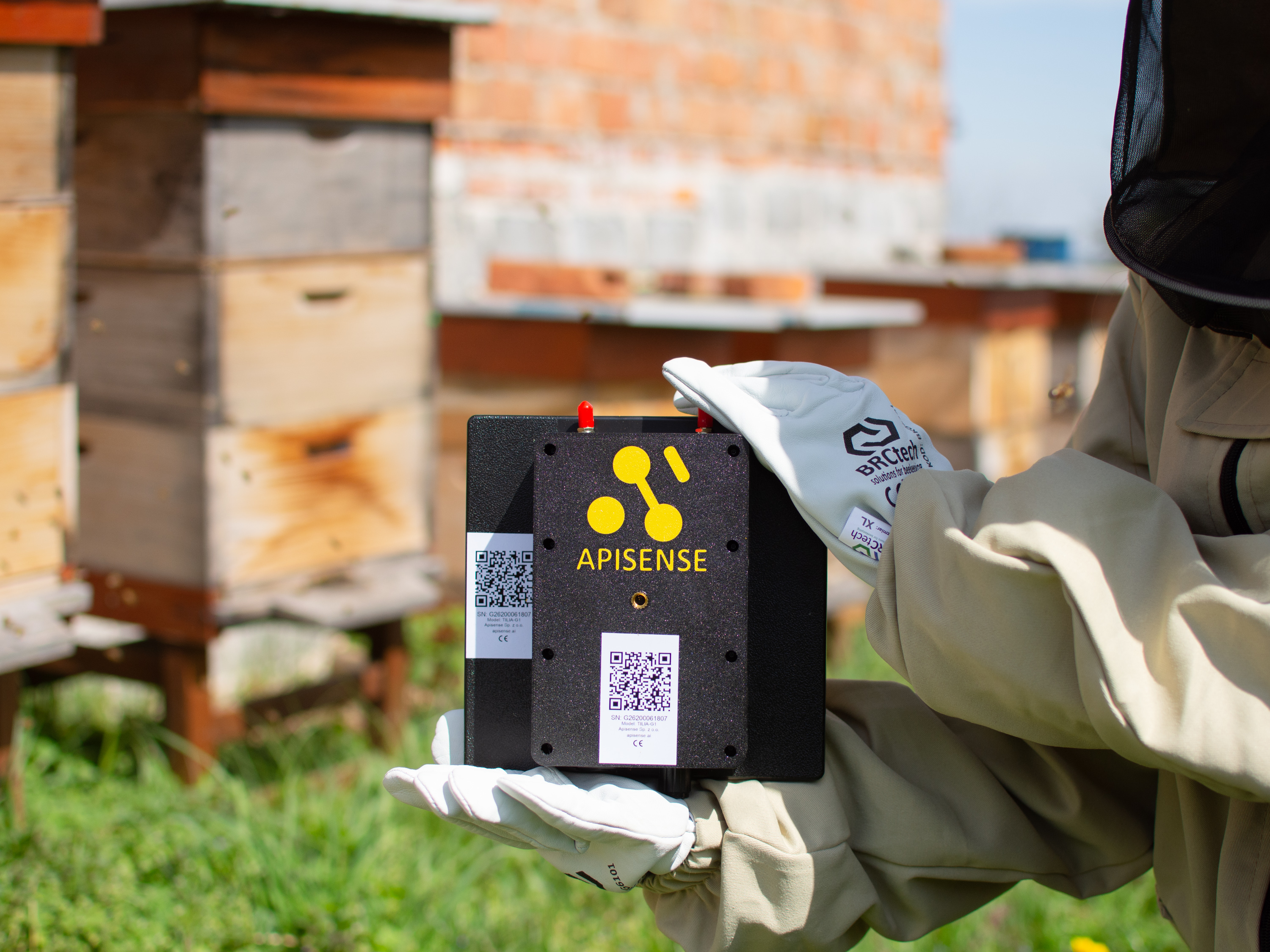
Tip
If the code will not scan, wipe it clean and use even light. Avoid glare.
Slide: Hub QR code · Animation
Your apiary is ready
The QR code holds the Hub number and the confirmation code. You type nothing by hand.
- After the scan the app shows Hub {number} scanned. Tap Save.
- The app shows the Apiary added window. Tap Add hives now or Later.
- The apiary tile shows the countdown Estimated time until the Hub connects. The countdown starts by itself. You choose nothing.
- When the Hub connects, the apiary tile shows the weather.
Slide: apiary ready · Animation
Step 04. Add the first hive: ColonyLink, VitalSensor and Scale
The first hive gets the full set. First you scan the QR codes of the three devices one after another (the Hive kit screen), then you name the hive.
- Open your apiary from the home screen. You can also tap Add hives now in the Apiary added window.
- Tap Add and choose Hive.
- Scan the ColonyLink, the VitalSensor and the Scale (steps below).
- On the Check the kit and name the hive screen enter the Hive name and the maximum number of frames. Queen data are optional.
Slide: add first hive · Animation
ColonyLink
The ColonyLink is a hang tag with a built-in NFC tag and a printed QR code. Scan it first: it is what ties the hive in the app to a specific hive in the apiary. You can read the same code later by NFC. Just tap your phone against it, gloves and all.
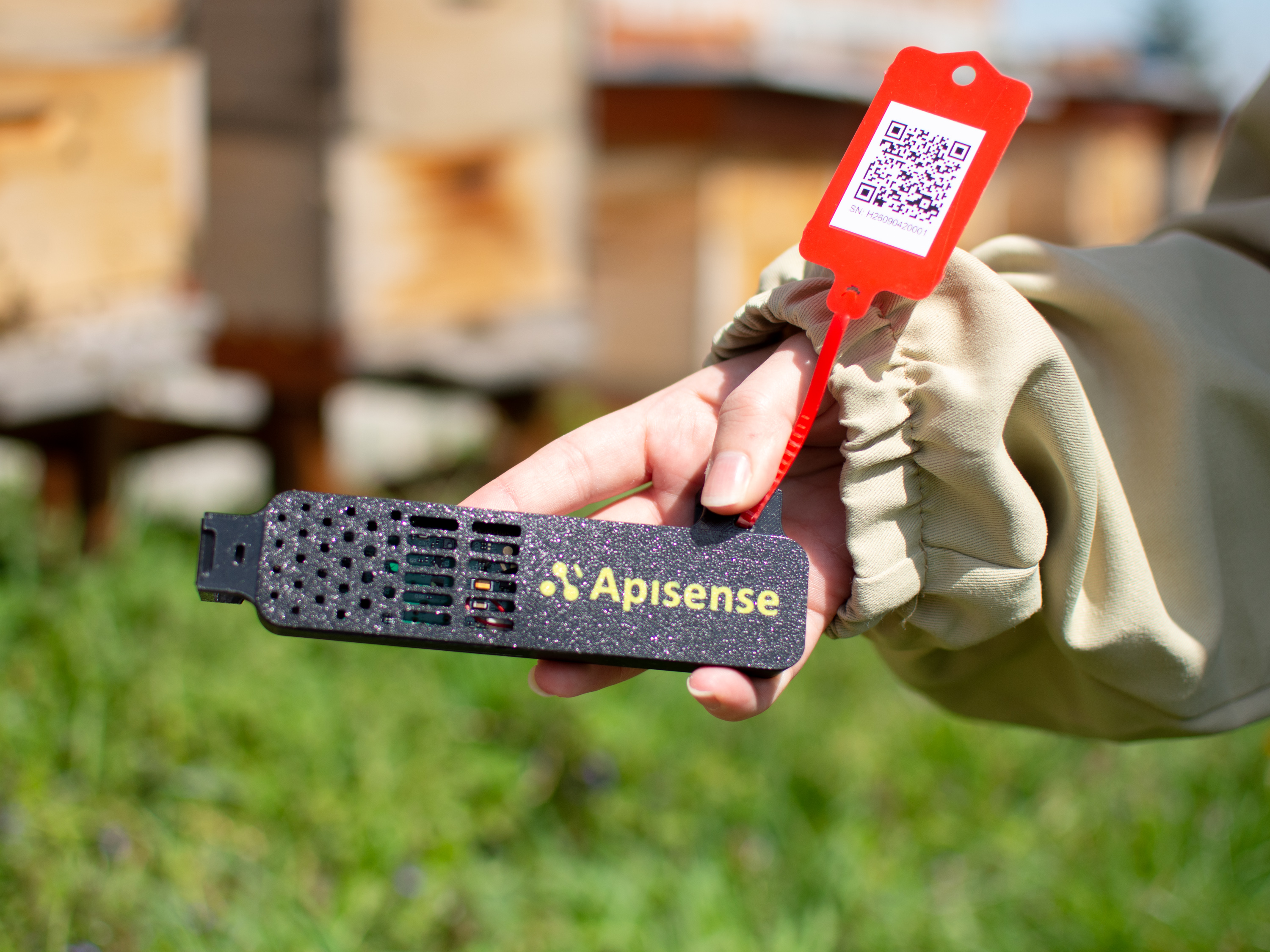
- Tap Scan ColonyLink.
- Point the camera at the ColonyLink QR code.
- The app shows ColonyLink {number} scanned. Tap Next.
Slide: ColonyLink QR code · Slide: ColonyLink in the app · Animation
VitalSensor
The QR sticker is on the back of the housing. Scan it before you mount the sensor on the frame. Once the frame is in the hive the code is no longer reachable. Each of the three sensors has its own code. Keep track of which one goes into which hive.
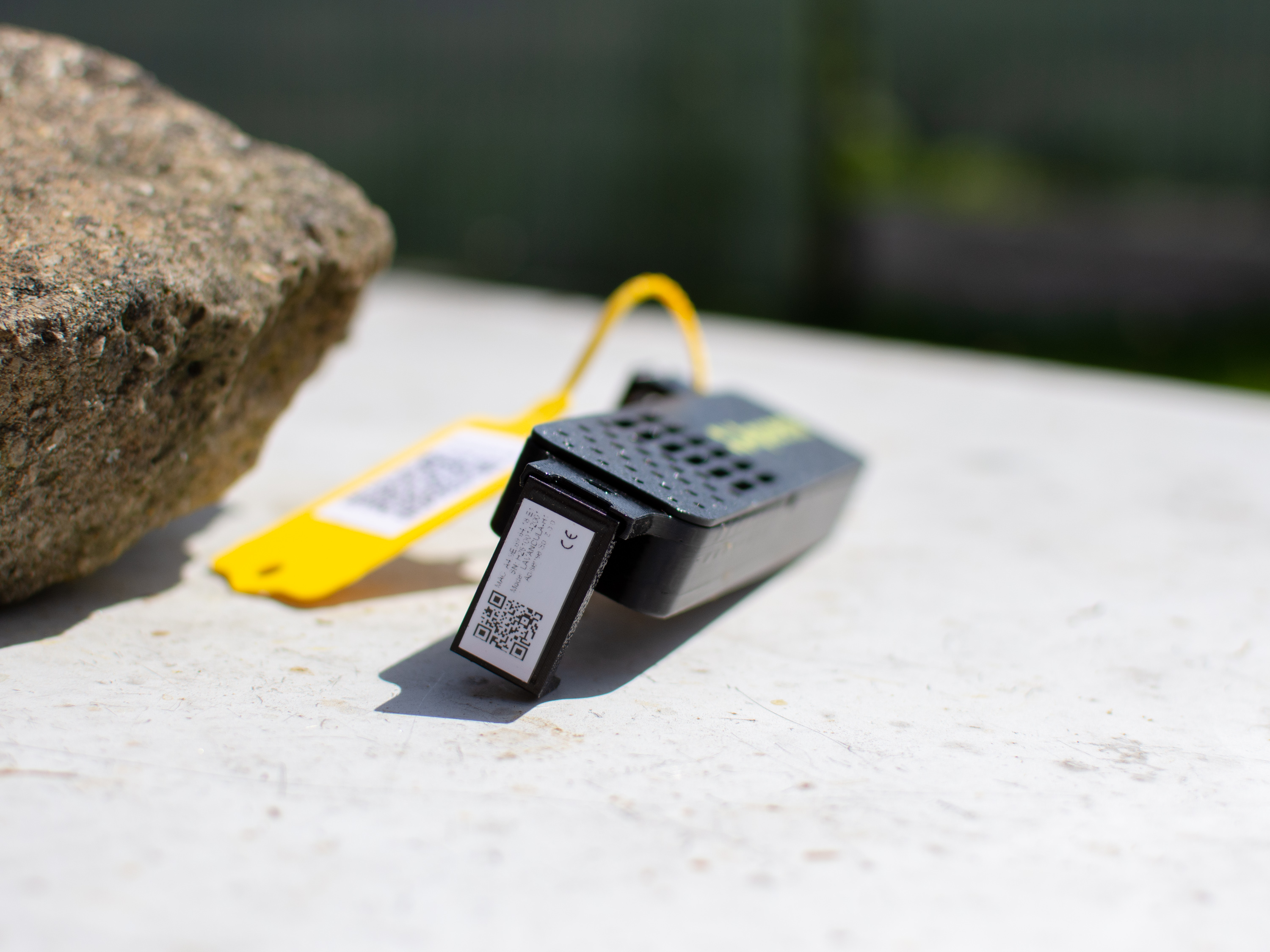
- Tap Scan VitalSensor.
- Point the camera at the VitalSensor QR code.
- The app shows VitalSensor {number} scanned. Tap Next.
Slide: VitalSensor QR code · Slide: VitalSensor in the app · Animation
Scale
The QR sticker is on the end face of the measuring beam (the one with the electronics and the battery compartment). The wooden spacer bar has no code. Scan the code before you slide the beam under the hive: it is harder to reach afterwards.
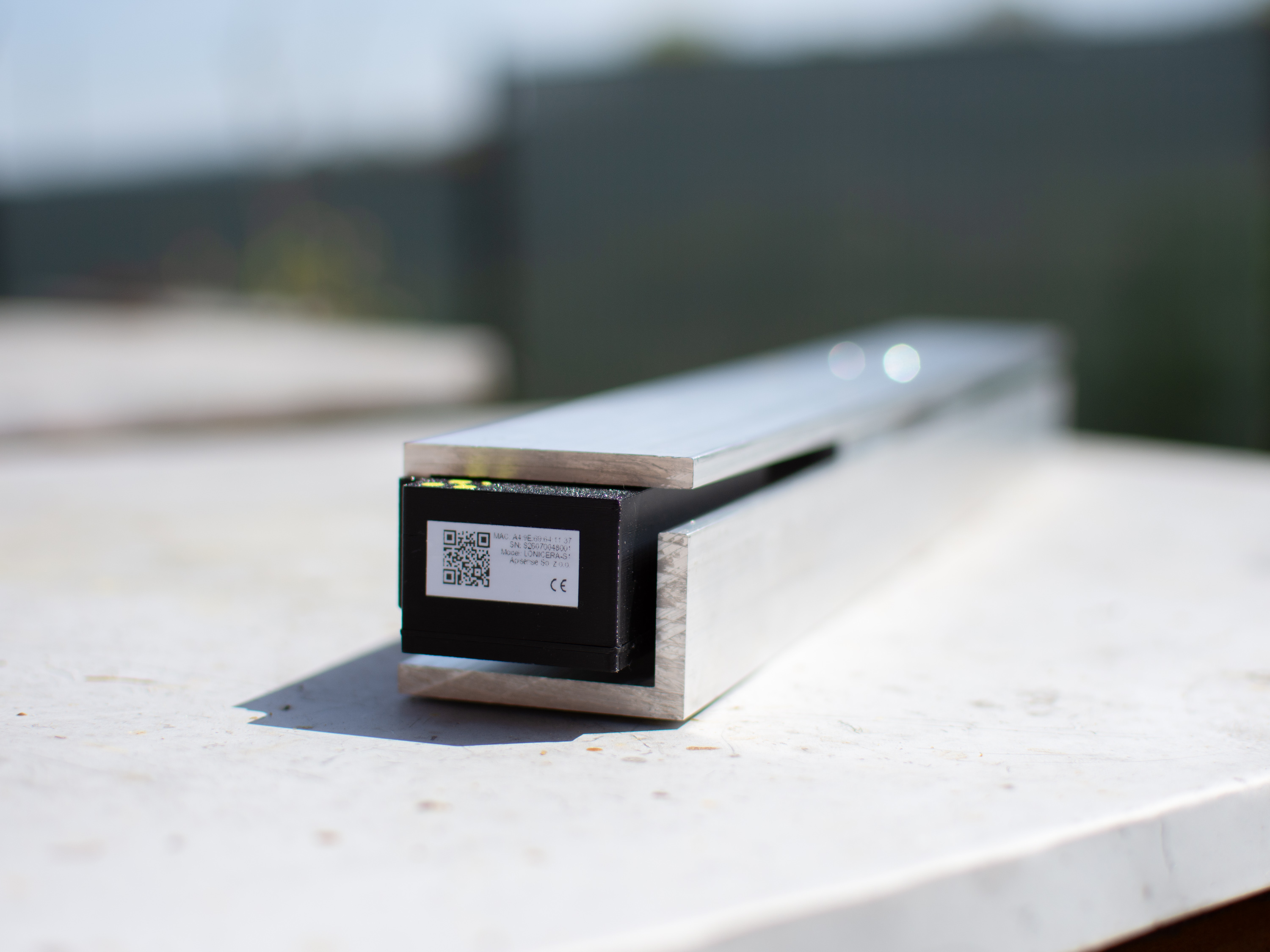
- Tap Scan Scale.
- Point the camera at the Scale QR code.
- The app shows Scale {number} scanned. Tap Next, name the hive and tap Save.
- The app shows Hive added. The hive waits for the devices to connect.
Slide: Scale QR code · Slide: hive saved · Animation
Step 05. Add another hive
Further hives are added with a ColonyLink and a VitalSensor. The Scale stays under the first hive.
- On the Hive added screen tap Add another hive. You can also tap Add in the apiary view and choose Hive.
- Scan the devices (steps below).
- Name the hive and tap Save.
Slide: add another hive · Animation
Devices for the next hive
The app asks for the devices in a fixed order: ColonyLink, VitalSensor, Scale.
- Scan the ColonyLink QR code.
- Scan the QR code from the VitalSensor.
- For the Scale, tap No Scale in this hive. Then name the hive and tap Save. The hive appears on the list, awaiting connection.
Slide: devices for the next hive · Animation
Step 06. Power up and wait for data
The devices arrive with batteries already fitted, so there is nothing to insert. You add every device in the app and check its connection before anything goes into a hive. That way you know everything works before you go out among the hives.
- Hub: it has a built-in battery. It starts by itself once it gets power: put the photovoltaic panel in the sun (strong artificial light also works), connect a USB-C cable to a charger, or connect an extra PV panel. If the Hub has been unused for a long time, charge it over USB-C first. A power bank is enough.
- First data: the Hub has to connect first. This usually takes under an hour; a discharged Hub in weak sun needs more time. Then readings from the VitalSensors and Scale follow. The No data status then turns into a live one.
- Do not switch off or reset the devices until the first data appears.
Set up the kit at home
Do steps 01-06 near your house: put the Hub outdoors (in the sun or connected to a charger) and lay the VitalSensor and Scale close to it. Take the devices to the apiary only when the app shows all of them as connected.
What the device LEDs mean: Device signals.
Step 07. Mounting in the apiary
Mount the Hub
The Hub runs on a photovoltaic panel, so sunlight decides where it goes, not proximity to a hive. Screw the camera mount from the kit onto a mast or a tree.
- 1-2 m above the ground: any lower and the panel may not gather enough light, especially in winter.
- 30-50° tilt from horizontal (min. 20°), panel facing the sun, never shaded.
- Up to 35 m from the furthest hive with a VitalSensor or Scale. That is the BLE range.
- Antennas: the BLE antenna connects the Hub to the VitalSensors and the Scale, the LTE antenna sends data to the cloud. One male, one female connector, each fits only its own socket. Point them vertically upwards.
Screw the antennas on first: by hand, gently, until they stop
No tools, no force. If one does not go on, it is the wrong socket: swap them. Force damages the thread.
Hub: IP44, −20 to +55 °C
Do not mount the Hub where water can stand or where the ground can flood. See Operating and usage conditions.
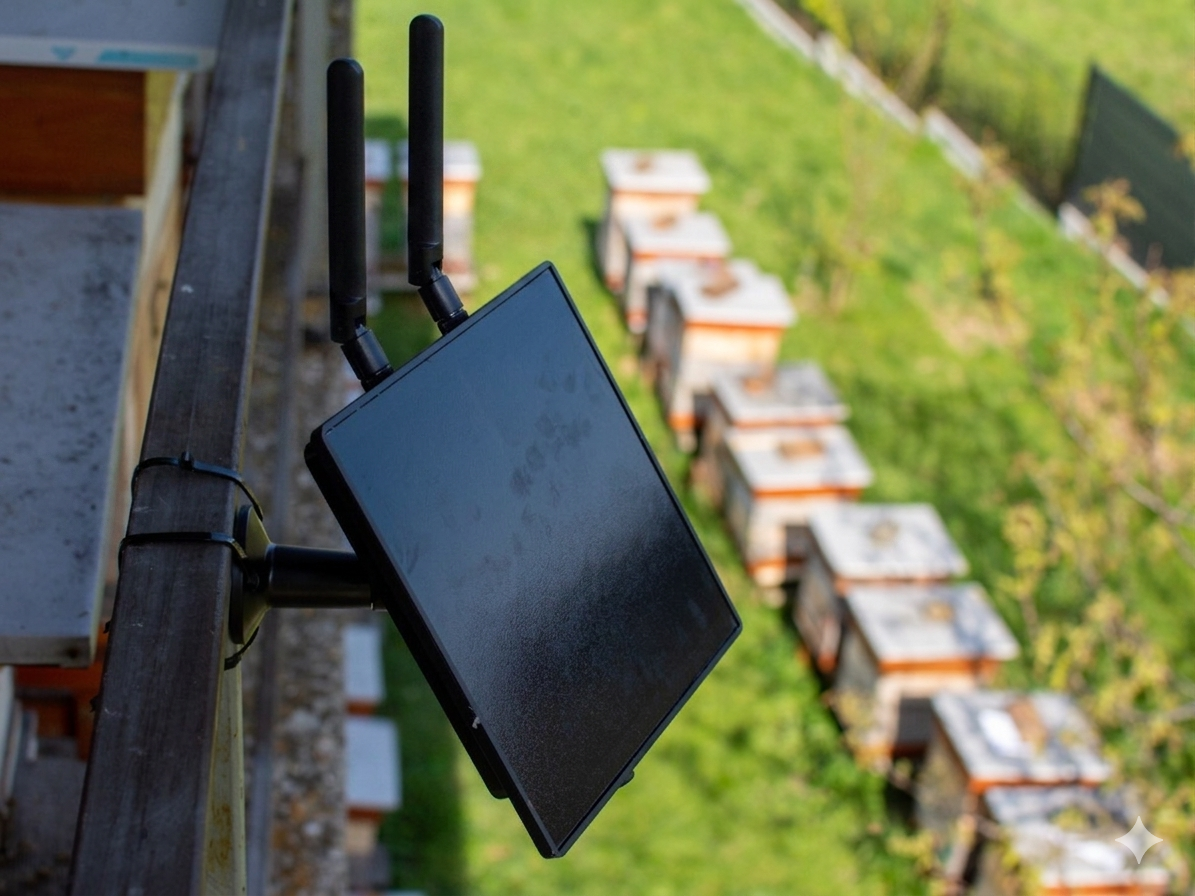
Slide: mount the Hub · Animation
Place the Scale under the hive
The Scale and the wooden spacer bar form one supporting structure. Levelling and orientation are critical for measurement accuracy.
- Put the powered Scale on firm, level ground, perpendicular to the frames in the hive, under one pair of the hive's legs.
- Lay the wooden bar parallel to the Scale, under the other pair of legs. The Scale and the bar are the hive's two supports. The bar is deliberately a few mm lower than the Scale: the Scale holds the load cell, so the hive must press on the Scale.
- Point the black electronics box towards the Hub. It holds the BLE antenna, and the hive body must not shield it.
- Set the hive on the structure and check that it stands firmly and rests on the Scale.
The Scale can be up to 35 m from the Hub, with nothing blocking the BLE signal.
Scale: IP44, −20 to +55 °C
Do not put the Scale where water can stand or where the ground can flood. See Operating and usage conditions.
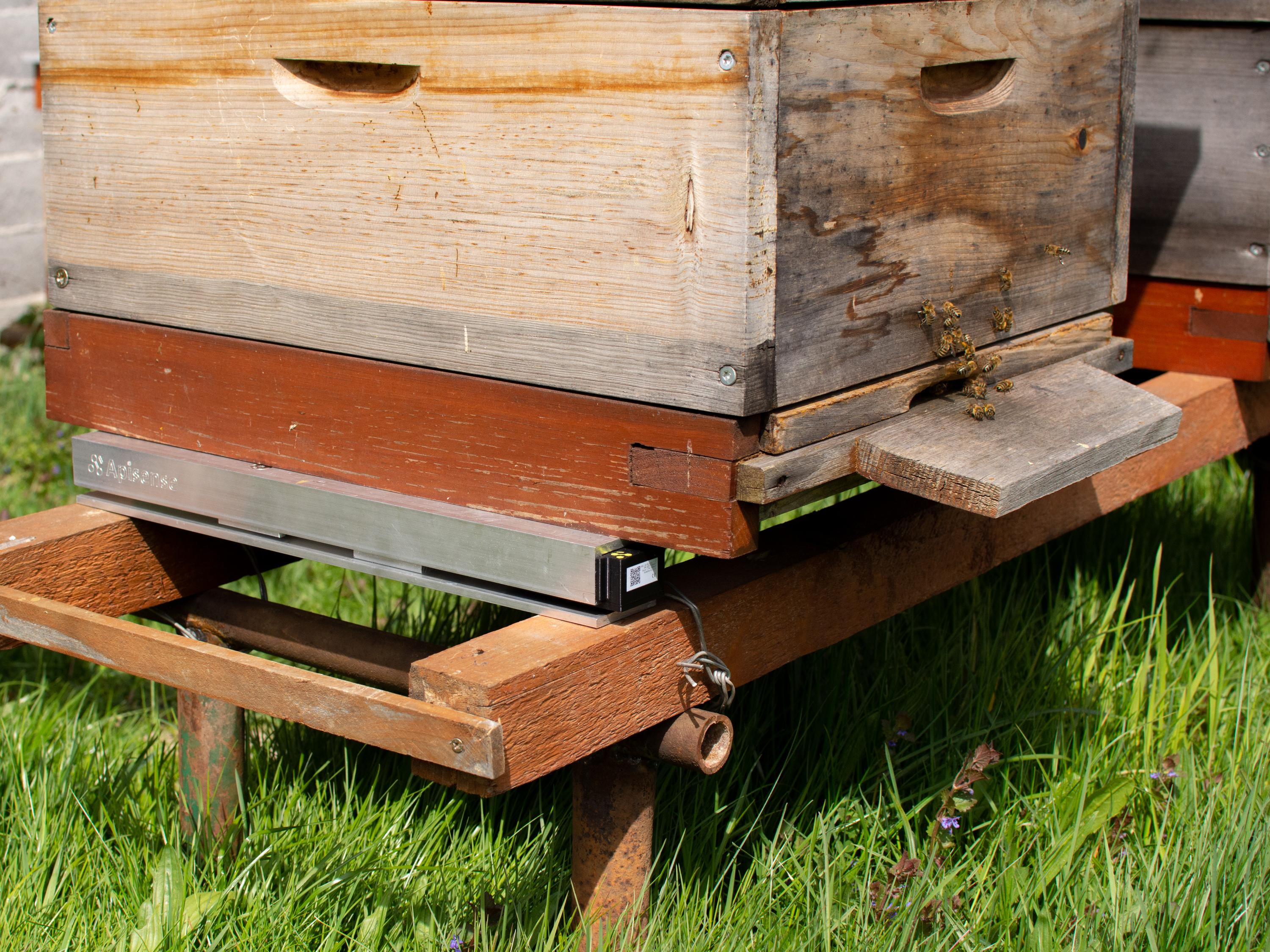
Slide: mount the Scale · Animation
Mount the VitalSensor in the hive
The sensor mounts non-invasively on a frame: no permanent changes to the hive and no disturbance to the colony.
- Fix the powered VitalSensor in the top corner of the central frame (in the cluster) with the two reusable cable ties from the kit (you can trim the ends). It must sit firmly and not shift.
- Mount it vertically, housing openings facing up; the QR sticker stays at the back.
- Slide the frame into the middle of the brood body, without obstructing ventilation.
The VitalSensor can be up to 35 m from the Hub. That is the BLE range.
Brood chamber only
The VitalSensor is intended for the brood chamber only. Do not install it in the honey super or on frames used to harvest honey for consumption. This keeps the VitalSensor and the whole monitoring system working correctly. The sensor housing is made of food-contact-approved material.
VitalSensor: up to +55 °C and 95 % RH
Brief condensation inside the hive is normal. Do not pour syrup, treatment products or other liquids onto the VitalSensor. See Operating and usage conditions.
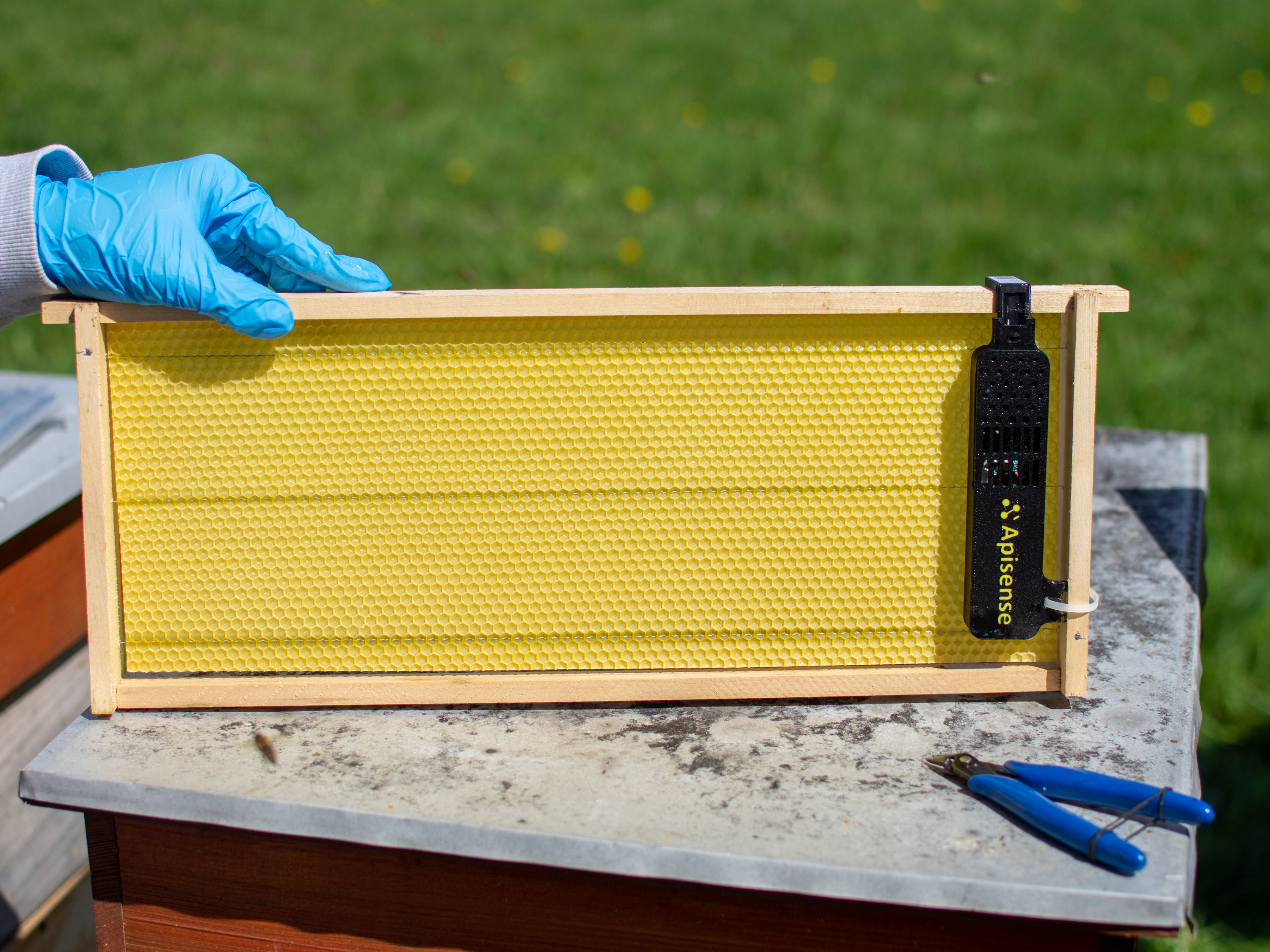
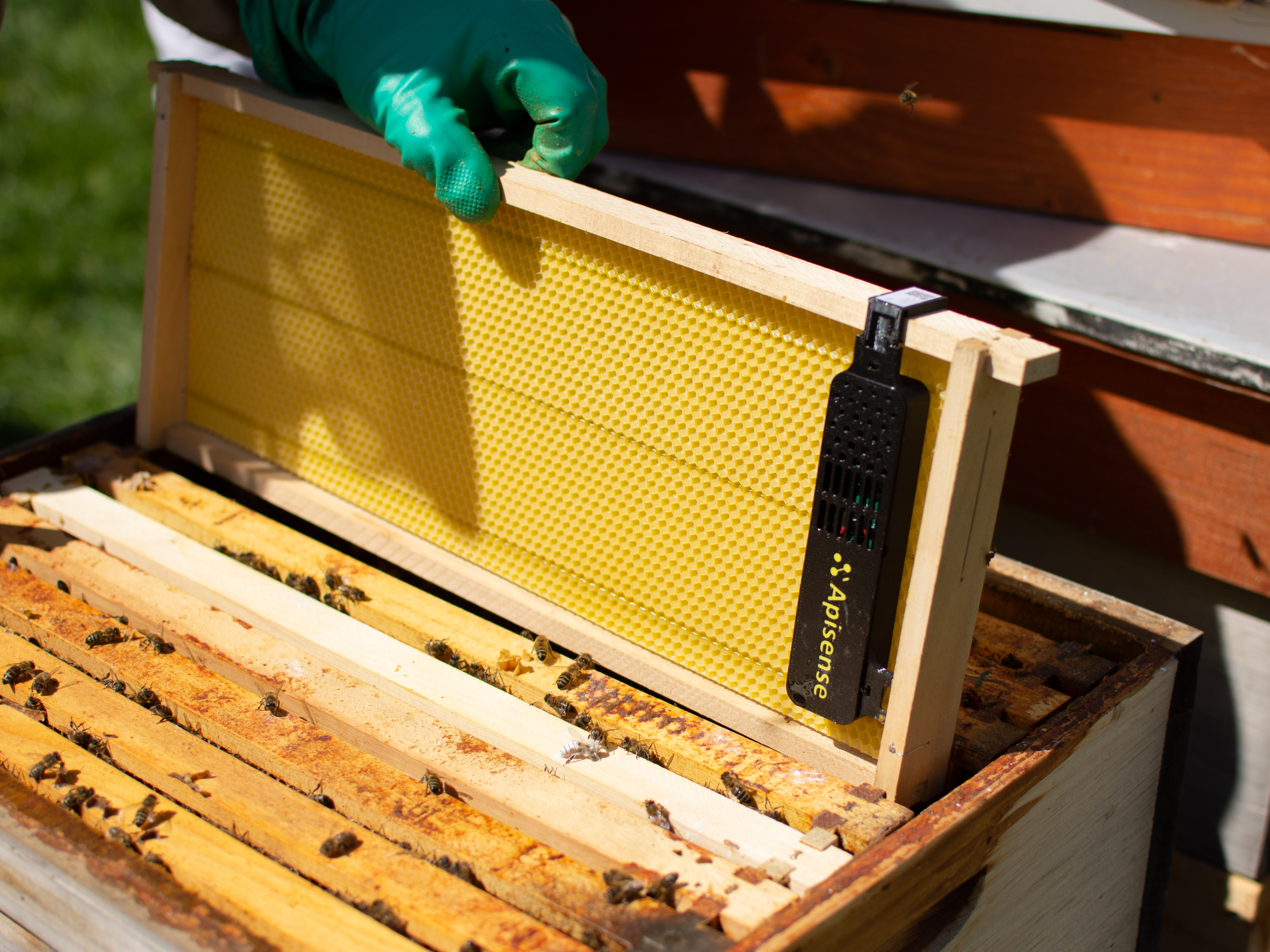
Slide: mount the VitalSensor · Animation
Hang the ColonyLink on the hive
The ColonyLink is a waterproof hang tag with a built-in NFC tag and a printed QR code. Tapping your phone against it opens the right hive, even with gloves on and in full sun.
- Pick a spot on the hive front that stays easy to see while you work.
- Hang the ColonyLink by the hole at its top, with the Apisense logo and NFC side facing out.
- The QR side faces the hive. You read the NFC side from outside, without opening the hive.
The ColonyLink has no battery. It needs no power, no setup and no updates.
All set: your hive is on air
The Hub collects sensor data and sends it to the app. If readings are still missing after a few hours, check the batteries, the range and the troubleshooting list.
Where to check the first readings:
- Apiary tile (Apiaries tab): the Hub's temperature, battery and LTE signal, and the number of active hives.
- Hive tile (Hives tab): temperature inside the hive and weight.
- Hive details: detailed weight and in-hive measurements.
If data is still missing, write to us: bee@apisense.ai.
Battery replacement
The VitalSensor and the Scale are powered by two AA alkaline batteries (2 × AA). Use only AA alkaline batteries. The Hub has no replaceable batteries: it has a built-in Li-ion battery charged from the photovoltaic panel. In weak sun you can top it up through USB-C. The ColonyLink has no battery.
When the batteries need replacing, the app shows it on the hive tile and in the Alerts tab. What to do in the app: How to replace the batteries in the VitalSensor and the Scale.
VitalSensor
Have two fresh AA alkaline batteries ready, then:
- Open the lid.
- Take out both used batteries.
- Insert 2 × AA alkaline, following the + and − markings inside the battery compartment.
- Close the lid and put the VitalSensor back in the hive, within range of the Hub, as in Mount the VitalSensor in the hive.
Scale
Replacing the Scale batteries means taking the Scale out from under the hive
The batteries are in the black box of the measuring beam.
Have a 4 mm hex key, a precision Torx T6 screwdriver (the tools are not included in the set) and two fresh AA alkaline batteries ready, then:
- Take the Scale out from under the hive.
-
Unscrew the brackets: two bolts with the 4 mm hex key.
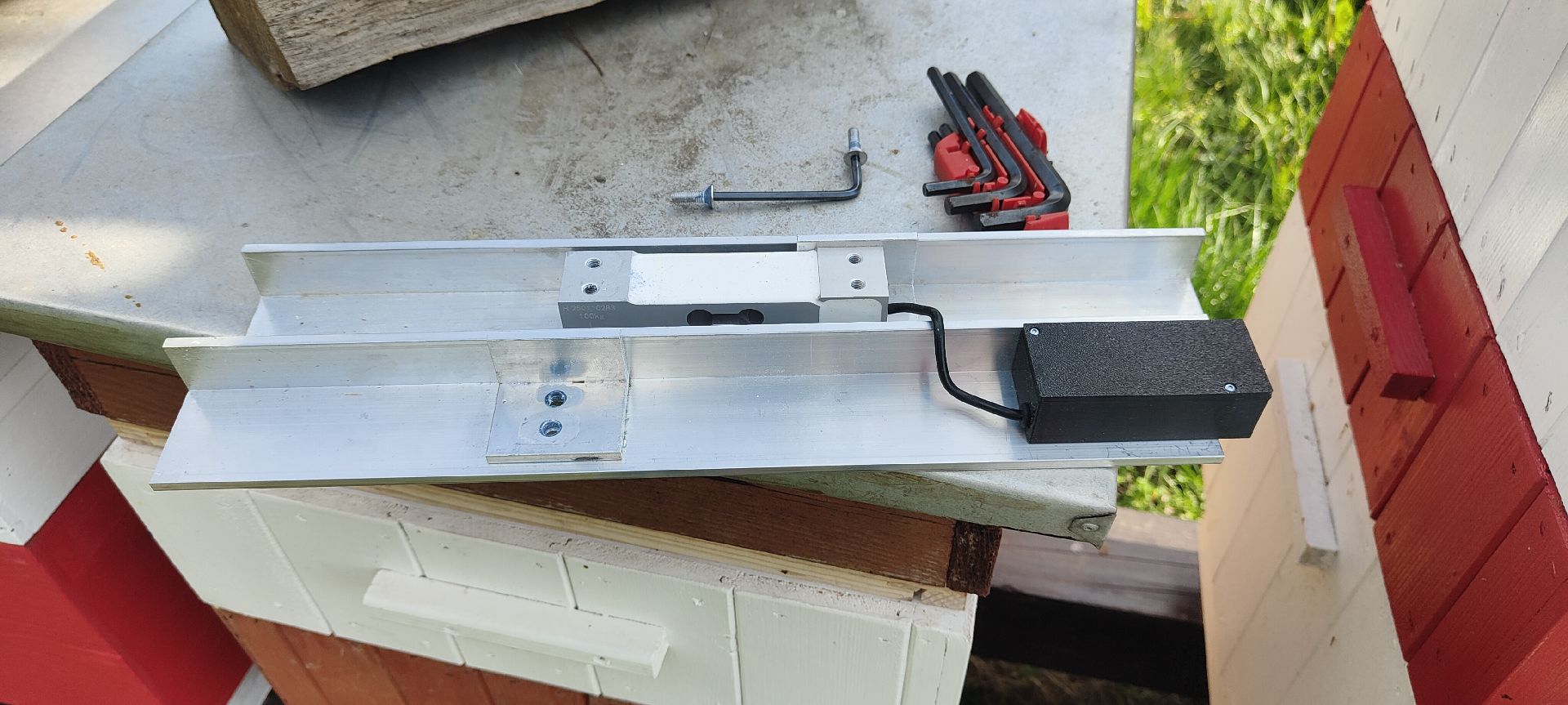
-
Open the black box: undo the two top-cover screws with the Torx T6 key and lift the cover off.
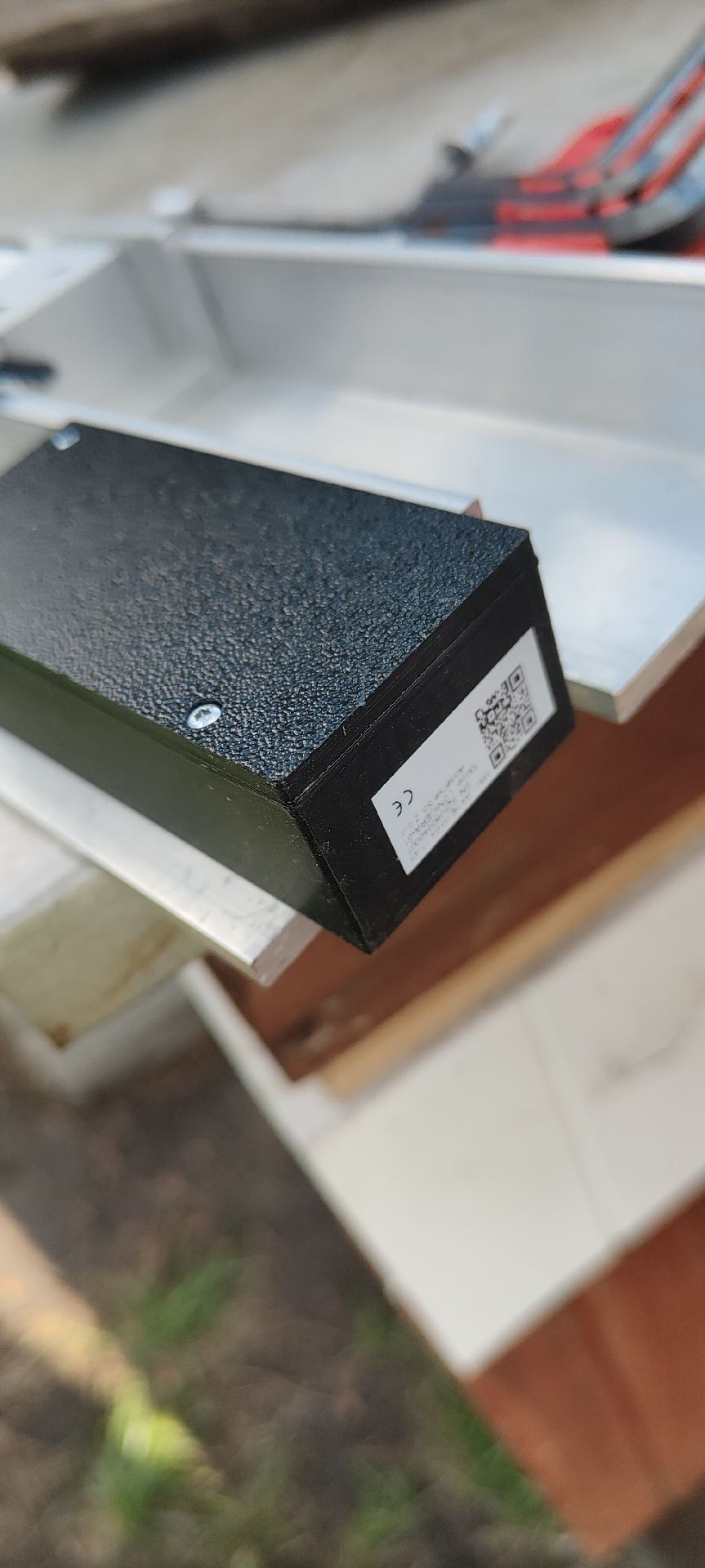
-
Remove both used batteries from the holder.
-
Insert 2 × AA alkaline in opposite directions, following the + and − markings.
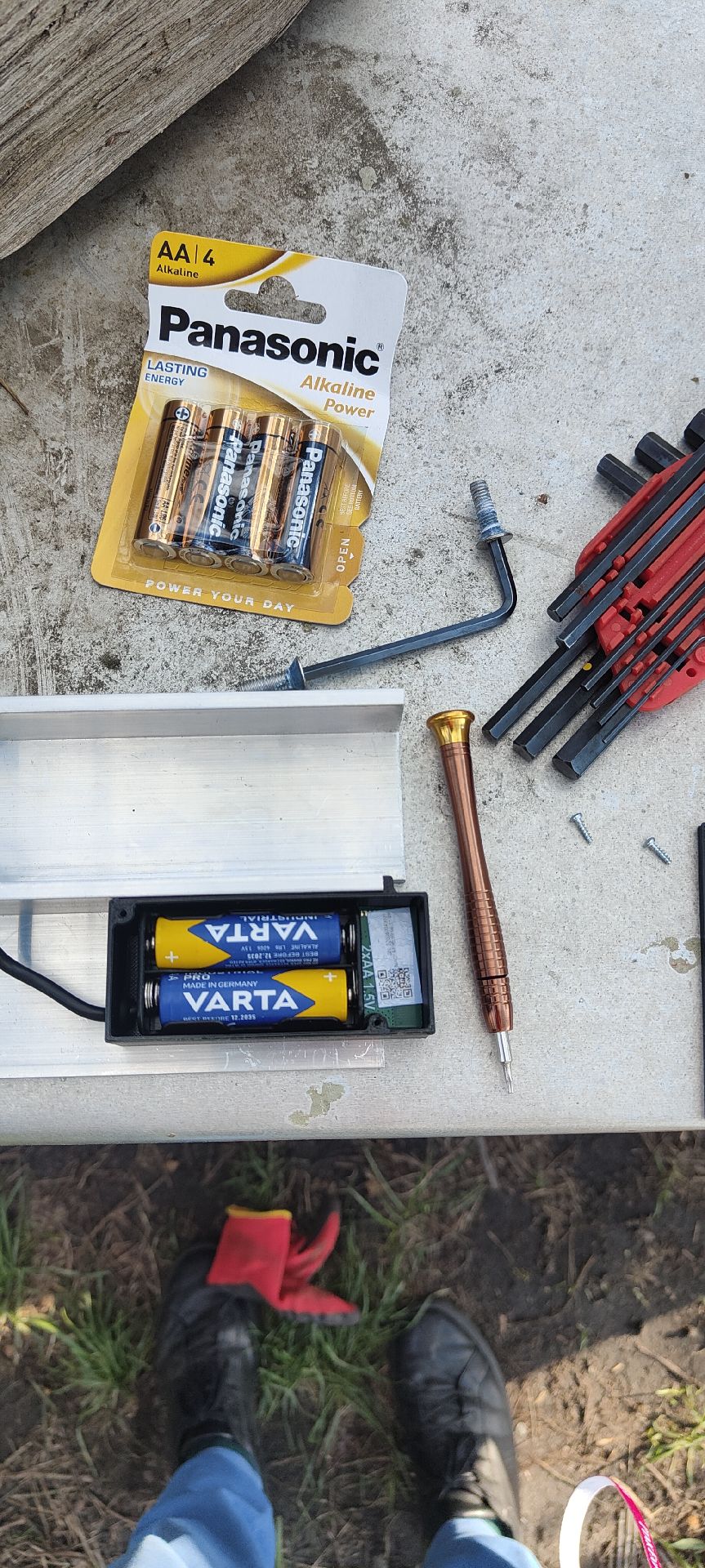
-
Refit the top cover and tighten the two Torx T6 screws.
- Refit the brackets and tighten the two bolts with the 4 mm hex key.
- Put the Scale back under the hive, within range of the Hub, as in Place the Scale under the hive.
After the battery replacement
- In Hive settings → Devices section you can tap I replaced the batteries on the card of the device whose batteries you replaced. The app confirms with Battery replacement confirmed. The button is not required, but it brings the data back sooner.
- Do not reset the Hub or the devices, do not re-pair them and do not remove them from the hive.
- The data updates automatically once the Hub is online. This can take up to a few hours.
More: FAQ: after battery replacement.
Moving a device to another hive
A VitalSensor and a Scale are assigned to a hive. You move a device with the Move button. You do not scan a QR code.
- In the old hive: Hive settings → Devices section → Move on the VitalSensor (or Scale) card.
- Select the target hive and confirm with Move.
The measurement history stays in the old hive. The new hive's charts start from the moment of the move. A Scale move resets the tare.
In detail, including what happens to the old hive's data: FAQ: moving devices between hives and apiaries.